
 For Mac with Apple silicon / macOS 14+
Give your Mac a helper that shows you how
Press fn in any app and ask out loud. DuckyHelper sees your screen, draws on it and explains, and can do the work for you in your apps.
Not on a Mac? Use DuckyHelper in your browser.
Setup guide
Here’s how to set up DuckyHelper on your Mac
The quick way
If you’re on your Mac now, click the button below to download DuckyHelper. Open the download, drag it onto Applications, sign in, then press fn in any app and ask out loud.
Download DuckyHelper for MacThe step-by-step way
On first launch, click Open, sign in, and setup walks you through Microphone, Screen Recording, Accessibility and Input Monitoring. Pick fn as your talk key, or a key you choose on a keyboard.
Watch a film
If you’d rather see it first, watch the film we launched DuckyHelper with:
 DuckyHelper for MacApple silicon · macOS 14 or later
Get it
Open the download and drag DuckyHelper onto Applications. Open it, click Open, sign in, and allow what setup asks for: Microphone, Screen Recording, Accessibility and Input Monitoring.
 “Where does this cross the x axis?”
Press fn
Press fn in any app. The pill opens and listens. It only hears you and looks at your screen while the pill is open.
Where y is 0: at x = 1 and x = 3. The lowest point is halfway, at (2, −1).Ask out loud
Ask about what's on your screen, like “Where does this cross the x axis?” It answers out loud and draws on your page. Press fn again, or click X, to put it away.
Permissions
Four things your Mac asks you to allow
The first time you open DuckyHelper, setup asks for four permissions. Turn DuckyHelper on in each one, in System Settings, Privacy & Security.
Privacy & Security
DuckyHelper turned on in each of the four.
Microphone
So it hears you.
Screen & System Audio Recording
So it sees your screen.
Accessibility
So it works in your apps.
Input Monitoring
So it notices when you press fn.
It hears you and sees your screen only while the pill is open.
Install
Drag it into Applications
Drag it into Applications
Open DuckyHelper.dmg from your Downloads. In the window that opens, drag DuckyHelper onto Applications, then eject it. Open it from Applications and sign in.
First use
Then press fn
Press fn and talk
Press fn in any app. The pill opens and listens. Ask about what's on your screen, or say a task and its own cursor does it in that app. Press fn again, or click X, to put it away.
Or drag the orb onto a window
Drag the orb onto any window, then type what to do there. It does the task in that window while you keep going. Stop it at any moment.
What you get
What you get
DuckyHelper on your Mac, and the chat in your browser with the same account.
The Dashboard
Your time with DuckyHelper and the topics you explored. Every task it does is recorded on your Mac: watch your 10 most recent again here.
The blackboard
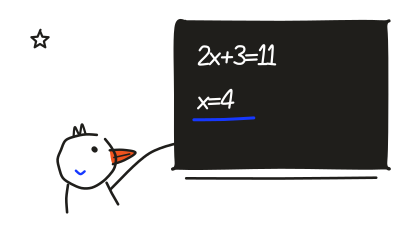
Ask it to show you and a blackboard opens over your screen. It works the idea out one line at a time while it explains.
The chat
Open the chat in your browser and sign in with your DuckyHelper account. Ask how something works and it teaches it from the start, drawing as it explains. Ask for a quiz and it makes one, right in the chat.
Questions
Before you download
What do I need?
A Mac with Apple silicon (M1 or later) on macOS 14 Sonoma or later.
Is it free to try?
Yes. A new account tries it free for a few minutes, with no card. Then you start a 10-day free trial of Plus: add a card to start, cancel before it ends and nothing is charged. One free trial per person. See the plans
Does it listen or watch when the pill is closed?
No. It hears you and sees your screen only while the pill is open. Press fn again, or click X, to close it.
How do I uninstall it?
Quit DuckyHelper, then drag it from Applications to the Trash. To take back its permissions, turn it off in System Settings, Privacy & Security.
How does it get updates?
It keeps itself up to date. What changed in each version is in the changelog. Changelog
