 Use case · LearningAvailable now
Learn a new app
while you use it.
For the first week in a new app, when every menu is a guess. Press fn and ask. DuckyHelper circles where to click, one step at a time, and says why.
macOS 14 or later on Apple silicon

One question, any app.
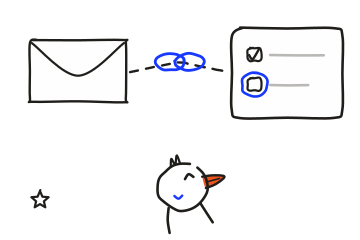
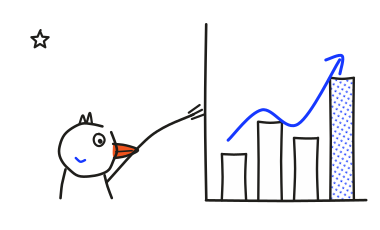
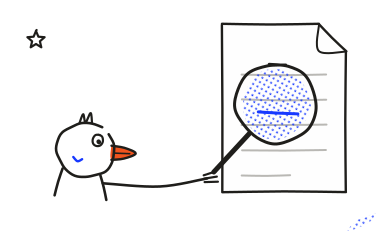
Eight examples of asking how, in eight kinds of app, each answered with ink on the app it was asked in.
- A spreadsheetHow do I show these as dollars?
- A video editorHow do I make the title fade in here?
- A design fileWhere do I add a drop shadow?
- A docHow do I add a checklist?
- SlidesHow do I number my slides?
- A photo editorHow do I crop this to a square?
- A site in your browserHow do I stop this site's notifications?
- A code editorWhere else is this function used?
The grind
Tutorials for a different version.
Learning a new app usually means a video made on another version, paused every ten seconds while you hunt for the same button.
Menus that moved. The button in the video is somewhere else in yours.
The word you don't know yet. Help pages are hard to search when you don't know what the thing is called, or which menu it might be under.
The same question twice. Asking a coworker the same thing again, because last week's answer didn't stick.
It points to it, right in the app.
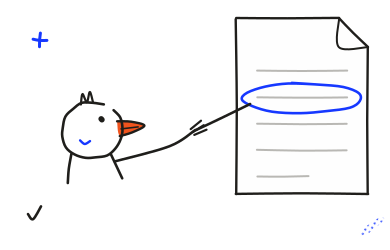
DuckyHelper sees your screen and answers right there, with ink on the app itself. Nothing to connect. You ask out loud, it circles the real button and says the step, you click it, and the next one comes, with the steps on the board when you want them.
Parts of this answer
Asking out loud
0:00 / 0:19
Nothing to connect. It sees the app on your screen, whatever the app is, with nothing to set up.
Ink on the app itself. Circles on the real buttons, in the version of the app you have open right now.
You do the clicking. It shows you where it is, so the next time you can find it yourself.
Circle where to click, one step at a time.
Blue ink lands on the real button as it says the step, then moves on to the next one once you've clicked.
One step at a time. One circle, one click, then the next circle, until the job is done.
Cleared when you click. The ink goes as soon as you've done the step it marked.
Step by step
Explain what each step does.
Out loud, at your pace. On the app, on the board or in the pill, each step comes with what it does and why it's there, so the next time you need it, you already know it yourself.
Says why. Each step comes with what it does and why it's there, not only where it sits on the screen.
On the board, if it helps. The blackboard writes the steps out beside the app, one line each.
At your pace. Ask why, or ask it to go through a step one more time, as often as you like.
Asking
Press fn and ask out loud.
No search box, no word to look up. Press fn once and ask.

Press, don't hold. One press of fn opens the pill, and you ask in your own words, the way you'd ask a person sitting next to you.
Right where you are. No help window to open and no search box to type in. It answers on the screen you're already on, in the app you're using.
Follow-ups
Ask “why?” as often as you like.
Ask in the middle of a step, out loud. It answers in the same place, with the ink still on the app.
Ask why. In the middle of a step, out loud. It answers on the same screen, with the ink still on the button.
Ask it again. Lost the menu a minute later? Ask, and the ink comes back on the real button.
It explains out loud, at your pace.

Select column E first, the one with the amounts.
It talks you through each step while the ink shows where, so your eyes stay on the app.
Out loud. Each step is said as it's drawn, so you can keep your eyes on the app you're learning the whole time.
In plain words. The button's name, where to find it on screen and what it does for you.
Ask any time. Ask “why?” in the middle of a step, and it answers right there on screen.
Blue ink on the real buttons, cleared when you click.
It draws on the app you have open, not on a picture of it, and the ink is gone once you click.
One step at a time. Each circle is one click, so you always know what comes next.
Any app
Any app, or any site in your browser.
Anything on your Mac. It reads what is on your screen, so there is nothing to connect and no list of apps to check.
Next time
You know where it is, and why.
You did it yourself in the real app, with ink on each step, so it sticks. Next time, you go straight to the right menu.
You did it. Every click was yours, in the real app on your own Mac, so you know you can do it again without a video or the ink.
It sticks. You learned where it lives in your version of the app, not in the version a video was made on.
Ask again any time. Press fn when you forget, and the ink comes back on the same button in the same menu.
Privacy
It looks only while
the pill is open.
Press fn to open it. Close it, and it stops looking and listening.
And a lot more.
Circling buttons is one of the ways it helps. A few of the others:
Ink on your screen
Circles, arrows and lines, drawn on the real buttons of the app you have open.
The blackboard
Writes a step out, one line at a time, beside the app.
3D models
Builds how a thing works, part by part.
Quizzes
A quick check on what you just learned, when you want one.
Out loud
Explains as it draws, in plain words.
Follow-ups
Ask why, and it answers in the same place.
Made for the Mac.
DuckyHelper is a Mac app. Press fn in any app, and it works with what's on your screen.
Apple silicon. Made for Macs with Apple silicon that run macOS 14 or later, from one download.
Press fn. One key opens the pill in any app you have open, from a spreadsheet to a site in your browser, and you ask out loud.
Only while it's open. It looks and listens while the pill is open, and stops as soon as you close it again.
Questions & answers.
Something else on your mind? Get in touch.
Any app on your Mac, or any site in your browser. It reads what is on your screen, so there is nothing to connect.
Excel, Figma and Notion are examples of apps people ask about, not a list.
Here, it shows you where: it circles the button, says the step, and you click it yourself, so next time you know it.
If you'd rather it did the work, it can do that too, with its own cursor.
No. It looks and listens only while the pill is open. Close the pill and it stops.
Press fn once and ask out loud, in your own words. One press is enough.
No. It works from what is on your screen, so there is nothing to connect for this.
Yes. Ask why, or ask it to go over a step again, as often as you like. It answers in the same place.
A Mac with Apple silicon, on macOS 14 or later.
The plans are on the pricing page, as they are today.