
Help and support
Ask DuckyHelper itself: it opens the place in the app and marks the real buttons. Everything else is below.
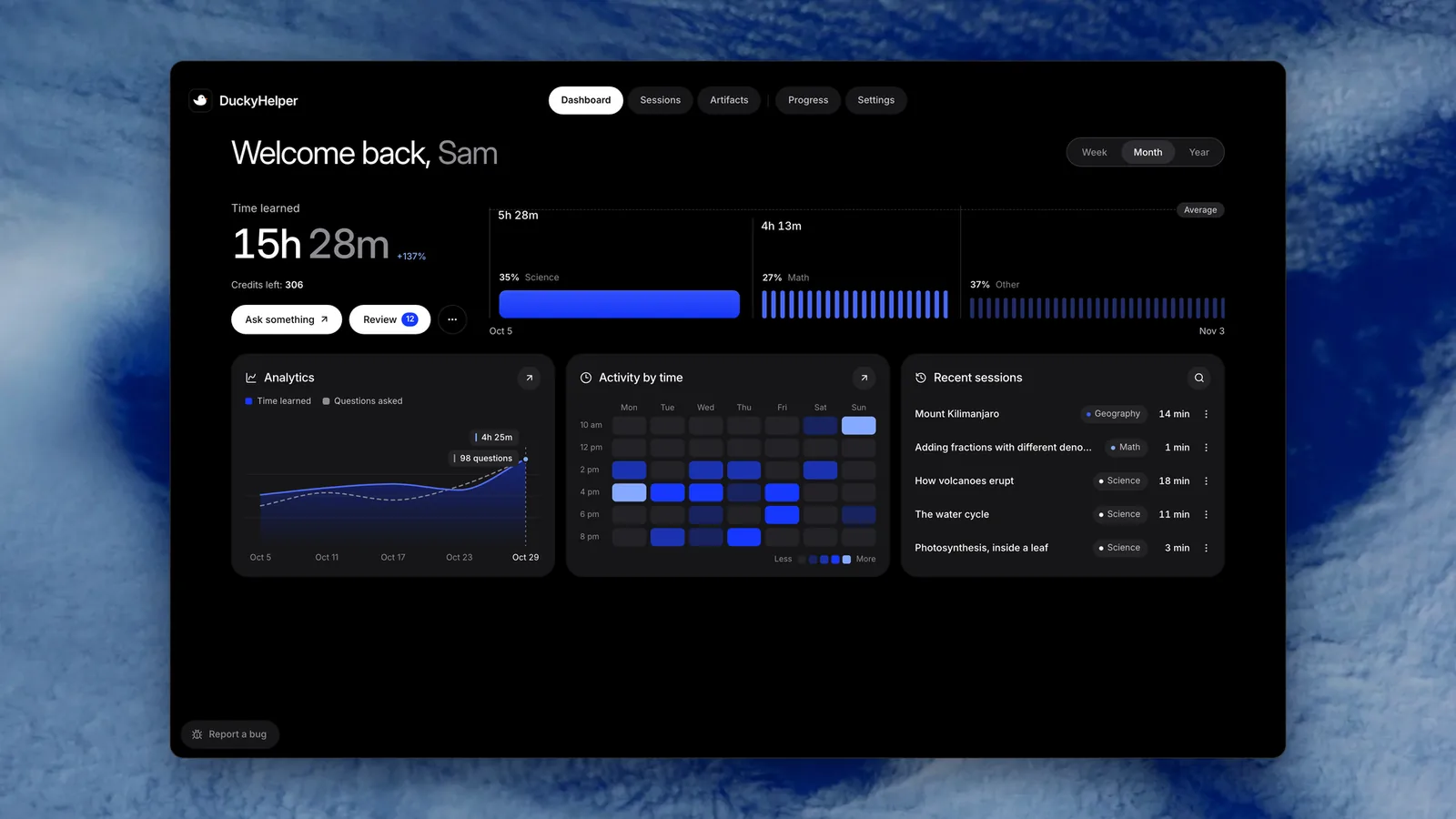
 Time learned, your subjects, when you study and your latest sessions, on the Dashboard.
Popular help guides
Step by step, with the words to say and pictures of the app, on docs.duckyhelper.com.
Other ways to reach us
Try it on your own work
Press fn on a Mac (Ctrl+Shift+Space on Windows and Linux) and say it out loud. It sees your screen, so it works on your own problem with you, and shows you.
“How do I share a session?”
DuckyHelper is an app for Mac (Apple silicon, macOS 14 or later), Windows and Linux.
Keep exploring
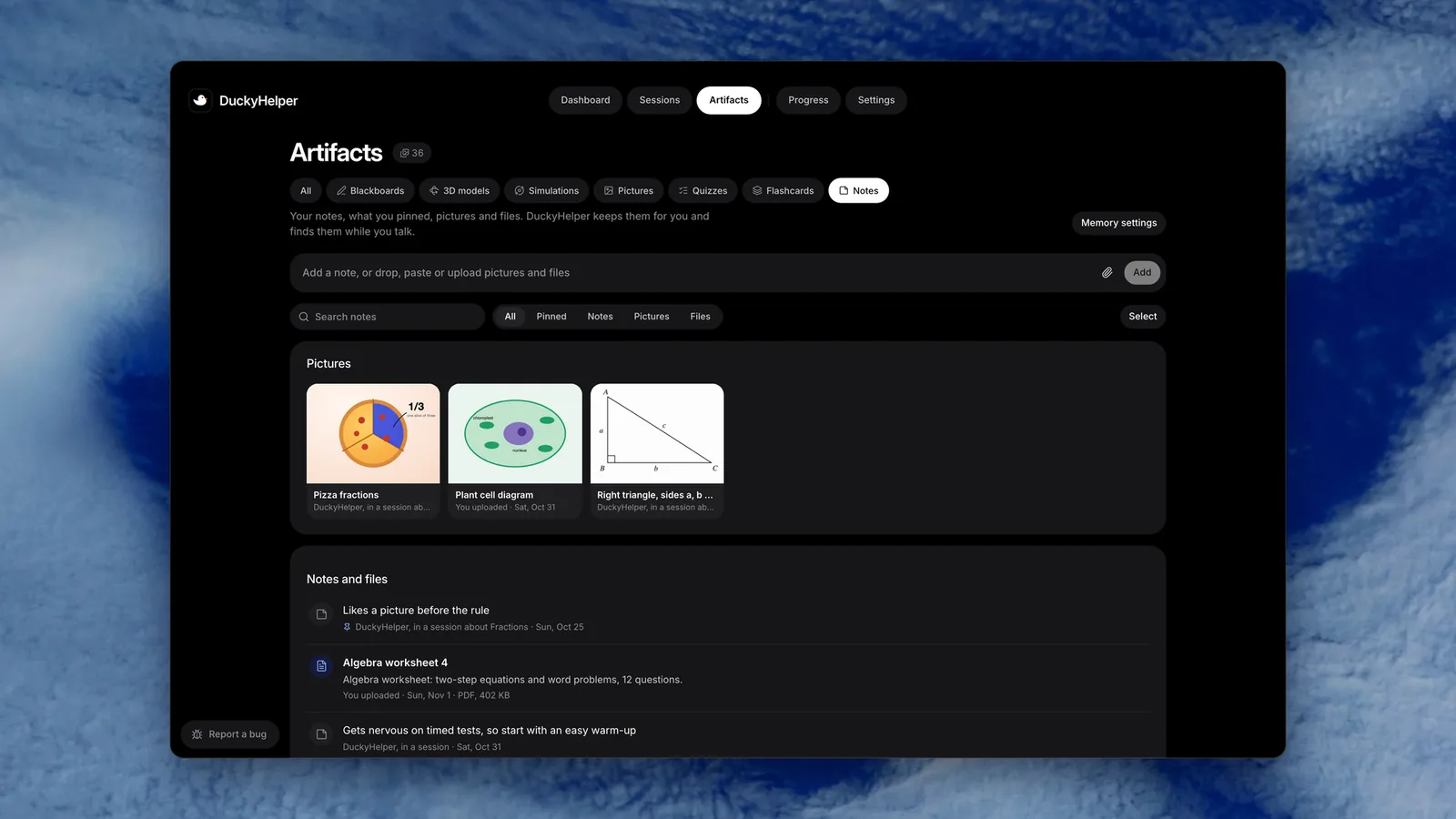
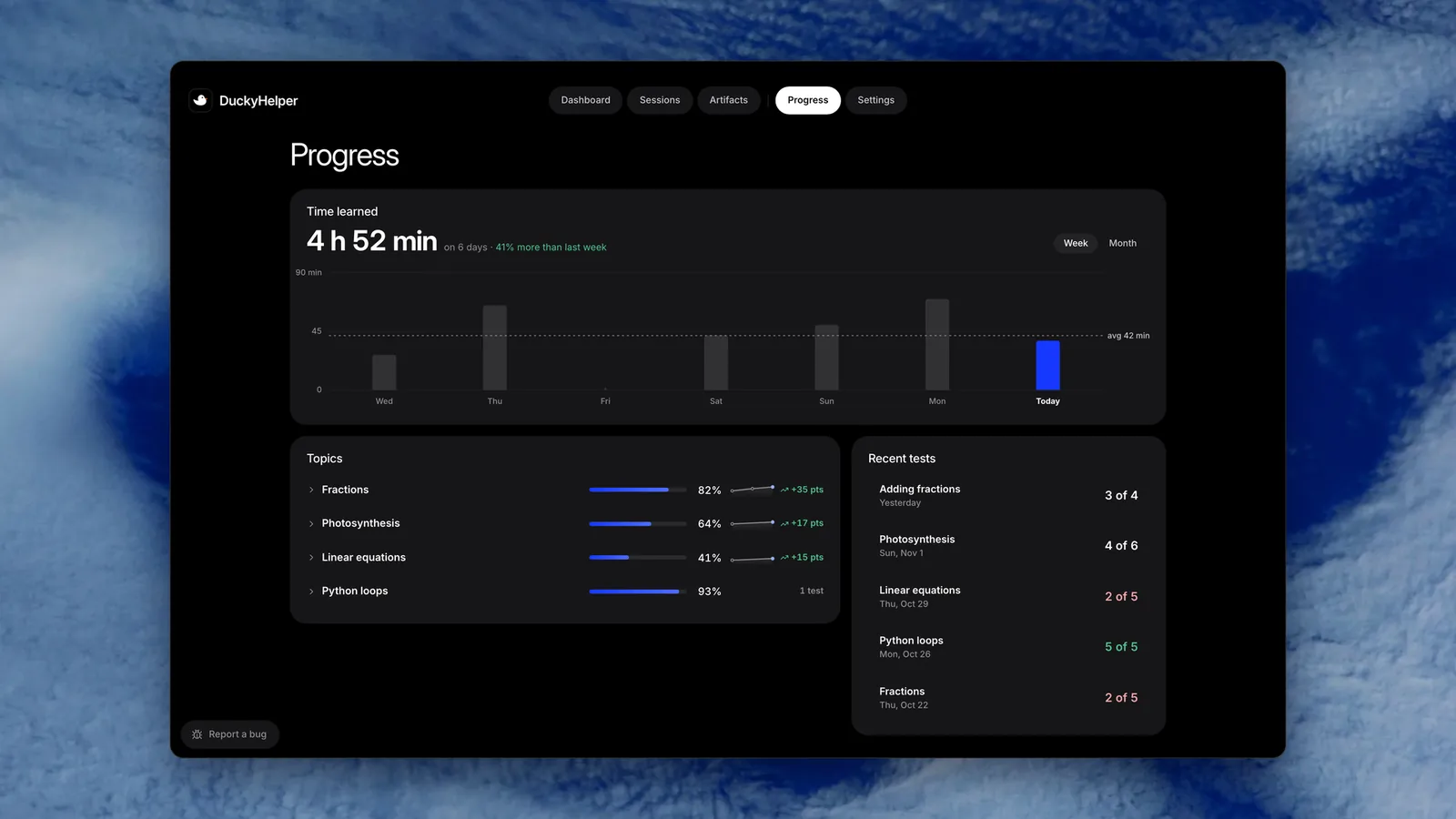
Read the whole page as text
DuckyHelper is an app for Mac, Windows and Linux. Download it, sign in, then press fn on a Mac (Ctrl+Shift+Space on Windows and Linux) and ask out loud; a Mac also asks for four permissions. It isn't on Chromebooks yet. For anything this page doesn't answer, email support@duckyhelper.com.
Popular help guides
Step by step, with the words to say and pictures of the app, on docs.duckyhelper.com.
- Welcome What it is, the pill, and where to start.
- Getting started Press fn, then try each thing it can do, with the exact words to say.
- Install on your computer Download, drag to Applications, open it and sign in.
- Set up your Mac The four permissions, your talk key and getting to know you, in one window.
- Plans and credits Each plan's credits for the month, no hourly limits, and top-ups.
- Privacy and data What is kept, the switches you have, export and delete.
- Drawing and the blackboard Circle the mistake on my worksheet, or show me on the board.
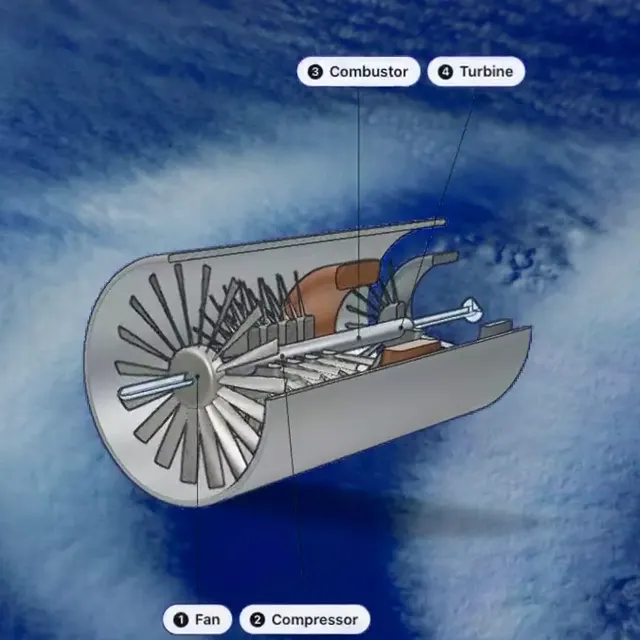
- 3D models Ask how a jet engine works, turn the model, click a part to ask.
- Share a session A link to what it showed, with the conversation if you like.
- Fix a problem The microphone, sign-in, being offline, and fn doing nothing.
- Talk to DuckyHelper Press fn and talk; the pill listens and DuckyHelper answers out loud.
Getting started
Install it and ask
- Get the app from the download page.
- Install it. Open the download and drag DuckyHelper onto Applications. If you open it straight from the download window, it offers to move itself there: click Move to Applications.
- Open it. On first launch, macOS asks whether to open an app downloaded from the internet. Click Open.
- Sign in and allow permissions. Setup opens like a short film, asks your name in the pill, then walks you through the rest in one window, with a bar that shows how far you are: your account, the four permissions (a small helper shows where to drag DuckyHelper in System Settings), your talk key (fn, or a key you pick on a keyboard), its voice and a little about you.
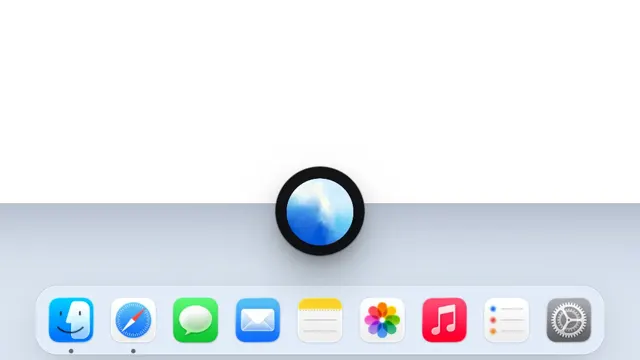
- Press fn and ask. The black orb at the bottom of your screen wakes up and listens. Press fn again, or click X, to put it away.
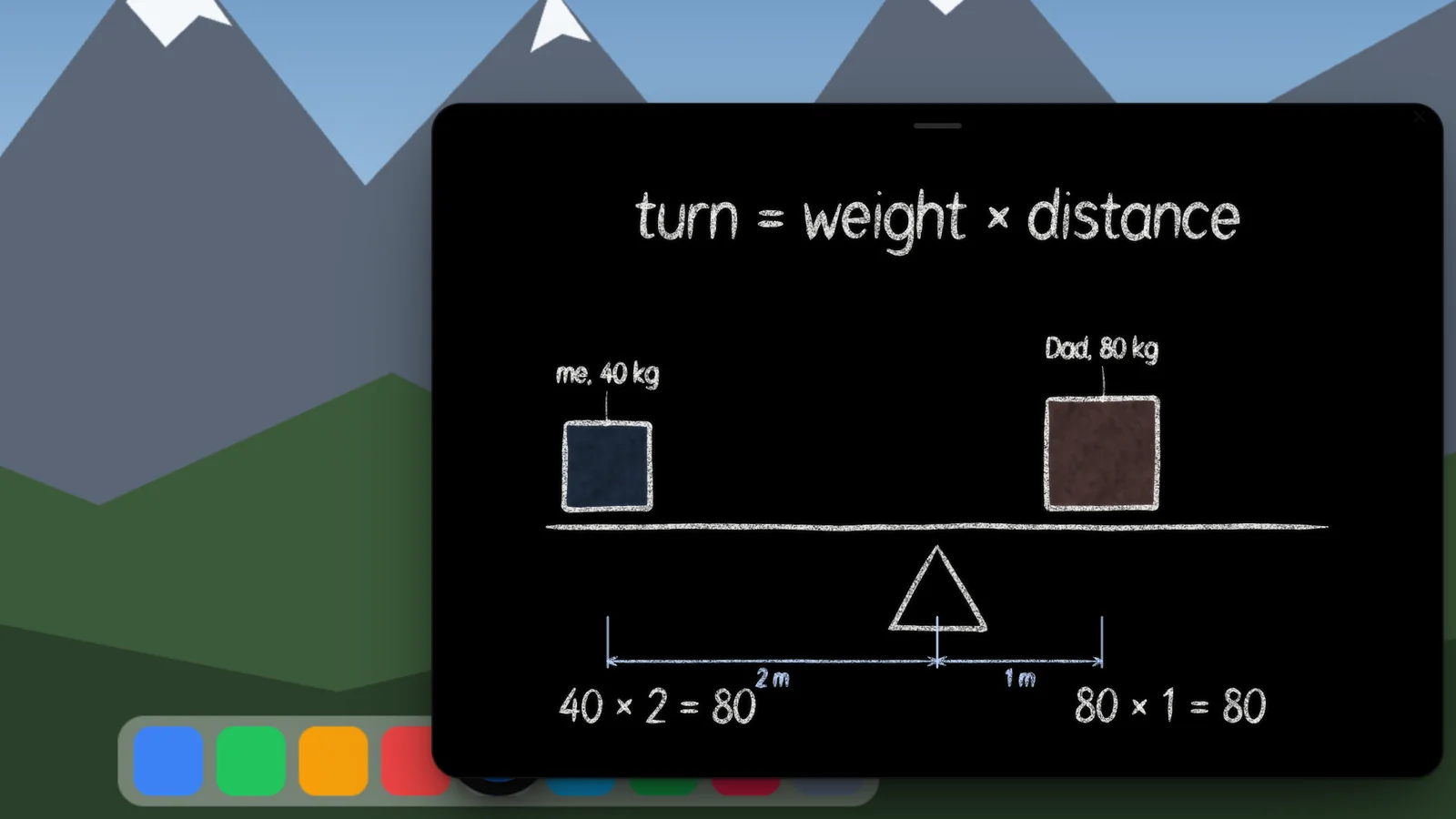
The tutor lives in the pill. Ask out loud: DuckyHelper sees what is on your screen, answers out loud and draws while it explains, with circles, arrows and notes right on your work, or on a small blackboard that opens beside it. Each mark lands on the word it is saying. Ask how something works and it builds a 3D model you can turn and click to ask about; ask to see something real and a photo comes up with its parts labelled. Turn on captions in Settings, General to read its words at the bottom of your screen. For practice it can bring up a quiz, flashcards or worked steps. The tutor shows you; it does not click or type on your screen. Doing the work for you in your apps, with its own cursor, is a separate feature in early access on Mac that is built to ask before it sends or pays: Does the work. Not sure what to ask? Try one of these, or follow Getting started.
On a Mac, DuckyHelper lives in the menu bar (the duck). From there you can Talk to Ducky, Open Dashboard, open Settings, Open Blackboard, check Permissions, Show Onboarding Again, turn on Launch at Login or Use Island (Beta), Sign Out, Check for Updates or uninstall. To point at something yourself, hold fn + cmd and move the mouse: a blue trail follows, and Ducky sees what you pointed at.
What you need
- Windows and Linux: Windows 10 or 11 on x64 (the ARM64 build is a beta), or 64-bit Linux (x64 or ARM64) as a .deb (recommended on Ubuntu and Debian) or an AppImage, in an X11 session with a normal desktop (GNOME, KDE, Xfce or Cinnamon), with a microphone and an internet connection. Press Ctrl+Shift+Space to talk. There is no web or phone version.
- The Mac app: a Mac with Apple silicon (M1 or later; Intel Macs are not supported), macOS 14 Sonoma or later, a microphone, and an internet connection, because Ducky's voice and thinking run online.
Permissions, and why the app asks
The Mac app asks for four permissions:
- Microphone: To hear you when you talk to Ducky in the pill.
- Screen Recording: To see what you are looking at, so it can help with the exact problem in front of you. macOS turns it on after you quit and reopen the app.
- Accessibility: To point and draw at the right spot on your screen, and follow where you click and type.
- Input Monitoring: To catch the fn key from any app.
Check them any time from the menu bar duck, Permissions, or in Settings, Permissions. If a permission is on but not working, remove DuckyHelper from that list in System Settings with the minus button and add it again.
Windows and Linux
On Windows, download the installer and open it. DuckyHelper is new and its installer isn't signed yet, so Windows may say Windows protected your PC: click More info, then Run anyway. On Linux, install the .deb (recommended on Ubuntu and Debian), or on other Linux download the AppImage, allow it to run as a program and open it. It needs an X11 session ("Ubuntu on Xorg" at the login screen) and a normal desktop such as GNOME, KDE, Xfce or Cinnamon. Then sign in and press Ctrl+Shift+Space. It isn't on Chromebooks yet. The web app at app.duckyhelper.com has closed; a parent with a linked family dashboard can still sign in there to see it.
Privacy basics
- Your voice goes straight to the AI service that runs the conversation. We don't record or keep your audio.
- In the app, pictures of your screen go to that AI service so Ducky can see what you're asking about. We don't keep them unless you or Ducky save one to memory.
- We keep your account, a written transcript and summary of each session, your progress, tests, flashcards and what is in Ducky's memory, so Ducky can pick up where you left off.
- A session you share by link shows what DuckyHelper drew and showed and, unless you turn off Include the conversation, what you both said out loud, with names, emails, phone numbers, addresses and links taken out. Never your screen or your voice. Links end after 90 days, or when you stop sharing.
- We don't sell your information or share it for ads, and neither we nor the AI service we use train AI models on it.
Read the full Privacy Policy, or the plain-words summary on Safety and privacy. Every switch for your data, and where it is in Settings, is on Data controls.
Kids and teens
You need to be 13 or older to make your own account, and teens 13 to 17 need a parent's or guardian's OK. Children under 13 can use DuckyHelper only after a parent gives verifiable consent, as the Children's Privacy Notice explains.
Billing
Each plan comes with credits for the month (Unlimited: a fair-use amount for the week), with no hourly limits. Plans, credits and top-ups are all on Pricing, and one plan covers every Mac you sign in on. Everything about your plan lives in Settings, Plan & billing; Manage billing there opens Stripe's page to cancel, switch plans, change your card or download invoices. Refund rules are in Billing, Subscriptions and Refunds.
Your account and your data
Export your data: Settings, Account, Export my data builds a ZIP of your sessions, progress, tests, memory and the pictures Ducky made, and emails you a link. You can export up to 3 times a day.
Delete your account: Settings, Account, Delete account…, then type your account's email to confirm. It stops any paid plan, without a refund, and deletes your sessions, progress and memory. Records of payments and consents are kept where the law requires.
Uninstall the Mac app: menu bar duck, Uninstall DuckyHelper…. It moves the app to the Trash, removes its data on this Mac, gives the fn key back and asks macOS to forget its permissions. Your account stays online.
Updates
The Mac app downloads new versions in the background and installs them when you quit, or right away with Restart to Update in the menu. What changed is on What's new.
Other ways to reach us
- Help, billing and your account: support@duckyhelper.com. Write from your account's email address and a person replies.
- Privacy questions and requests: privacy@duckyhelper.com, for access, correction, deletion and anything about your data.
- Press and everything else: hello@duckyhelper.com. The press kit has the facts, logos and films.
- A security problem: security@duckyhelper.com. We reply within 5 business days.
Questions
What do I need to run DuckyHelper?
A Mac with Apple silicon (M1 or later) and macOS 14 Sonoma or later, a microphone and an internet connection. Or a Windows 10 or 11 PC, or Linux, with a microphone and an internet connection. It isn't on Chromebooks yet. There is no web version, and Intel Macs are not supported.
Does DuckyHelper work on a Chromebook or a Windows PC?
On Windows, yes; on a Chromebook, not yet. DuckyHelper runs on Windows 10 or 11, on Linux and on a Mac. Get it on the download page. There is no web version. Press Ctrl+Shift+Space in any app (fn on a Mac) and it sees and draws on your screen.
The microphone does not work. What do I do?
Turn on Microphone for DuckyHelper in System Settings, Privacy and Security. If another app is using the microphone, close it. Every error in the app says what to do with a button.
I press fn and nothing happens.
Turn on Input Monitoring for DuckyHelper in System Settings, Privacy and Security, then quit and reopen DuckyHelper from the menu bar duck. If it is on but still not working, remove DuckyHelper from the list with the minus button and add it again.
Does Ducky record my voice or keep my screen?
No. Your voice goes straight to the AI service that runs the conversation and is not recorded or kept. Screen pictures go to that AI service and are not kept unless you or Ducky save one to memory. Neither we nor the AI service we use train AI models on your data.
Can my child under 13 use DuckyHelper?
Only after a parent or guardian gives verifiable consent. When a child under 13 signs up, the app asks a parent first and emails them. The parent reads what we would collect, makes a parent account and confirms, as the Children's Privacy Notice explains.
How do I delete my account or download my data?
Open Settings, Account. Export my data builds a ZIP of your sessions, progress, tests and files and emails you a link. Delete account… asks you to type your email, then stops any plan and deletes your data. You can also email support@duckyhelper.com.
How do I cancel my plan?
Open Settings, Plan & billing and click Manage billing. Stripe's page opens and cancelling takes a couple of clicks. Your plan stays on until the end of the period you paid for. Deleting the app does not cancel a plan.