
An AI biology tutor that draws it out
DuckyHelper is an AI biology tutor that answers with a picture. Ask how blood clots or how muscles move, and a picture comes into focus on Eddy's desk while Eddy names each part out loud and labels it. Tap any part to ask what it does, read the real article with Eddy, then check yourself with a quick quiz. It is a Mac app, so Ducky can also explain the diagram already on your screen.
Ask how it works
Biology is mostly things you can't see: cells, molecules, the inside of an arm. Each of these films carries one question a learner asked out loud.
How does a bee make honey?
The real Eddy bar hears the question word by word as it is said. Eddy answers out loud with captions and shows it on its desk: words, a picture or the blackboard, whichever explains it best. Ask the next question the same way.

How do vaccines teach your body?
A good answer here is a story in steps: what the vaccine shows the immune system, what the body makes in return, and why it remembers. Eddy can put those steps on the blackboard in time with its voice, then hand you a your turn question to check it landed.
How do muscles move?
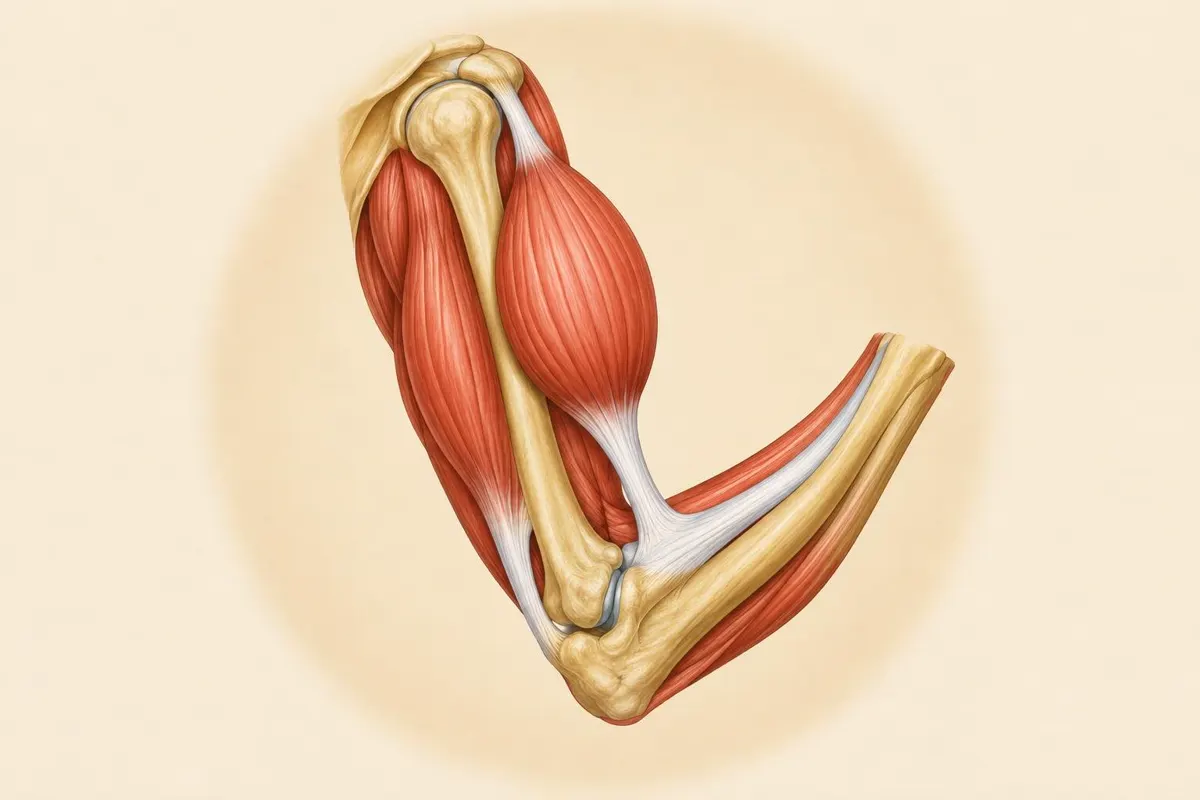
In this film the answer flashes past: Eddy's real picture How muscles move, with Biceps, Triceps, Tendon and Bone labelled. Ask it yourself and you get a picture to explore at your own pace, and you can tap the tendon to ask what it does.

A picture you can ask about
Ask to see something and a soft window opens on Eddy's desk: a blur comes into focus, and labels are drawn on it one by one as Eddy names the parts. Click a part to ask about just that part. Move it, resize it, or fill the desk with it.
A made picture like this arm is part of Plus and up. A real photo from Wikipedia, with its credit, and a drawn diagram work on any plan, including the Free plan.
A quiz can ask you to label a drawing: you place the names yourself, and a wrong one tells you why.
A new tab in Eddy has three example lessons to replay, including Inside a leaf and Why are leaves green? Press Ask Eddy about this to take one over.
The real article, read together
Press Research (Cmd + E) and find an article: Wikipedia, NASA and US government science pages, public-domain books, or your own class notes. It opens in a clean reader. Select a sentence to ask about it, or press Listen and Eddy reads it aloud while the words light up.
When Eddy researches a question, it quotes only paragraphs it actually read and builds a short brief with numbered citations, so you can open the source yourself.
Open a PDF, slides or a photo of a handout with Open a file. Eddy reads it with you, and you can highlight and write on it.
Press fn and ask about the diagram in your textbook or slides. Ducky sees it while the pill is open, points at the part it means and draws an arrow on your screen.
Biology study guides
Ask Eddy
Say one of these out loud. Eddy picks how to show it: words, a picture or the board.

How to use it
Frequently asked questions
Can an AI tutor draw biology diagrams?
Yes. Ask Eddy to show you a cell, a heart or a leaf and it opens a picture on its desk, then labels each part as it names it. Click any part to ask about it. Made pictures are part of Plus and up; real photos and drawn diagrams work on any plan.
Can it help me read my biology textbook?
In the Eddy tab, open your notes or a PDF and ask about any sentence, or read a Wikipedia article in Eddy's reader with numbered sources. Or press fn and ask about the page or slide already on your screen.
Will it help me remember all the terms?
Ask for flashcards on a topic, or for a quiz that asks you to label a drawing. Questions you miss can be saved as flashcards that come back right before you would forget them.
Is it right about biology?
It is usually right, and it can still be wrong, like any tutor. For anything you will be graded on, ask Eddy to look it up: it reads real sources with you and cites the paragraph it used, so you can check it.
More subjects
Ask what you've always wondered
Get the Mac app, open the Eddy tab and ask out loud, or press fn over the diagram on your screen.