

How to use DuckyHelper in Dropbox
Dropbox folders get shared once and forgotten. Ask DuckyHelper about the sharing list on your screen and it circles who can do what. Hand it the link, the archiving or a rule that files client uploads as they arrive and it works in Dropbox for you (Early access).
Check who can see a folder
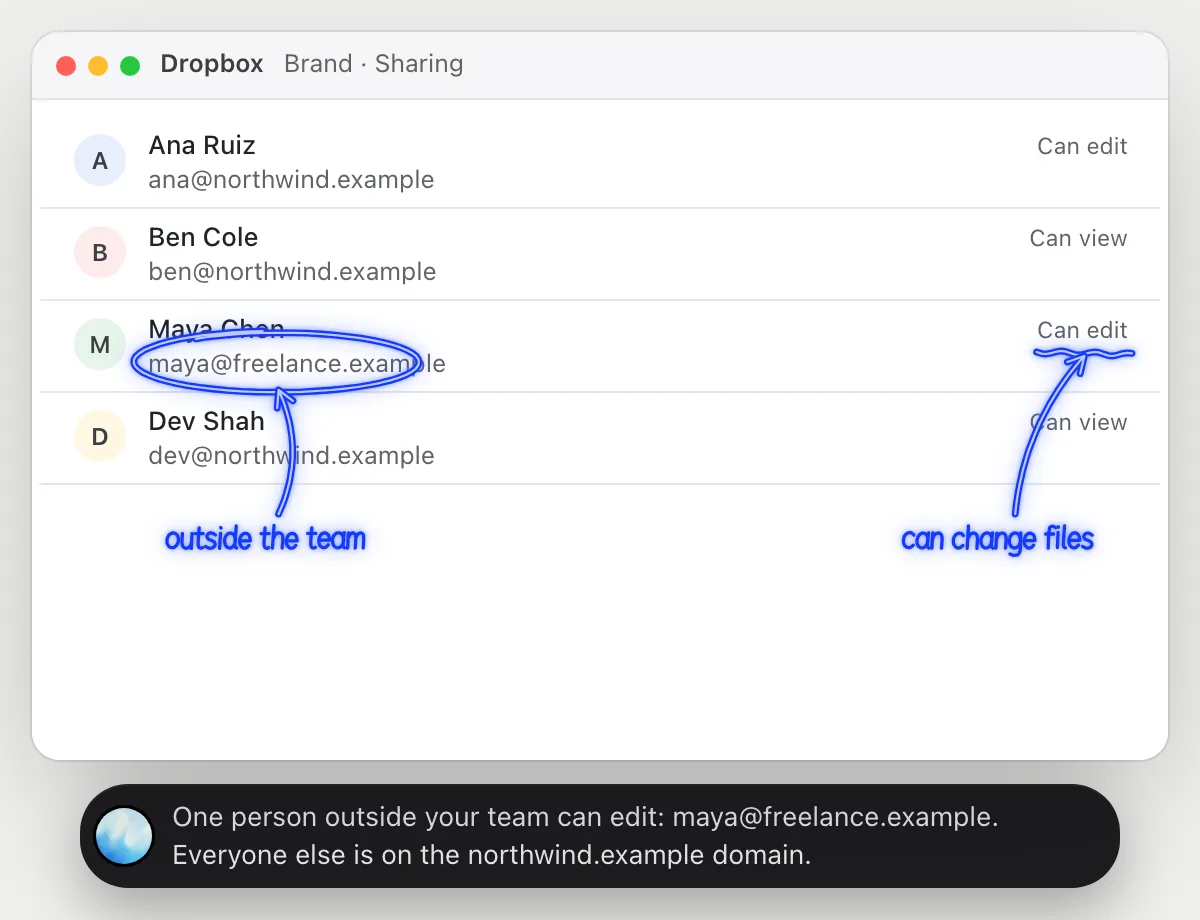
“Who has access to this folder, and can anyone outside the team edit it?”
- 01Open the folder's sharing list so the names and access are on screen, then ask out loud.
- 02DuckyHelper reads each person, their email and whether they can view or edit.
- 03It compares the email addresses with your team's and circles anyone from outside who can edit.
- 04Ask who could be removed and it points at the people who haven't opened the folder, if the list shows that.
You getA clear answer on who can change this folder, including the person you didn't expect.
 One person outside your team can edit: maya@freelance.example. Everyone else is on the northwind.example domain.
Send a view-only link
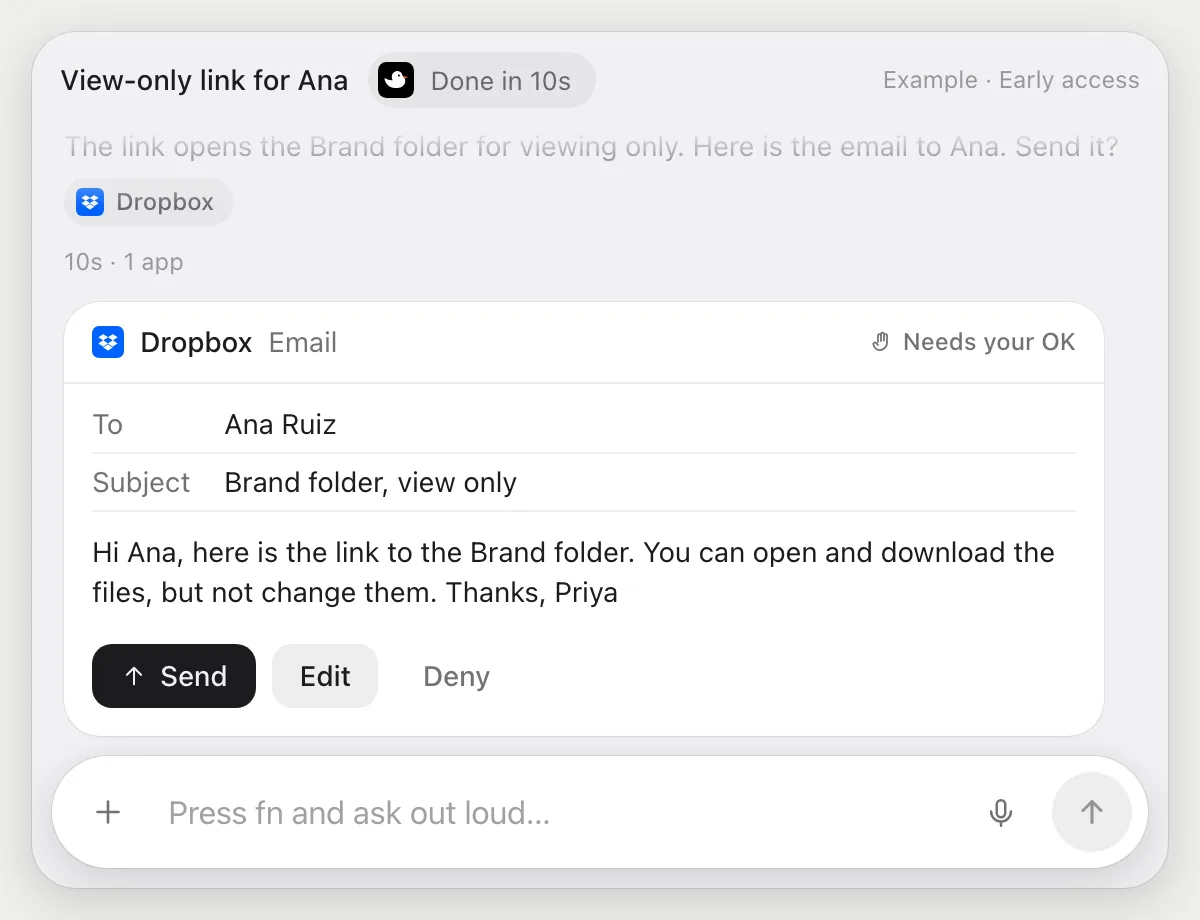
“Send Ana a view-only link to the Brand folder”
- 01Open the Brand folder, or say its name and DuckyHelper finds it.
- 02It makes a link to the folder with its own cursor and checks that the link is view only.
- 03It writes a short email to Ana with the link in it.
- 04The email goes to a person, so it shows it with Send, Edit and Deny and waits.
- 05Press Send, change a line with Edit, or Deny and no one gets the link.
Built to ask firstMaking the link changes nothing for anyone yet. The email with the link is shown with Send, Edit and Deny, and nothing goes out until you press Send.
You getAna gets a link she can open but not change, after you read the email.
Archive last year's files
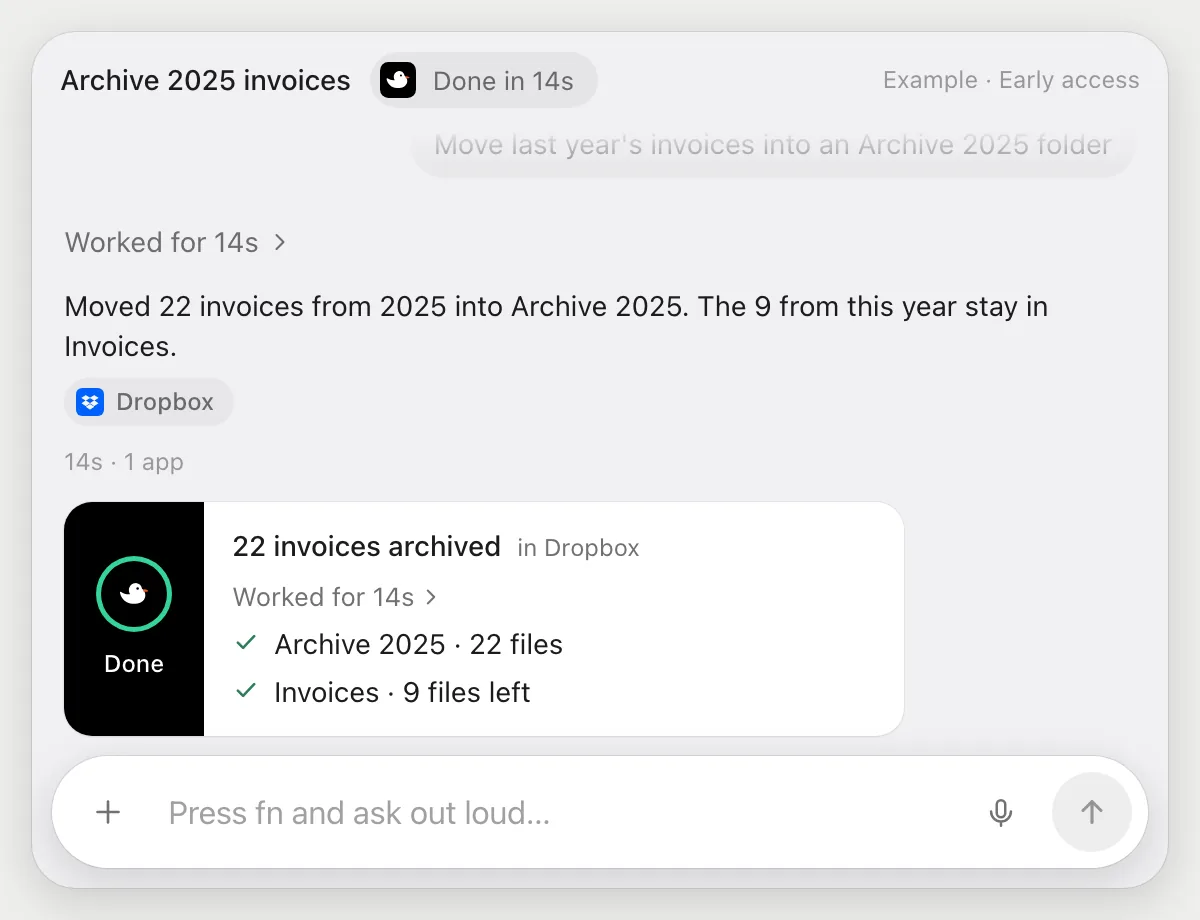
“Move last year's invoices into an Archive 2025 folder”
- 01Open the Invoices folder so the files and their dates are on screen.
- 02DuckyHelper finds the files dated 2025 from their names and modified dates.
- 03It makes an Archive 2025 folder with its own cursor and moves those files into it.
- 04It lists what it moved and what it left alone, so you can check the split.
Built to ask firstMoving files inside your own Dropbox needs no OK. Sharing anything with a person is still built to stop and ask.
You getInvoices holds only this year's files and 2025 sits in its own folder.
File client uploads
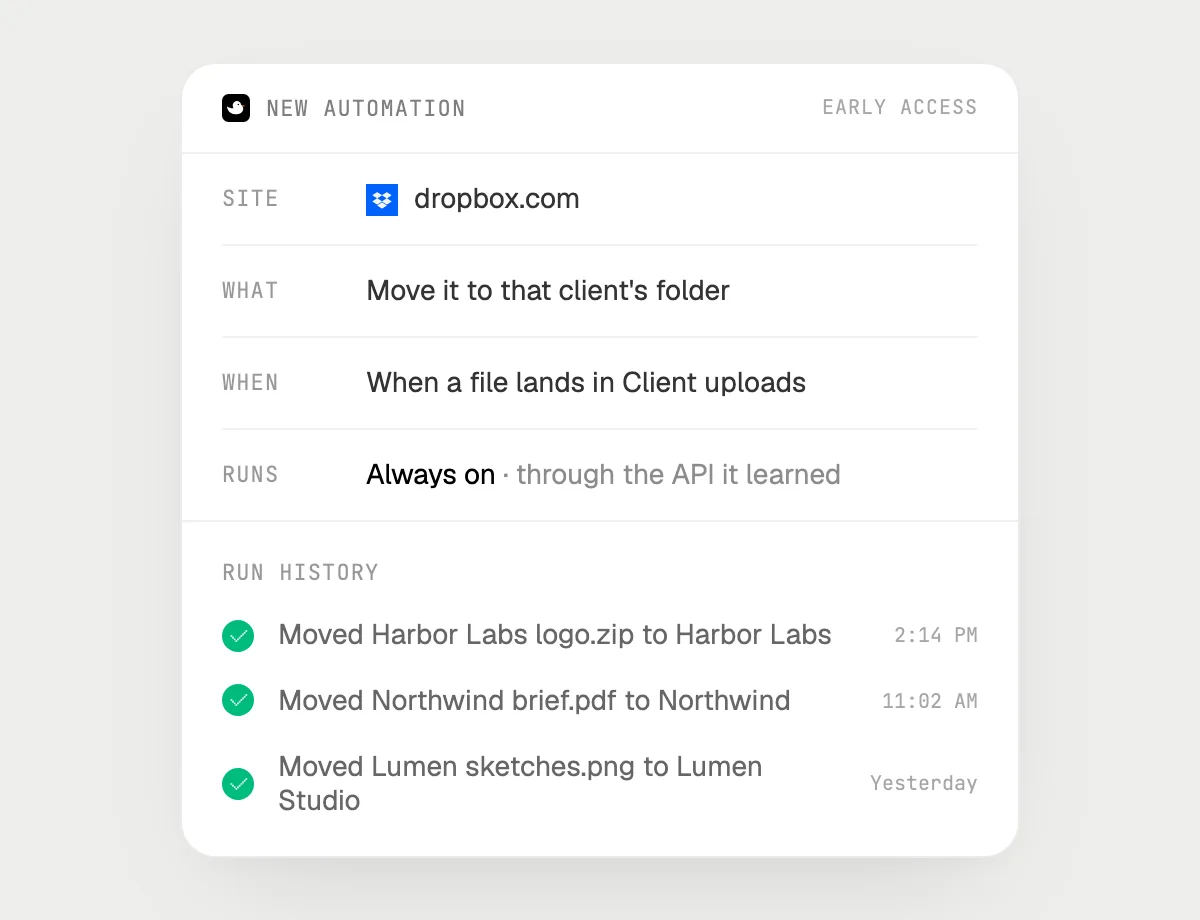
“When a file lands in Client uploads, move it to that client's folder and tell me”
- 01Say it once with Client uploads open. It files what is there now as a first run.
- 02It learns Dropbox's own actions for moving files the first time, so later runs are quick.
- 03Turn it on from the card it offers. It starts whenever a new file appears in Client uploads.
- 04It reads the client's name from the file name and moves it to their folder.
- 05Each run lands in the history, so you see where every file went.
Built to ask firstMoving a file in your own Dropbox needs no OK, so it runs on its own. If you later add a step that emails or shares, it's built to ask before each send.
You getClient files are in the right folder when you look, and you saw each one land.

Getting more out of it in Dropbox.
- 01
Open the sharing list before asking about access. The names and the access are on that screen.
- 02
Say what you mean by outside the team, like the email domain. It compares what it can see.
- 03
When naming a folder for a job, copy the exact name so the right one is found.
- 04
Sharing photos with family? See the Google Drive guide for the same tasks there.
Questions about Dropbox.
Do I need to connect my Dropbox account?
No. There is nothing to connect. It sees what is on your screen while the pill is open, and for jobs (Early access) it uses Dropbox in your browser or window with its own cursor, signed in as you. It's built not to type your passwords or card numbers.
Will it send anything without asking me?
It's built to ask first before it sends a message or pays for anything, and to wait for your yes: it stops with Send, Edit and Deny (or a pay card for anything that costs money). That covers an email with a link. It may not recognize every send or payment, so keep an eye on tasks that involve messages or money. Reading, drafting and filling things in don't need your OK.
Does it work in the Dropbox desktop app?
Yes. It works with whatever is on your screen: your Dropbox folder in the Finder or File Explorer, or dropbox.com in the browser. Phone apps aren't supported.
Can it see all my files?
No. It looks at what is on your screen while the pill is open. A job or automation (Early access) works with the folder you point it at.



Do anything
Ask it a question or hand it a job, in any app.


Doing jobs for you is in early access on Mac. Asking works on Mac, Windows and Linux.