

How to use DuckyHelper in OneDrive
OneDrive keeps old versions, but finding the one you need means opening them one by one. Ask DuckyHelper about the version list on your screen and it circles the one that changed things. Hand it the restore or the sharing and it works in OneDrive for you (Early access).
Find the version that changed the numbers
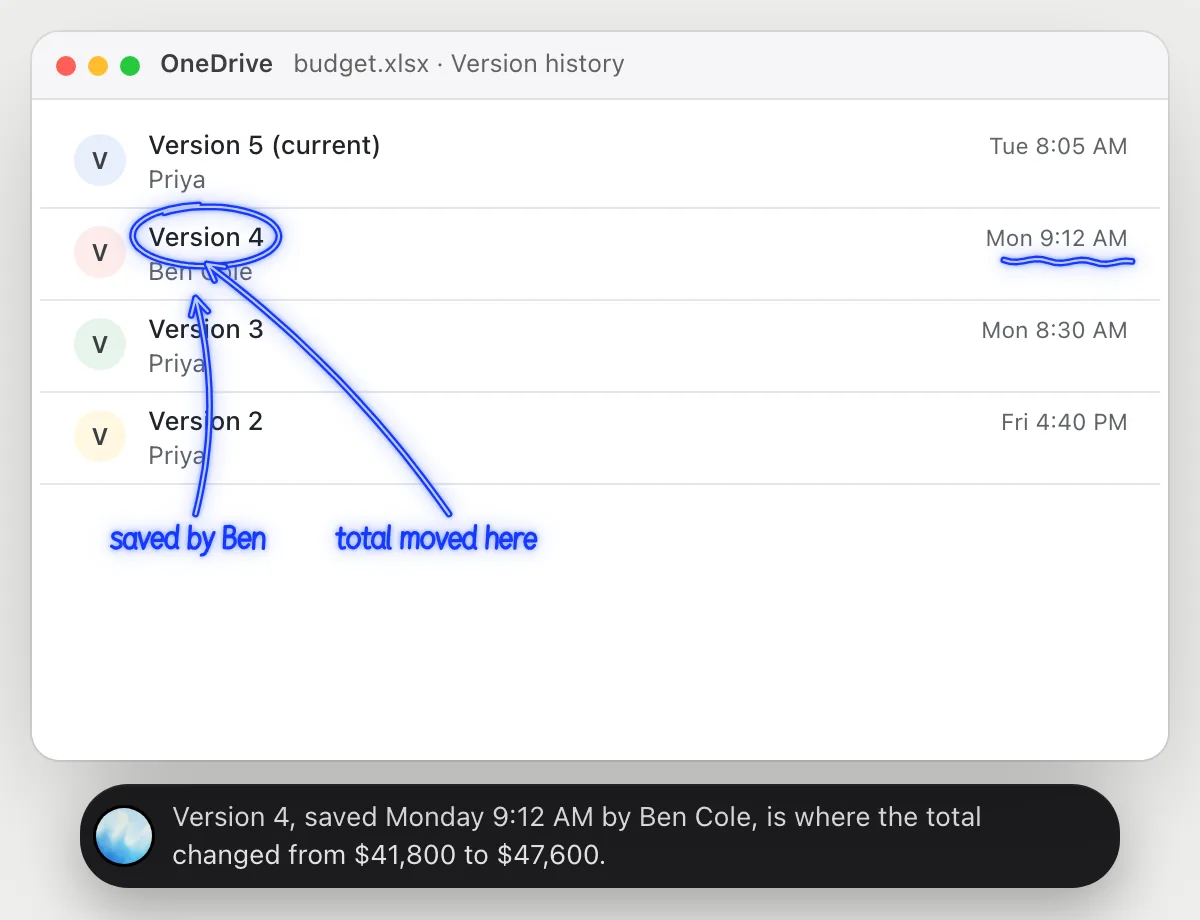
“Which version of this file changed the totals?”
- 01Open the file's version history so the list of versions is on screen, then ask out loud.
- 02DuckyHelper reads who saved each version and when.
- 03It opens the versions next to each other, one step at a time, and reads the total in each.
- 04It circles the version where the total changed and says who saved it.
You getThe version, the person and the moment the total moved, in one answer.
 Version 4, saved Monday 9:12 AM by Ben Cole, is where the total changed from $41,800 to $47,600.
Restore an earlier version
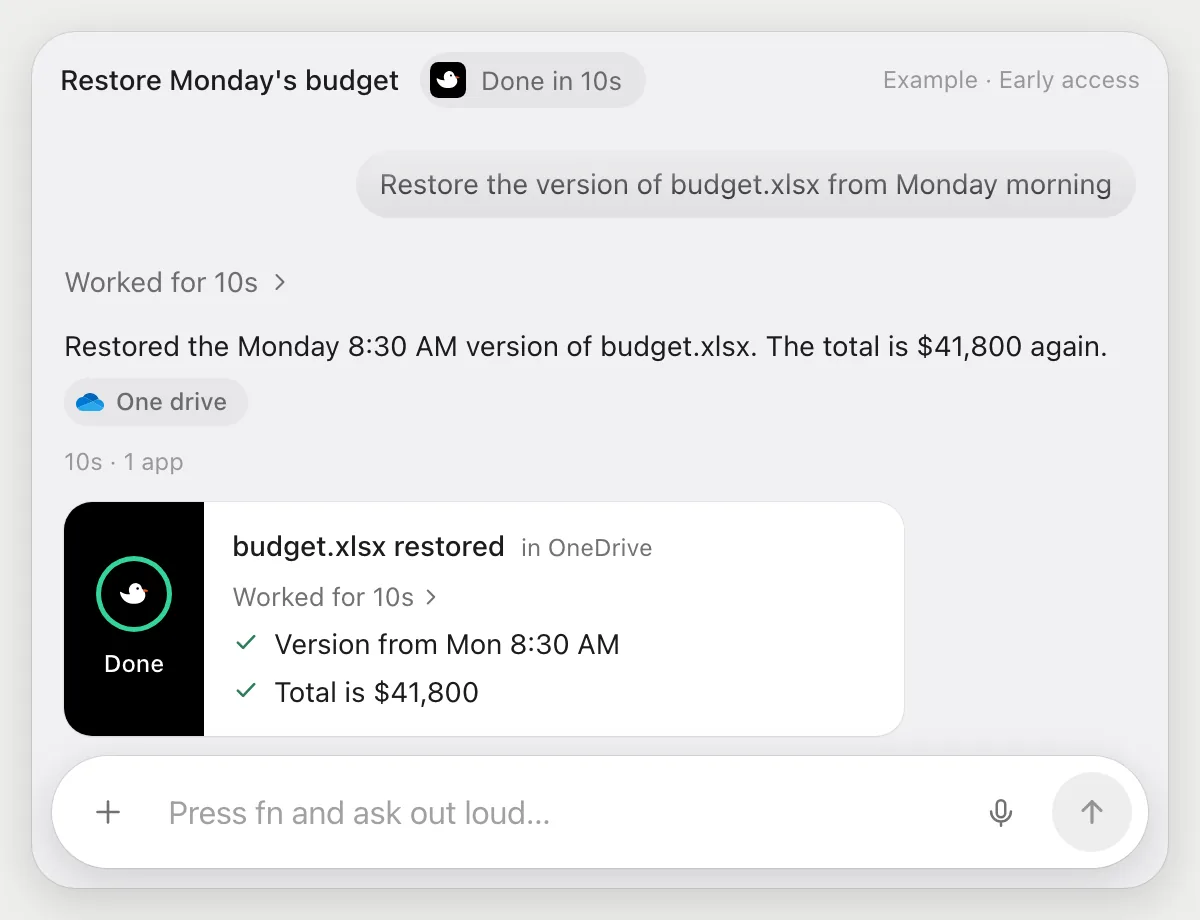
“Restore the version of budget.xlsx from Monday morning”
- 01Open budget.xlsx, or say its name and DuckyHelper finds it.
- 02It opens the version history with its own cursor and picks the version saved Monday morning.
- 03It restores that version and opens the file to check the total is the one you expect.
- 04It tells you which version it restored and when it was saved.
Built to ask firstRestoring changes the file, so name the time you want and check the version it reports. It needs no send OK because nothing leaves your OneDrive.
You getbudget.xlsx is back to how it was Monday morning, with the version it used named.
Share a folder with edit access
“Share the Proposal folder with Ben so he can edit”
- 01Open the Proposal folder, or say its name and DuckyHelper finds it.
- 02It opens the share dialog and adds Ben with its own cursor.
- 03It sets his access so he can edit the files, not only view them.
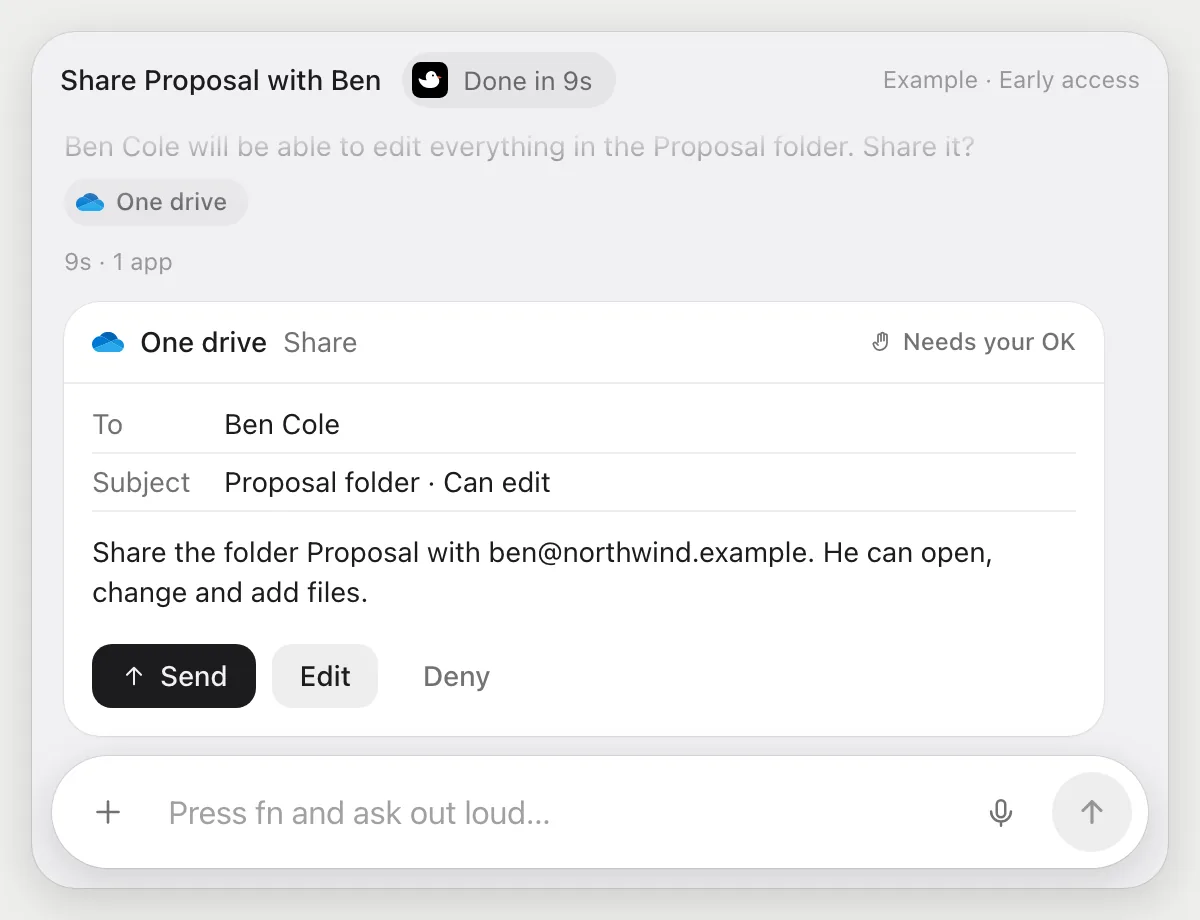
- 04Sharing invites a person, so it shows who gets access and as what, and waits.
- 05Press Send to share, Edit to change it, or Deny and nothing is shared.
Built to ask firstSharing goes out to a person, so it shows Send, Edit and Deny with who gets access and what they can do. Nothing is shared until you press Send.
You getBen can edit the Proposal folder, and only after you said yes.
See what is taking up space
“Which of these folders are taking the most space?”
- 01Open your files so the folder list and the size column are on screen, then ask out loud.
- 02DuckyHelper reads the folder names and the sizes the list shows.
- 03It circles the two biggest and says how much of the total they make up.
- 04Ask which ones look safe to clear out and it explains from the names, without deleting anything.
You getThe two folders to look at first when you need room, from the sizes on screen.
Video exports at 38 GB and Photos 2024 at 24 GB are the biggest. Together that is 62 of 80 GB.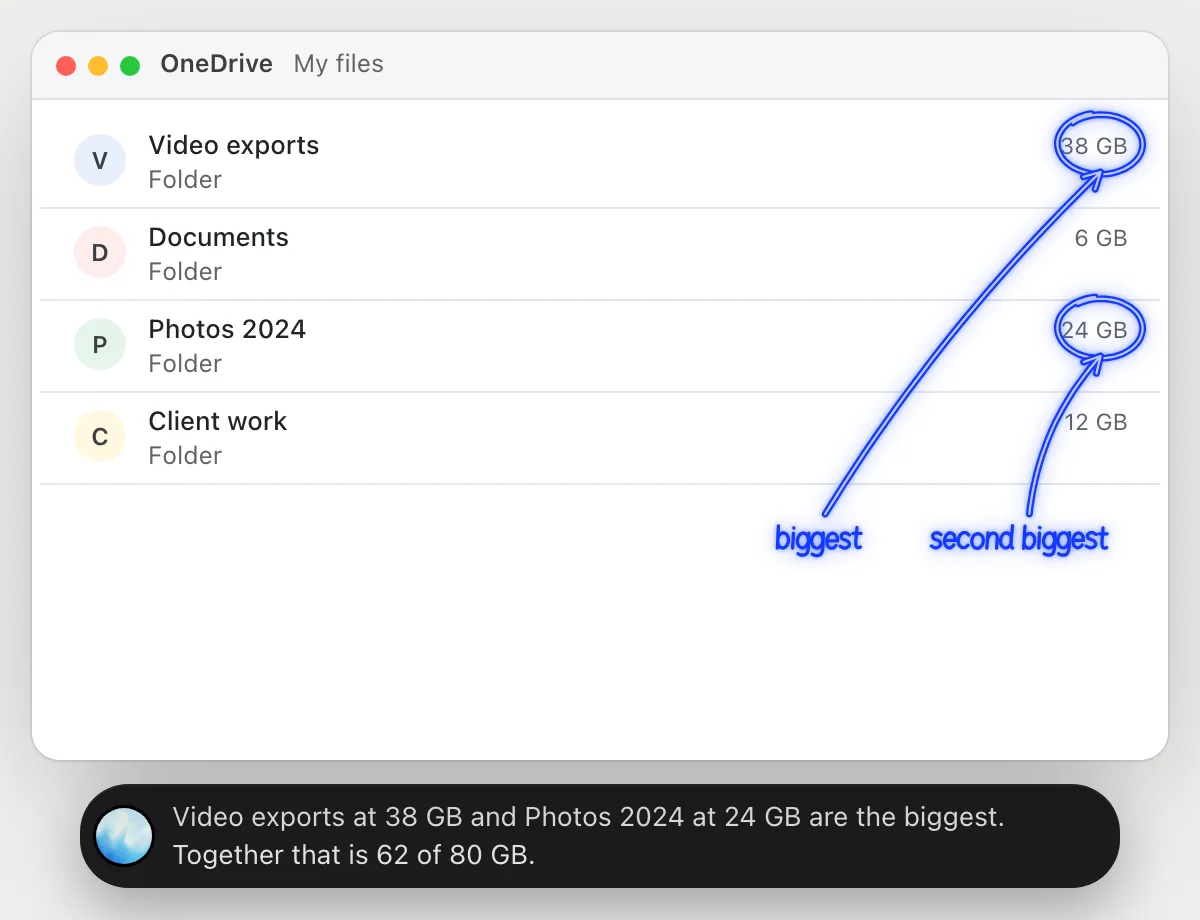
Getting more out of it in OneDrive.
- 01
Open the version history before you ask. The list of versions is the clue it reads.
- 02
Give the time when you ask for a restore: "Monday morning" works if the versions show their time.
- 03
For space, show the size column. If a folder doesn't show a size, open it and ask again.
- 04
Working in a team site? The SharePoint guide covers libraries and lists.
Questions about OneDrive.
Do I need to connect my OneDrive account?
No. There is nothing to connect. It sees what is on your screen while the pill is open, and for jobs (Early access) it uses OneDrive in your browser or window with its own cursor, signed in as you. It's built not to type your passwords or card numbers.
Will it send anything without asking me?
It's built to ask first before it sends a message or pays for anything, and to wait for your yes: it stops with Send, Edit and Deny (or a pay card for anything that costs money). That covers sharing a folder or file. It may not recognize every send or payment, so keep an eye on tasks that involve messages or money. Reading, drafting and filling things in don't need your OK.
Does it work with the OneDrive folder on my computer?
It works with whatever is on your screen, your OneDrive folder in a file window or onedrive.com in the browser. Version history and sharing are easiest in the browser. Phone apps aren't supported.
Can it delete files?
It only moves, restores or shares what you ask for. It doesn't delete anything unless you tell it to.



Do anything
Ask it a question or hand it a job, in any app.



Doing jobs for you is in early access on Mac. Asking works on Mac, Windows and Linux.