

How to use DuckyHelper in Google Drive
Drive fills with copies, drafts and files nobody sorted. Ask DuckyHelper about the folder on your screen and it circles the right file. Hand it the sharing, the sorting or a rename rule for new files and it works in Drive for you (Early access). It works in the folder you show it, not your whole Drive.
Tell the final version from the drafts
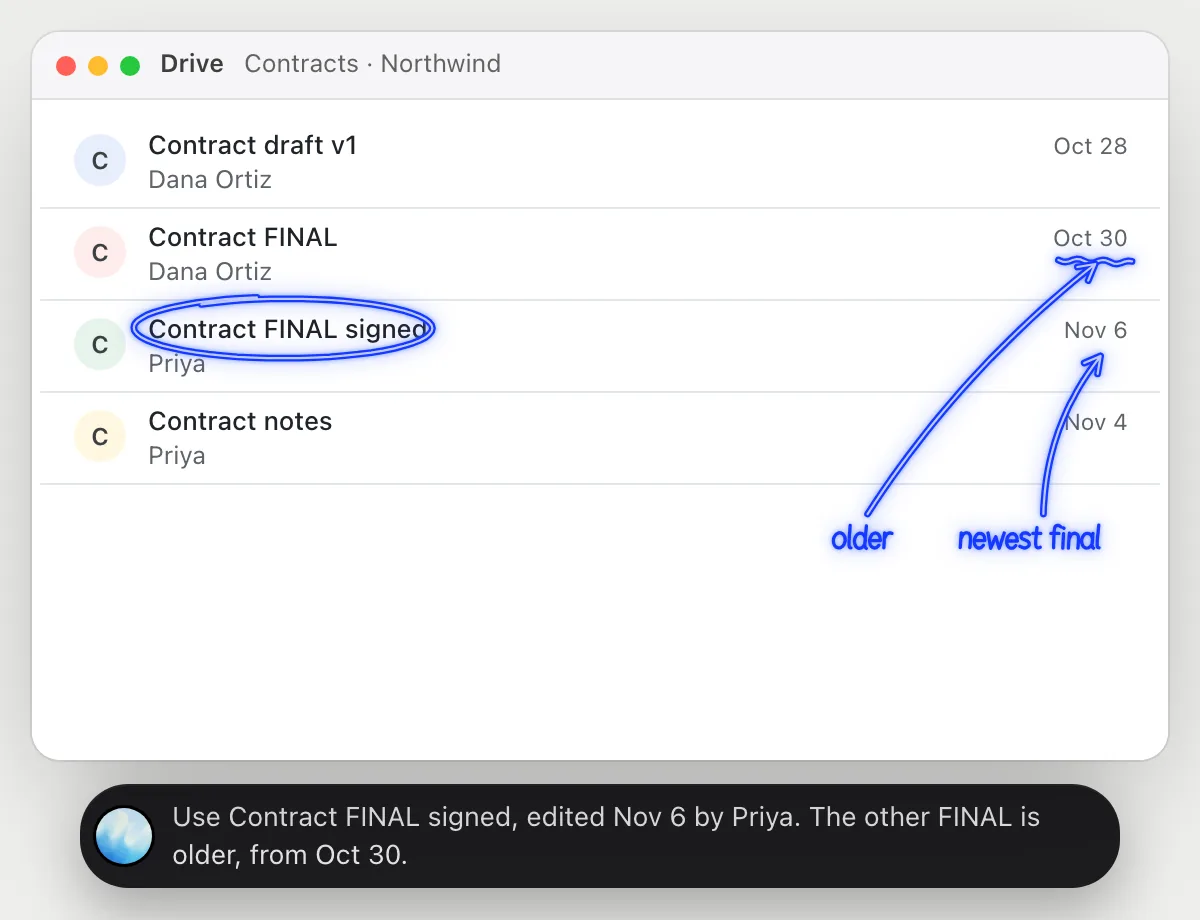
“Which of these files is the final contract?”
- 01Open the folder in list view so the file names and modified dates are on screen.
- 02Ask out loud. DuckyHelper reads the names, who last edited and when.
- 03It circles the one marked final that was changed most recently, and says which others are older.
- 04Ask what changed between them and open the two files: it explains from what is on screen.
You getThe right file to send, picked from names and dates, without opening five copies.
 Use Contract FINAL signed, edited Nov 6 by Priya. The other FINAL is older, from Oct 30.
Share a folder with the right access
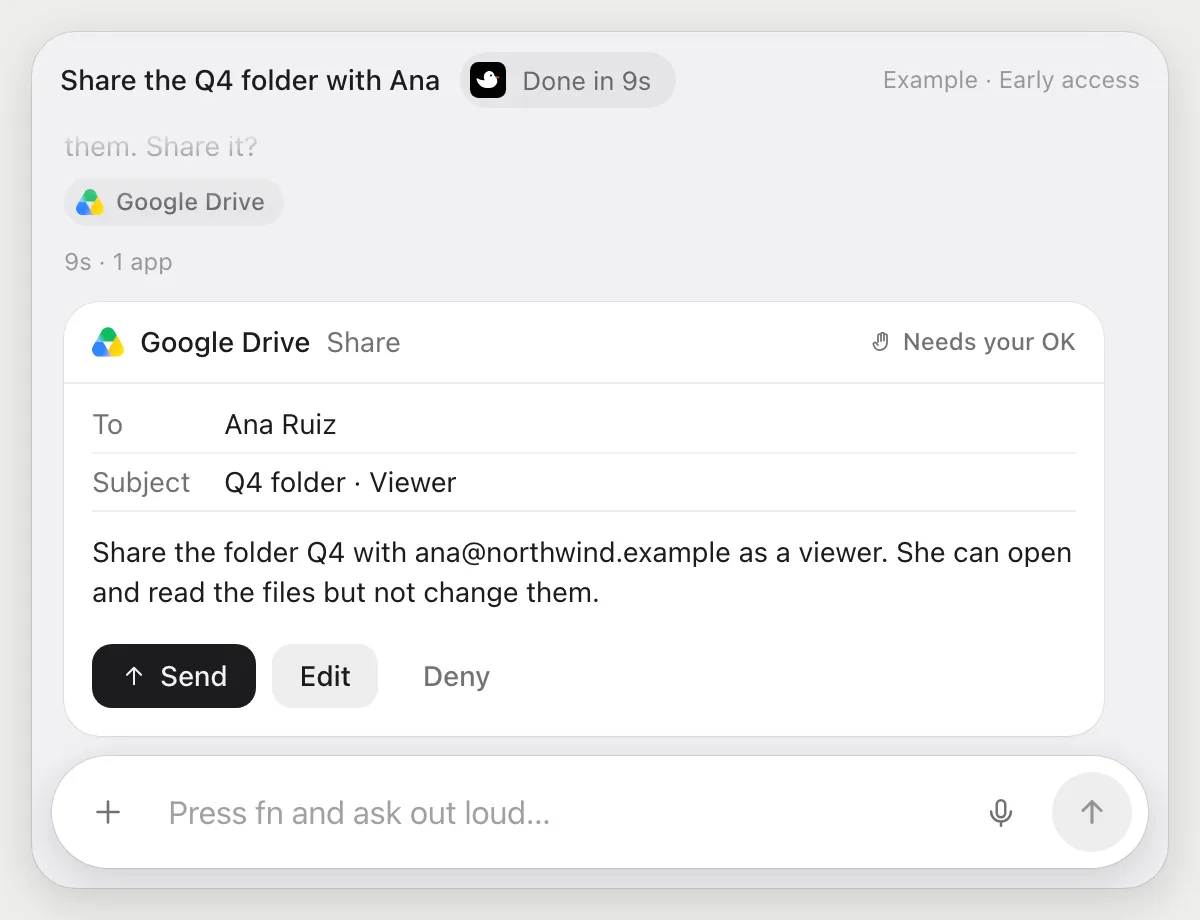
“Share the Q4 folder with Ana so she can view but not edit”
- 01Open the Q4 folder, or say its name and DuckyHelper finds it.
- 02It opens the share dialog and types Ana's address from what you tell it, with its own cursor.
- 03It sets her access to viewer, so she can read the files but not change them.
- 04Sharing invites a person, so it shows who gets access and what they can do, and waits.
- 05Press Send to share, Edit to change something, or Deny and nothing is shared.
Built to ask firstSharing a folder goes out to a person, so it shows Send, Edit and Deny with who gets access and as what. Nothing is shared until you press Send.
You getAna can open the Q4 folder but not change it, and only after you said yes.
Sort a messy folder by client
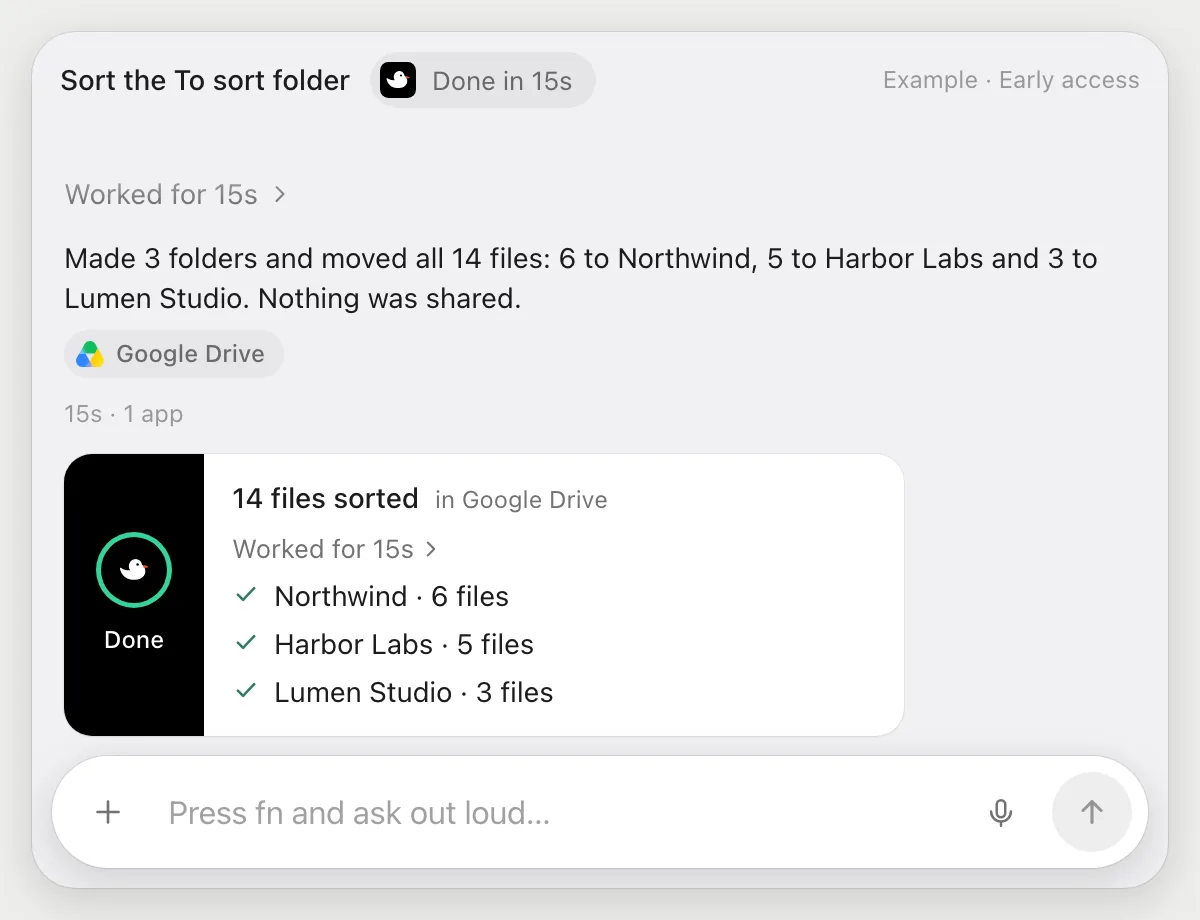
“Sort the files in To sort into folders by client name”
- 01Open the To sort folder so its files are on screen.
- 02DuckyHelper reads the 14 file names and finds the client name in each.
- 03It makes a folder for each client, three in this case, with its own cursor.
- 04It moves each file into its client's folder and tells you if a file doesn't clearly belong anywhere.
Built to ask firstMaking folders and moving files stay in your Drive, so it needs no OK. Sharing anything with a person is still built to stop and ask.
You getTo sort is empty, and each client's files are in a folder named after them.
Rename invoices as they arrive
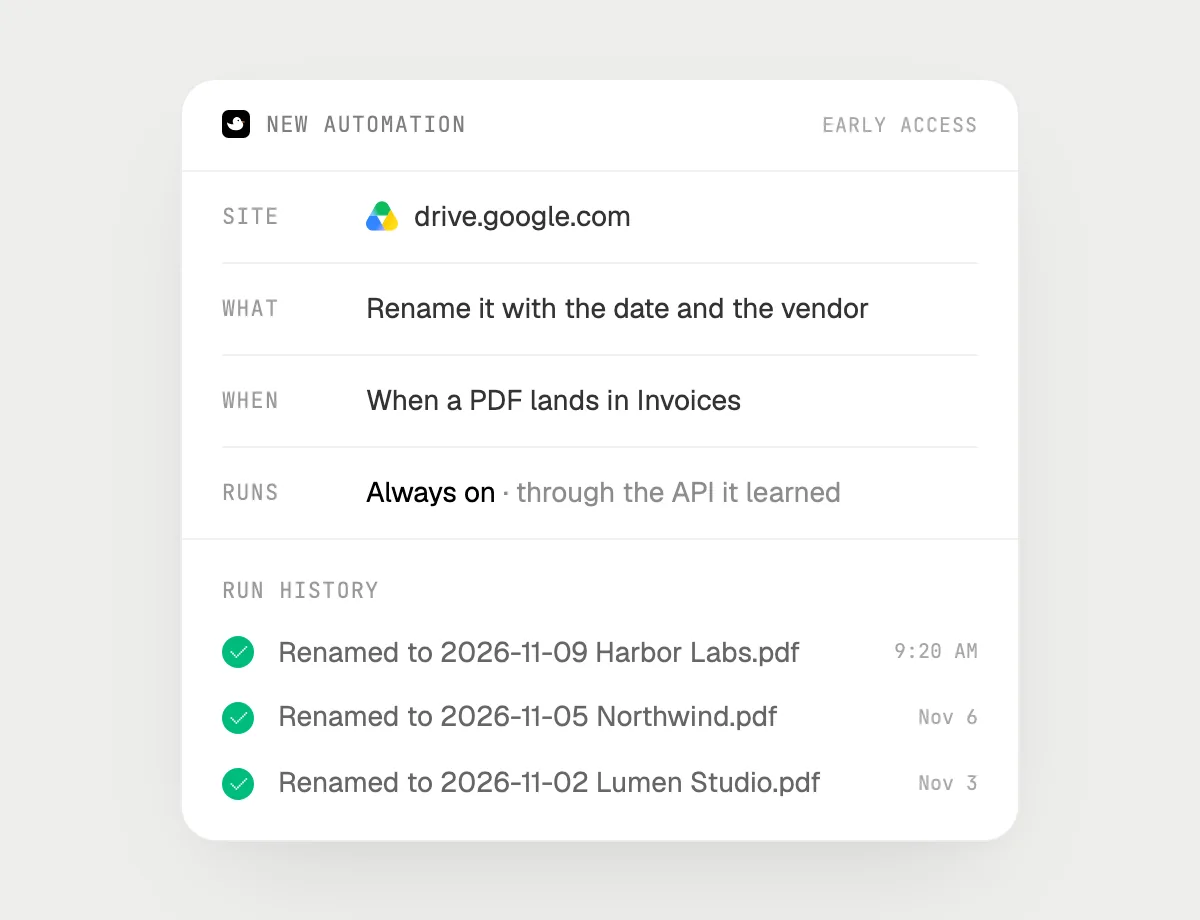
“When a PDF lands in Invoices, rename it with the date and the vendor”
- 01Say it once with the Invoices folder open. It renames the PDFs already there as a first run.
- 02It learns Drive's own actions for renaming the first time, so later runs are quick.
- 03Turn it on from the card it offers. It starts whenever a new PDF appears in Invoices.
- 04It reads the date and vendor from the invoice and renames the file, like 2026-11-05 Northwind.
- 05Each run lands in the history with the new name.
Built to ask firstRenaming a file in your own Drive needs no OK, so it runs on its own. If you later add a step that shares or emails a file, it's built to ask first.
You getInvoices land with a clear name, so you can find any of them by date or vendor.

Getting more out of it in Google Drive.
- 01
Use list view with the Modified column showing: it gives DuckyHelper the dates it needs.
- 02
Open the folder you mean before you ask. It does not scan your whole Drive.
- 03
Say the access you want in words: "view only", "can comment", "can edit". It checks the dialog matches.
- 04
Sorting receipts into a budget? The Google Sheets guide shows the next step.
Questions about Google Drive.
Do I need to connect my Google Drive account?
No. There is nothing to connect. It sees what is on your screen while the pill is open, and for jobs (Early access) it uses Google Drive in your browser or window with its own cursor, signed in as you. It's built not to type your passwords or card numbers.
Will it send anything without asking me?
It's built to ask first before it sends a message or pays for anything, and to wait for your yes: it stops with Send, Edit and Deny (or a pay card for anything that costs money). That covers sharing a file or folder. It may not recognize every send or payment, so keep an eye on tasks that involve messages or money. Reading, drafting and filling things in don't need your OK.
Does it scan my whole Drive?
No. It works in the folder on your screen, only while the pill is open. A job or automation you start (Early access) works with the files that job needs.
Does it work in the Drive app on my phone?
No. DuckyHelper is an app for Mac, Windows and Linux, so it works with Drive in your computer's browser.


Do anything
Ask it a question or hand it a job, in any app.


Doing jobs for you is in early access on Mac. Asking works on Mac, Windows and Linux.