

How to use DuckyHelper in Excel
Excel is where small mistakes hide: a stray space, a column of dates to fill, an export to tidy. Ask DuckyHelper about the sheet on your screen and it marks the problem and explains it. You can also hand it the filling or cleaning job (Early access).
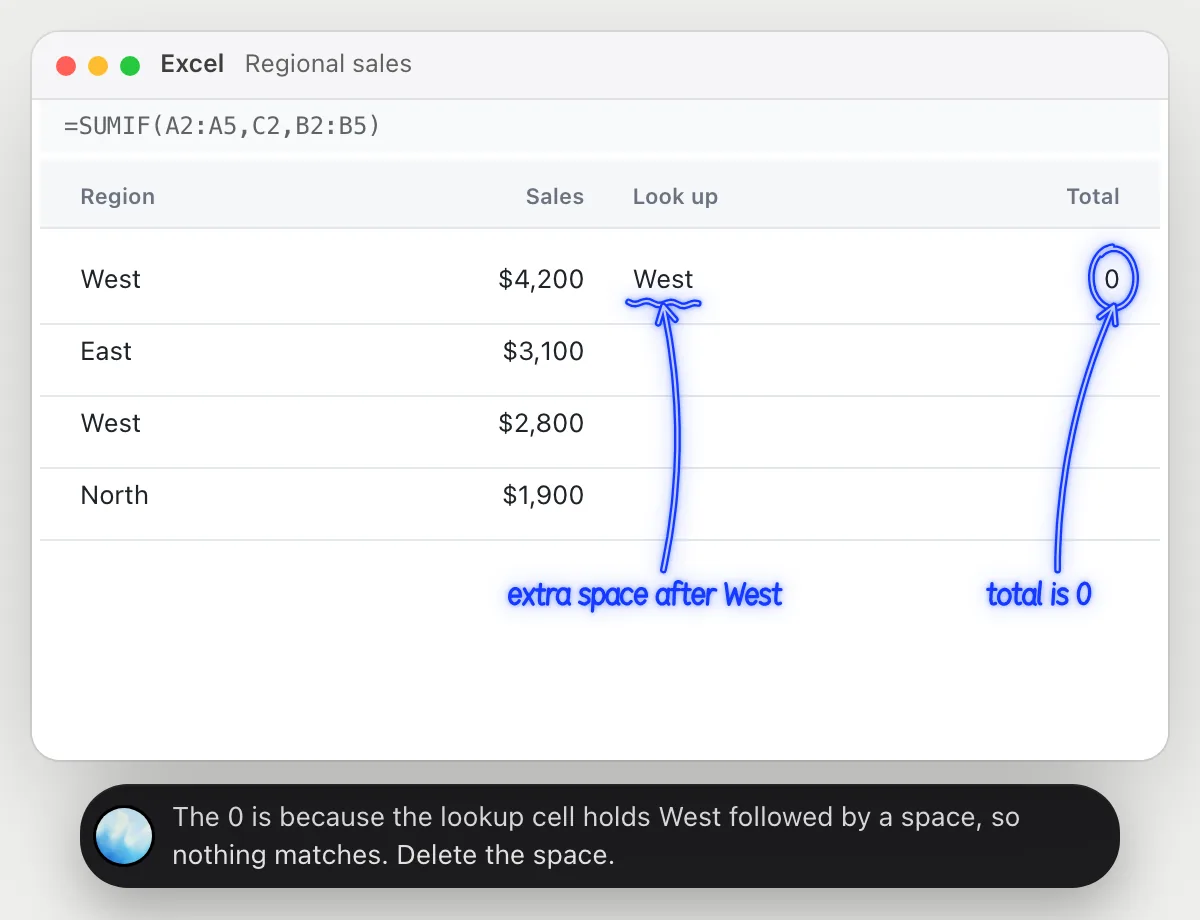
Find out why a SUMIF returns zero
“Why does this SUMIF give me zero when the region is right there?”
- 01Click the cell with the formula so the formula bar and the table are on screen.
- 02Ask out loud. DuckyHelper reads the formula and the cells it looks at.
- 03It circles the zero and underlines the cell the formula looks up.
- 04It says what is different about that cell and how to fix it.
You getYou know the exact cell that breaks the match and how to fix it.
 The 0 is because the lookup cell holds West followed by a space, so nothing matches. Delete the space.
Explain where a budget went
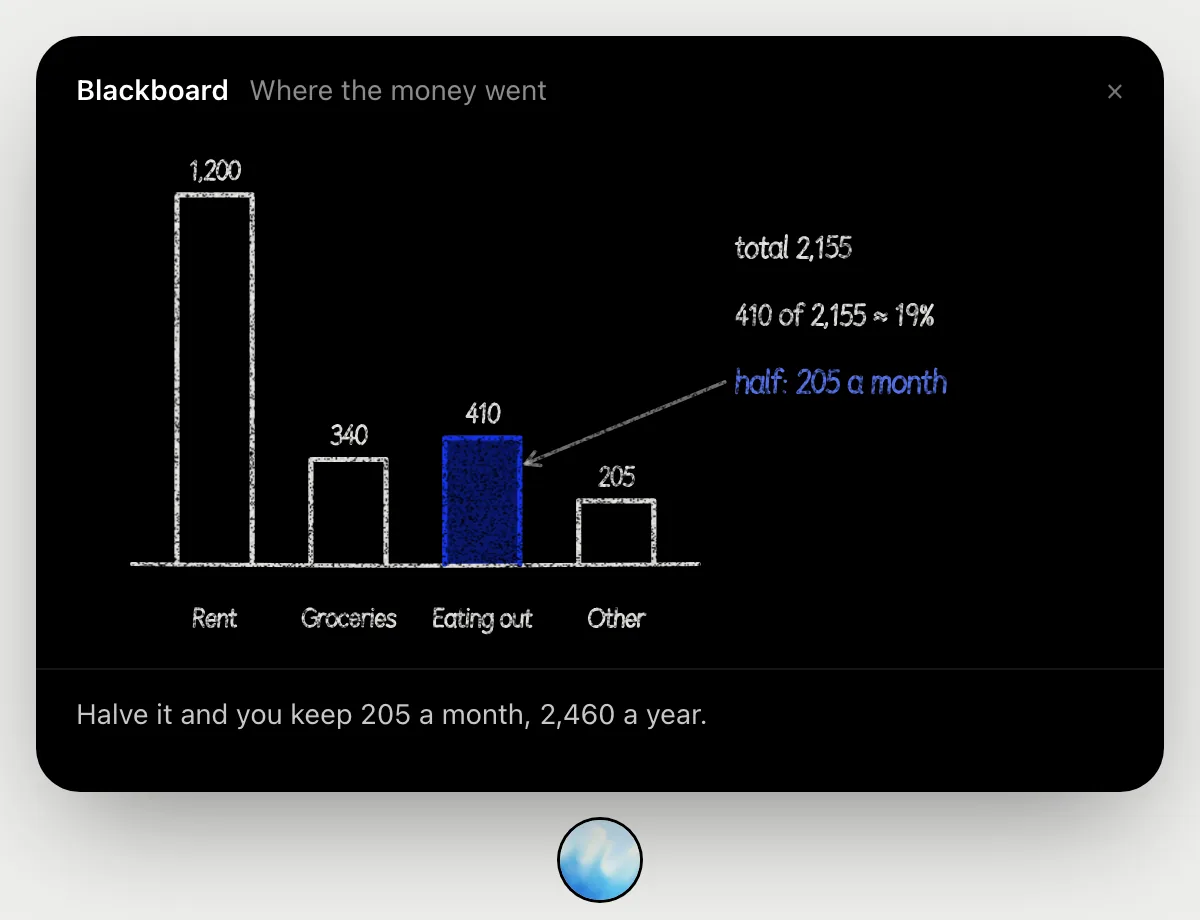
“Explain this month's spend so I can tell the team where it went”
- 01Have the month's spending on screen, with the categories and amounts.
- 02Ask out loud. DuckyHelper opens the blackboard.
- 03It draws a bar for each category and adds them up as it talks.
- 04It marks the one worth looking at, says its share of the total and what halving it would save in a month and a year.
You getA spoken breakdown with every number worked out where you can follow it.
Fill in due dates from invoice dates
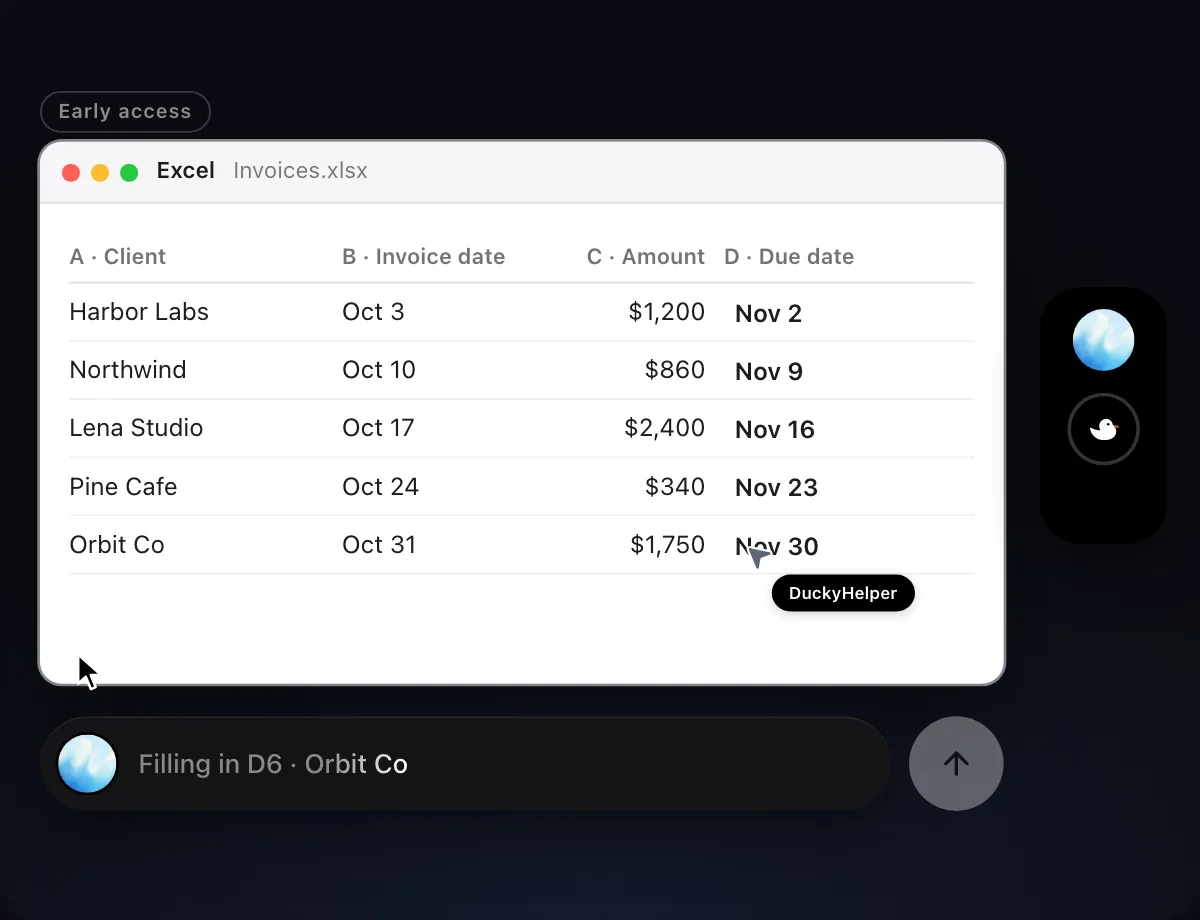
“Fill in each invoice's due date in column D, 30 days after the invoice date”
- 01Open the Invoices sheet and say which column to fill and the rule.
- 02DuckyHelper works in Excel with its own cursor, row by row, while you keep using yours.
- 03It adds 30 days to each invoice date in column B.
- 04It finishes with a done card showing what it filled in.
Built to ask firstFilling in cells needs no OK. Nothing here sends or pays, so it does not stop to ask.
You getEvery due date filled in, so you can check them against the invoice dates.

Clean up a messy export
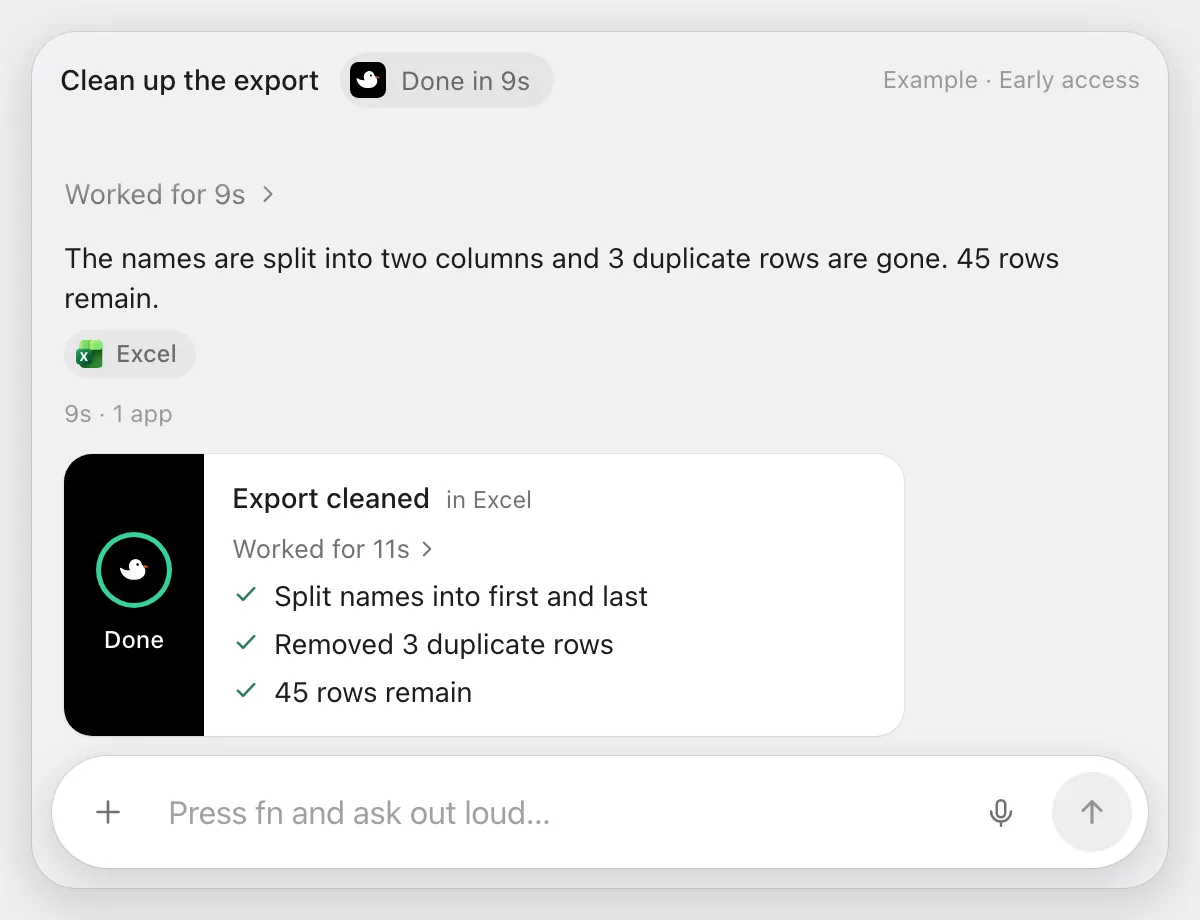
“Split the names into first and last and remove the duplicate rows”
- 01Open the exported sheet and say what to split and what to remove.
- 02DuckyHelper reads the sheet and adds two columns for first and last name.
- 03It finds rows that repeat and removes them.
- 04It finishes with a done card listing exactly what changed.
Built to ask firstSplitting and removing rows need no OK. Check the done card, because removed rows are gone from the sheet.
You getA tidy sheet with first and last names split and the repeats removed.
Getting more out of it in Excel.
- 01
Click the cell you mean before you ask, so the formula bar shows what it needs.
- 02
For a formula bug, ask what is different about the cells it compares, not just what is wrong.
- 03
Before it removes rows, keep a copy of the sheet. Removed rows are gone from the file you have open.
- 04
Building a deck from the numbers? See the PowerPoint guide.
Questions about Excel.
Do I need to connect my Excel account?
No. There is nothing to connect. It sees what is on your screen while the pill is open, and for jobs (Early access) it uses Excel on your computer or the web with its own cursor, signed in as you. It's built not to type your passwords or card numbers.
Does it use macros or add-ins?
No. It does not run macros, VBA or add-ins. It works in the sheet on your screen like a person does.
Will it give financial advice?
No. It explains the numbers that are on the sheet. Decisions are yours.
Does it see everything in your workbook?
No. When you ask a question it looks only at what is on your screen, and only while the pill is open. A job or automation you start (Early access) opens only the pages that job needs.



Do anything
Ask it a question or hand it a job, in any app.



Doing jobs for you is in early access on Mac. Asking works on Mac, Windows and Linux.