

How to use DuckyHelper in Azure Monitor
The activity log shows who did what to which resource, and it is long. Ask DuckyHelper about the rows on screen and it finds the delete or the failure and circles it. Hand it the filtering and the download, or a morning check, and it does it in the portal (Early access). It does not change resources here.
Find who deleted a resource
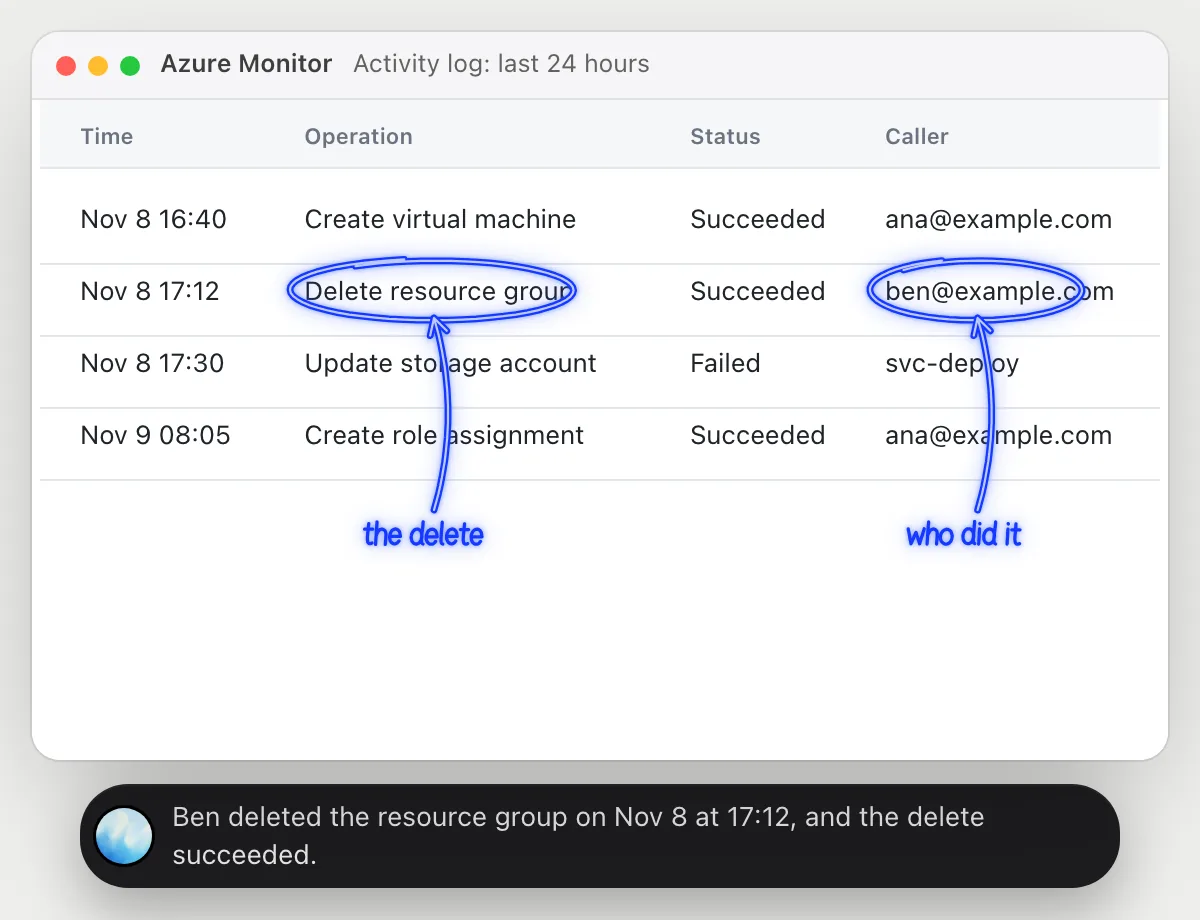
“Who deleted this resource group, and when?”
- 01Open the activity log so the rows show, then ask out loud.
- 02DuckyHelper reads each row's time, operation, status and caller.
- 03It finds the delete operation, circles the row, and says who did it and when.
- 04Ask what else that person did that day and it reads the other rows they appear in.
You getA name and a time for the delete, without paging through the log.
 Ben deleted the resource group on Nov 8 at 17:12, and the delete succeeded.
Find failed operations
“Which of these operations failed, and why?”
- 01Open the log with the failures in view, then ask out loud.
- 02DuckyHelper reads each row's status and the detail beside it.
- 03It circles the failed rows and says the reason shown in each.
- 04Ask what a code means and it explains it in plain words, from what is on screen.
You getThe failures and their reasons, in two sentences.
Two failed: the VM create hit QuotaExceeded, and the template deploy had InvalidTemplate. The other two succeeded.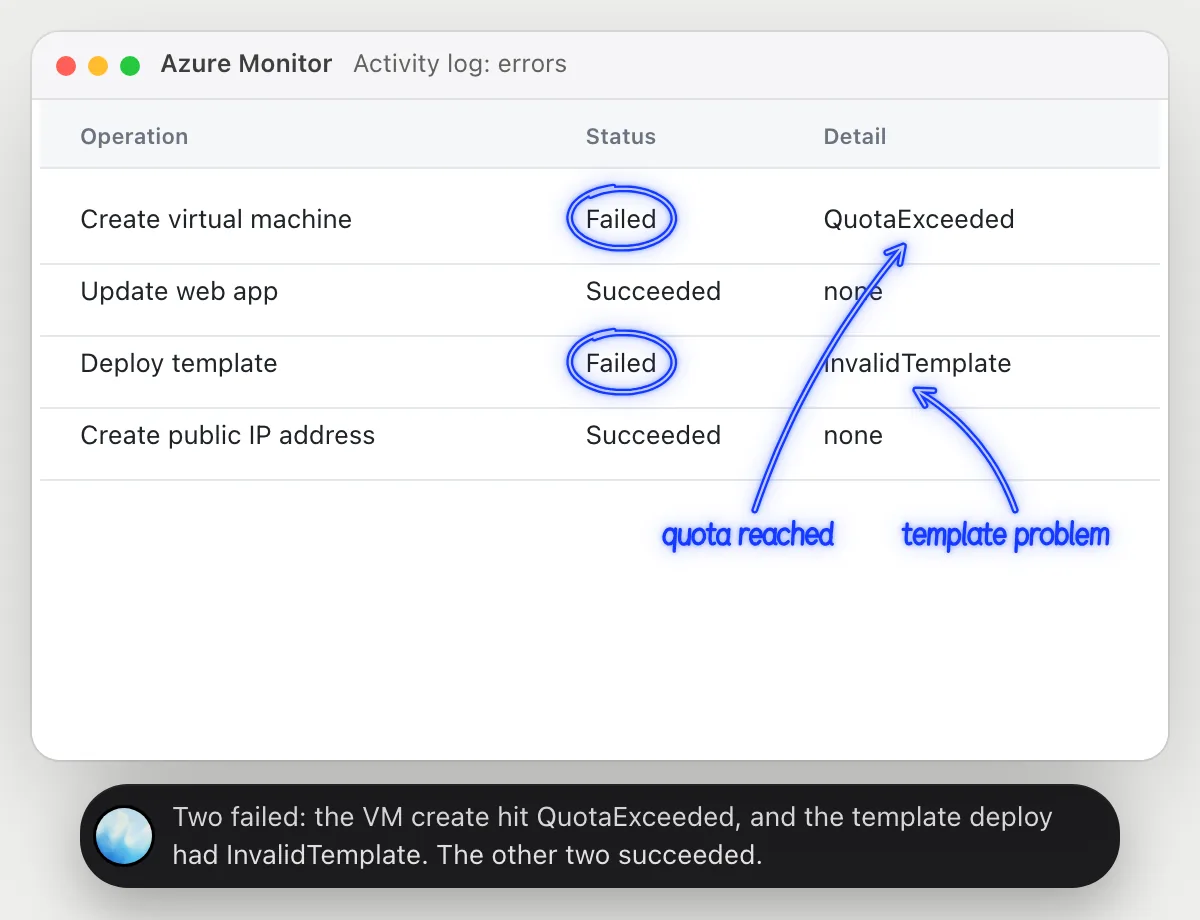
Filter and export the log
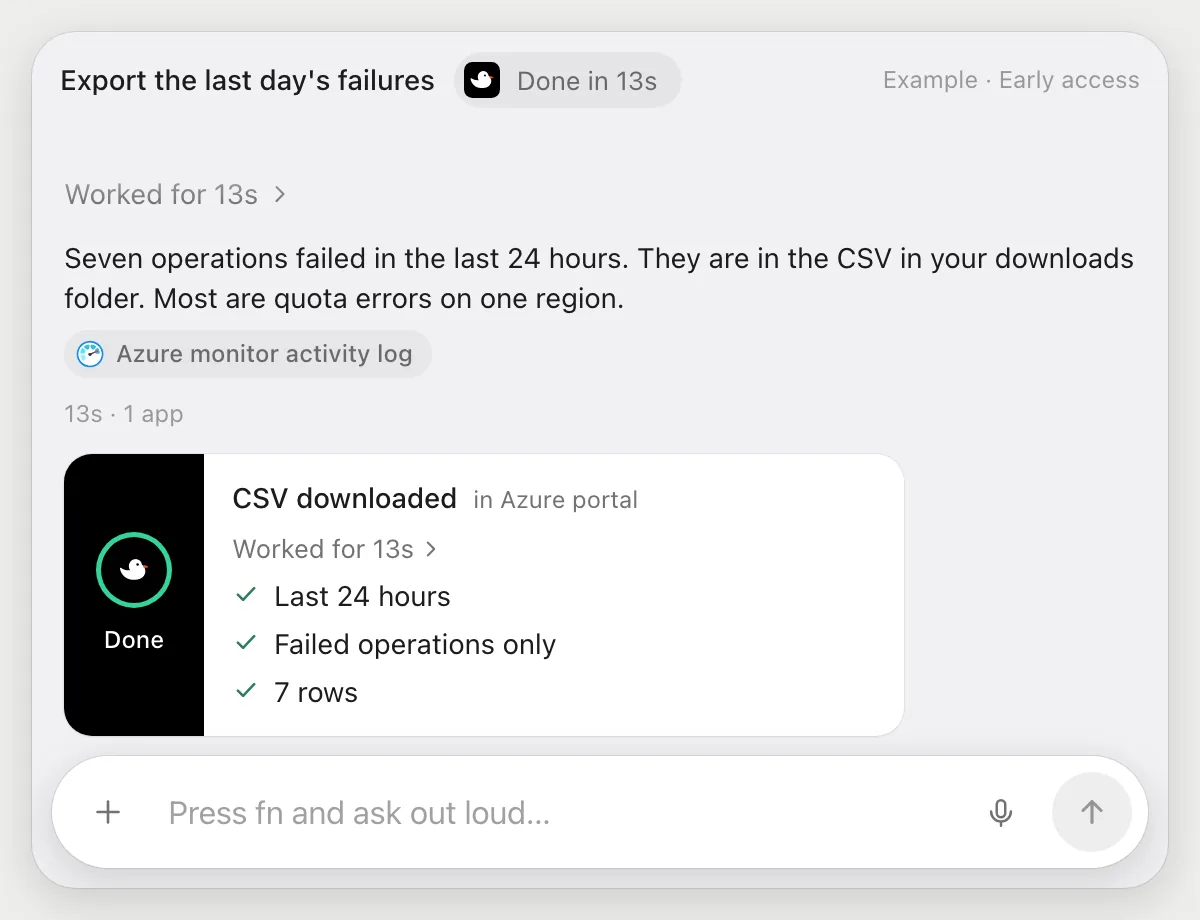
“Show the last 24 hours of failed operations and download them as a CSV”
- 01Open the Activity log in the portal, or say the subscription's name.
- 02DuckyHelper sets the time range to the last 24 hours with its own cursor.
- 03It filters the log to failed operations and checks the rows on screen.
- 04It uses the log's download option for a CSV and tells you the file is in your downloads.
Built to ask firstFiltering and downloading need no OK. It does not change any Azure resources, and a step that sends or posts something is built to stop for you first.
You getA CSV of the day's failures, ready to attach to a ticket.
Watch for role changes
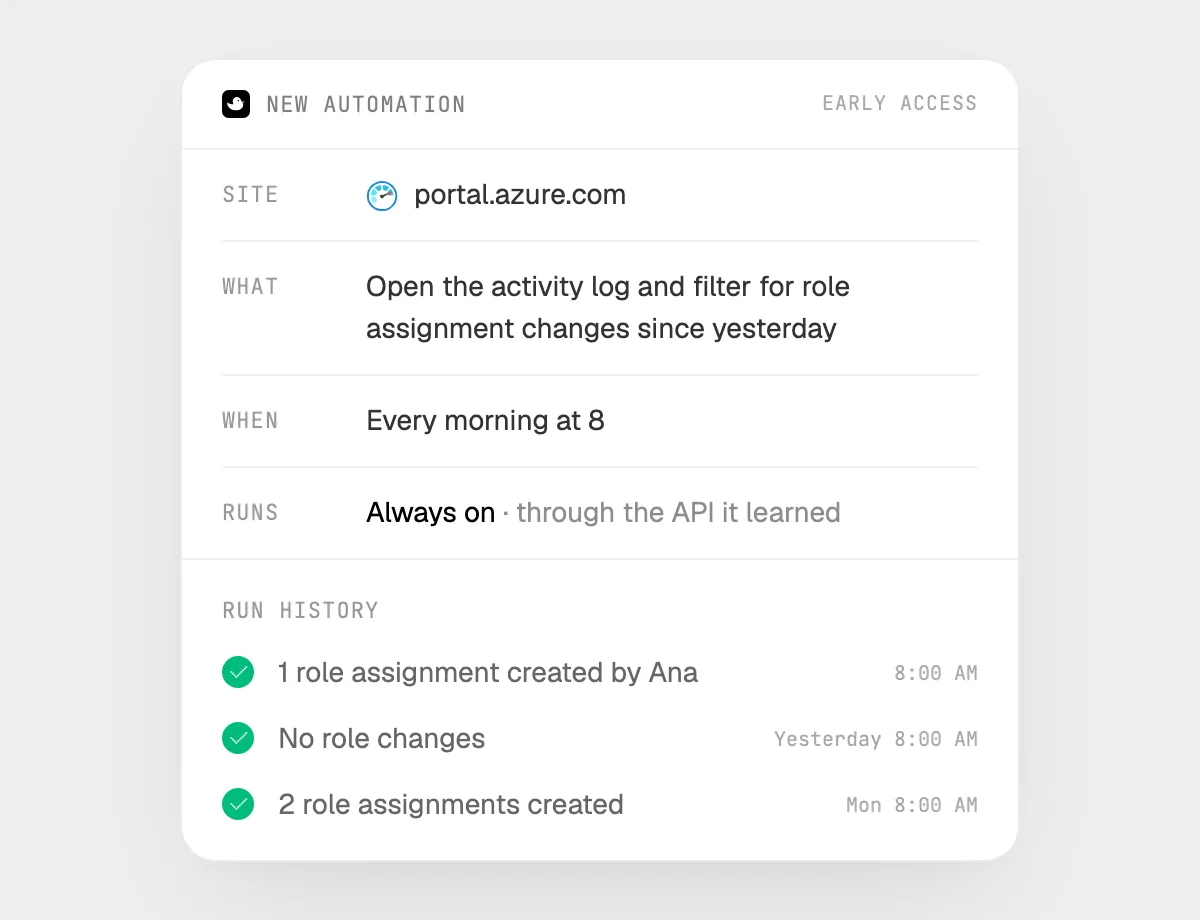
“Every morning, check the log for role assignment changes and tell me”
- 01Say it once while the log is open. It does the first check on the rows you can see.
- 02It learns the portal's own actions for the log and its filters the first time, so later runs are quick.
- 03Turn it on from the card it offers. From then on it runs every morning.
- 04Each run lands in the history with the changes it found.
Built to ask firstReading the log needs no OK. If a run would send you a message in a chat app, that is built to stop with Send, Edit and Deny first.
You getYou start the day knowing who was given or lost a role, without opening the log.

Getting more out of it in Azure Monitor.
- 01
Set the time range before you ask. It reads the rows that are showing, not older ones.
- 02
Say the operation you care about, like delete or role assignment. It looks for that name in the rows.
- 03
Ask for the caller and the time together, so the answer is something you can paste into a ticket.
- 04
It reads the log. It does not change any resources in this guide.
Questions about Azure Monitor.
Do I need to connect my Azure account?
No. There is nothing to connect. It sees what is on your screen while the pill is open, and for jobs (Early access) it uses the Azure portal in your browser, signed in as you. It's built not to type your passwords or card numbers.
Can it change or delete my Azure resources?
Not in this guide. The jobs here read the log, filter it and download it. Anything that sends or posts is built to stop with Send, Edit and Deny first.
Does it see my whole subscription?
No. Only what is on your screen while the pill is open. A job (Early access) reads what the job needs, as you.
Does it work in the Azure mobile app?
No. DuckyHelper is an app for Mac, Windows and Linux, so it works with the portal in your computer's browser.



Do anything
Ask it a question or hand it a job, in any app.



Doing jobs for you is in early access on Mac. Asking works on Mac, Windows and Linux.