

How to use DuckyHelper in Dynamics 365
Dynamics 365 runs sales and service, and the cases that slip are easy to miss. Ask DuckyHelper about the list on your screen and it circles the cases past their target. Hand it the lead qualifying, the close dates or a morning list of aging cases and it works in Dynamics 365 for you (Early access).
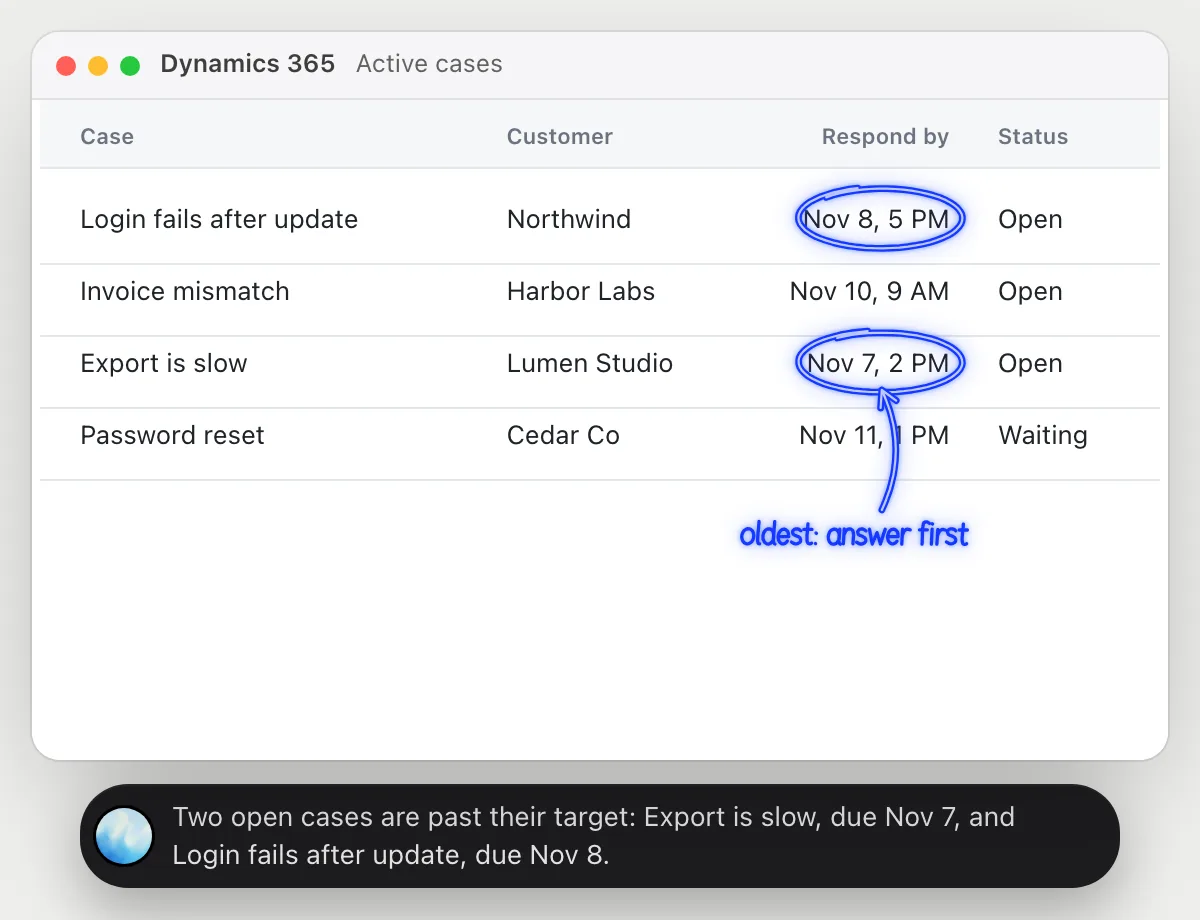
Find cases past their target
“Which cases are past their response target?”
- 01Open the cases list with the response target column showing, then ask out loud.
- 02DuckyHelper reads each case and its target next to today's date.
- 03It circles the open cases whose target has passed.
- 04Ask which customer has waited longest and it compares the times.
You getThe cases to answer first, found without sorting the queue.
 Two open cases are past their target: Export is slow, due Nov 7, and Login fails after update, due Nov 8.
Qualify a lead into an opportunity
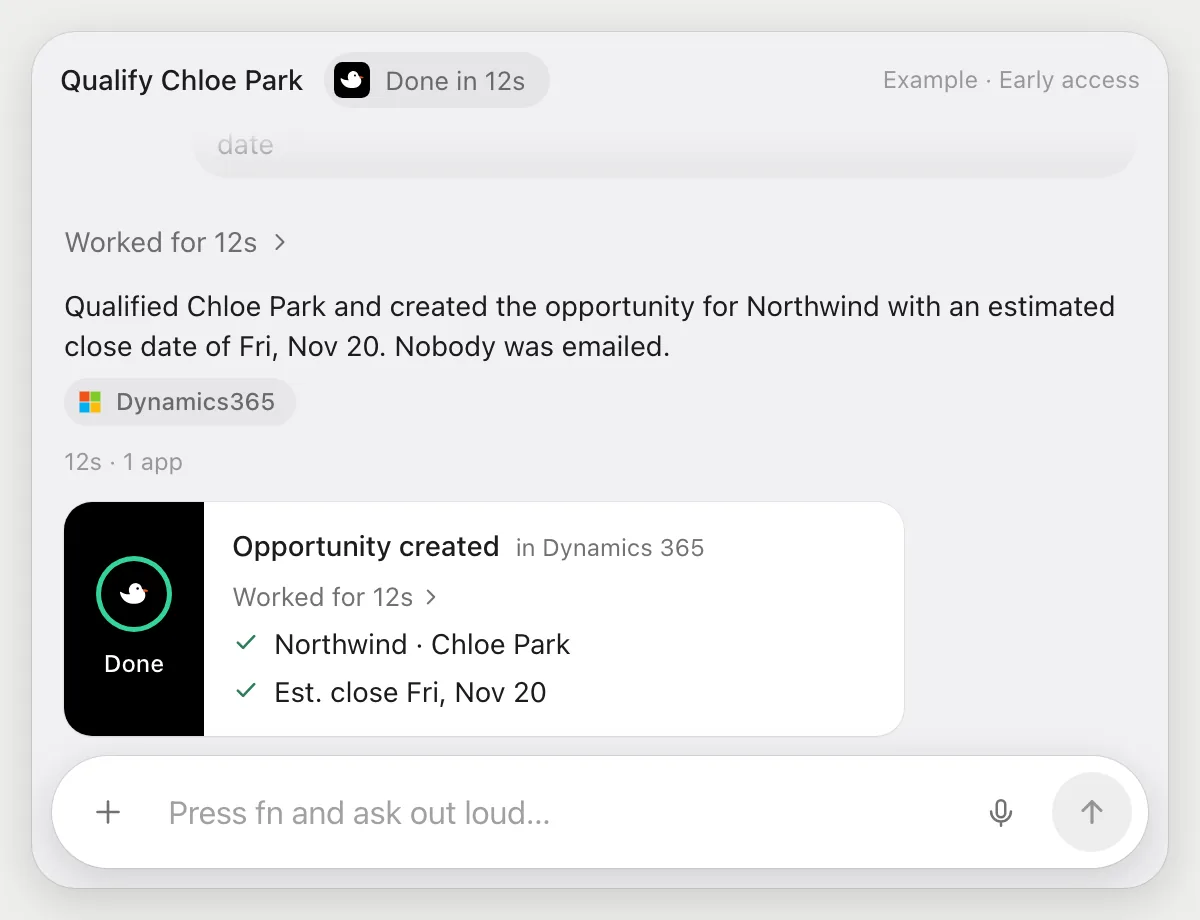
“Qualify this lead and create the opportunity with next Friday's close date”
- 01Open the lead you mean, or say its name and DuckyHelper finds it.
- 02It qualifies the lead with its own cursor.
- 03It opens the new opportunity and sets the estimated close date to next Friday.
- 04It shows the opportunity so you can check the name and date.
Built to ask firstQualifying and filling in the form stay inside your Dynamics 365, so they need no OK. Anything emailed to the customer is built to stop for your OK.
You getThe lead is an opportunity with a close date, without clicking through the form.
Fill in estimated close dates
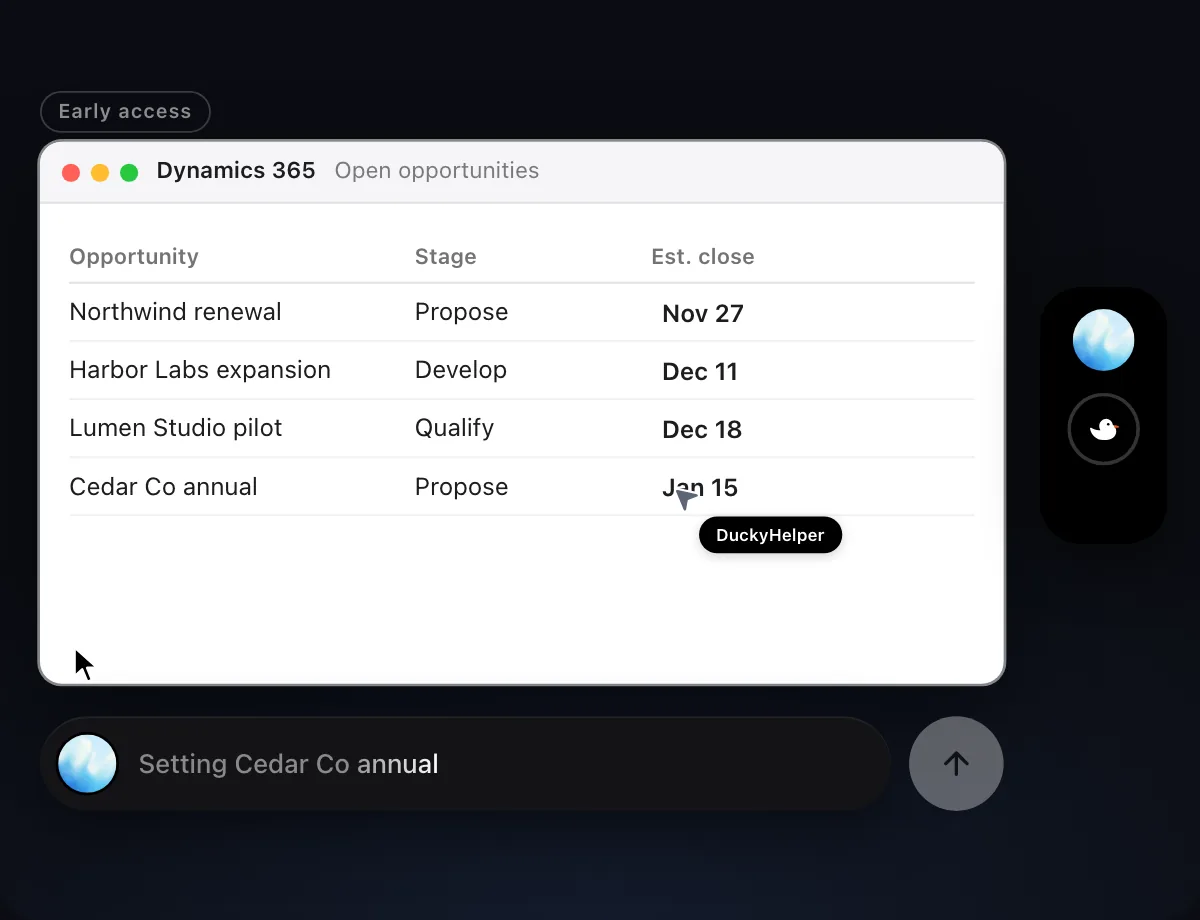
“Fill in an estimated close date for each open opportunity from the notes”
- 01Open the opportunities list and have the notes on screen.
- 02DuckyHelper reads what each note says about timing, like when budget is approved.
- 03It sets the estimated close date on each opportunity with its own cursor.
- 04It shows the list so you can check each date.
Built to ask firstFilling in dates stays inside your Dynamics 365, so it needs no OK. Anything sent to a customer is built to stop for your OK.
You getEach open opportunity has a close date that matches what the notes say.

Morning list of aging cases
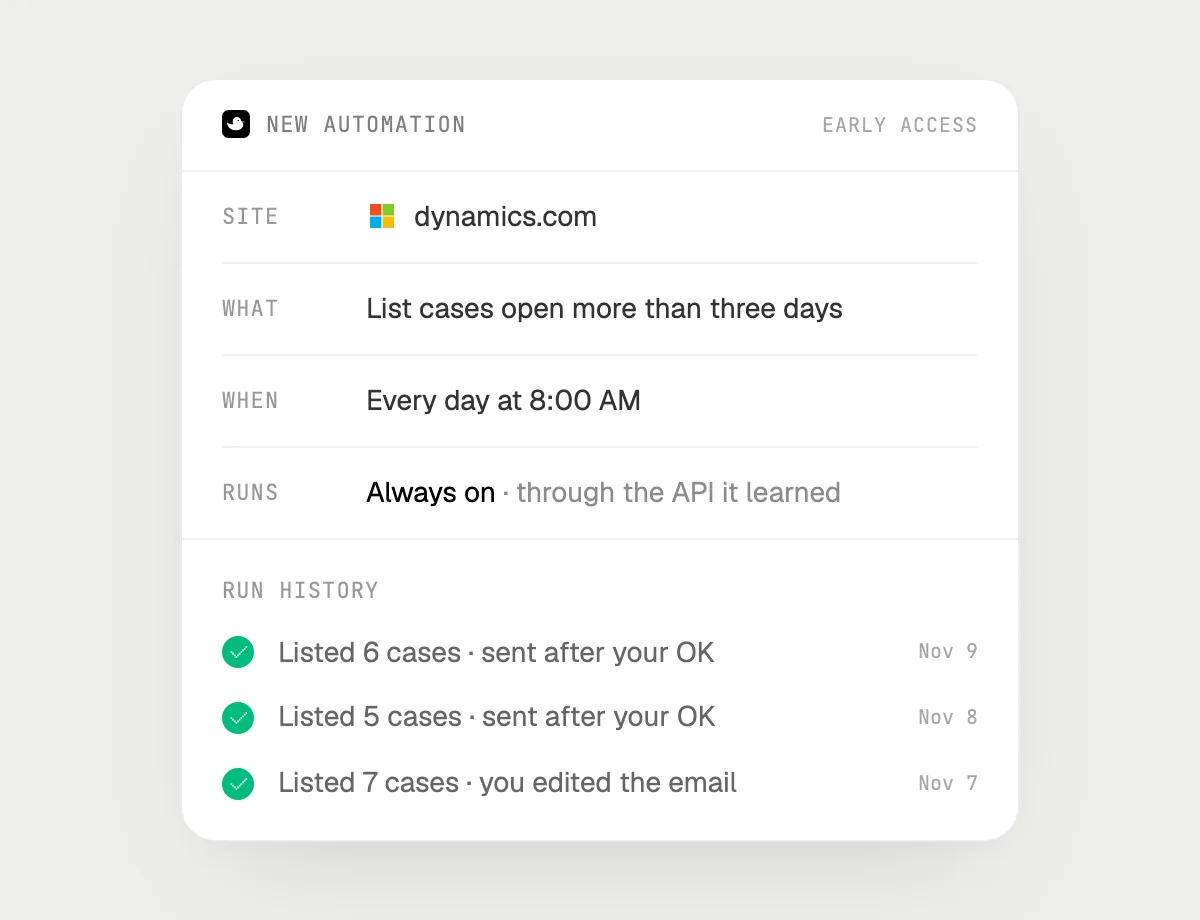
“Every morning at 8, list cases open more than three days and send me the list”
- 01Say it once with the cases list open. It makes today's list as a first run.
- 02It learns Dynamics 365's own actions the first time, so later mornings are quick.
- 03Turn it on from the card it offers. It runs every morning at 8 from then on.
- 04It lists the cases open for more than three days and writes the email to you with the list.
- 05It stops with Send, Edit and Deny before the email goes.
Built to ask firstMaking the list needs no OK. The email with the list is shown with Send, Edit and Deny first, and it's built to wait for your OK before anything goes out.
You getEvery morning you can see which cases have aged past three days, in one email.
Getting more out of it in Dynamics 365.
- 01
Show the target column and the open status before you ask. It reads what is on screen.
- 02
Say what "aging" means for you: three days, five days, or past the target.
- 03
Tell it the date rule for close dates: "next Friday" or "end of the month".
- 04
Mail goes through Outlook for many teams. See the Outlook guide.
Questions about Dynamics 365.
Do I need to connect my Dynamics 365 account?
No. There is nothing to connect. It sees what is on your screen while the pill is open, and for jobs (Early access) it uses Dynamics 365 in your browser or window with its own cursor, signed in as you. It's built not to type your passwords or card numbers.
Will it send anything without asking me?
It's built to ask first before it sends a message or pays for anything, and to wait for your yes: it stops with Send, Edit and Deny (or a pay card for anything that costs money). That covers emails to customers or to you. It may not recognize every send or payment, so keep an eye on tasks that involve messages or money. Reading, drafting and filling things in don't need your OK.
Does it change how our system is set up?
No. It doesn't touch admin or customization pages. It works on the cases, leads and opportunities you point it at.
Does it use Dynamics' own AI?
No. DuckyHelper is its own app and works from your screen. It doesn't use or replace anything built into Dynamics 365.



Do anything
Ask it a question or hand it a job, in any app.


Doing jobs for you is in early access on Mac. Asking works on Mac, Windows and Linux.