

How to use DuckyHelper in Gong
Gong keeps the call, but the hard part is pulling out the one thing that matters. Ask DuckyHelper about the call page or deals on your screen and it underlines the objection or circles the quiet deals. Hand it the follow-up or the CRM notes and it works for you (Early access). It does not record or join calls.
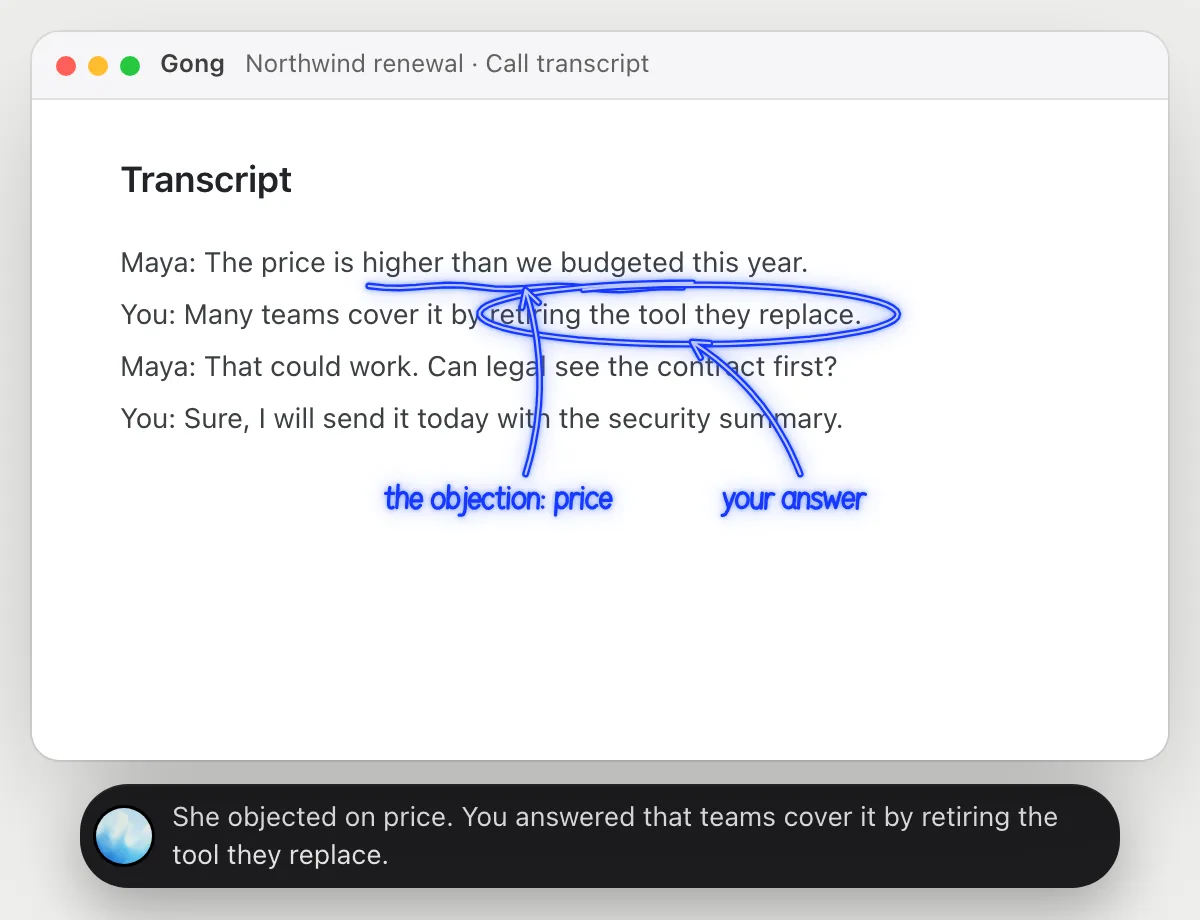
Find the objection and your answer
“What objection did they raise, and how did I answer it?”
- 01Open the call page and scroll the transcript to the part you mean.
- 02Ask out loud. DuckyHelper reads the lines on the screen.
- 03It underlines the objection and rings your answer, and says both in a sentence.
- 04Ask whether the answer landed and it points to how they replied in the next line.
You getThe objection and your answer, found in seconds instead of scrubbing through the recording.
 She objected on price. You answered that teams cover it by retiring the tool they replace.
Find deals that went quiet
“Which deals here haven't had a call in three weeks?”
- 01Open the deals board or list with the last call date showing.
- 02Ask out loud. DuckyHelper reads each deal and the date of its last call.
- 03It compares the dates with today's and circles the ones more than three weeks back.
- 04Ask which to call first and it points to the largest one.
You getThe deals that need a call this week, found without sorting by date.
Two have gone quiet: Lumen Studio pilot, last call Sep 30, and Northwind renewal, last call Oct 12.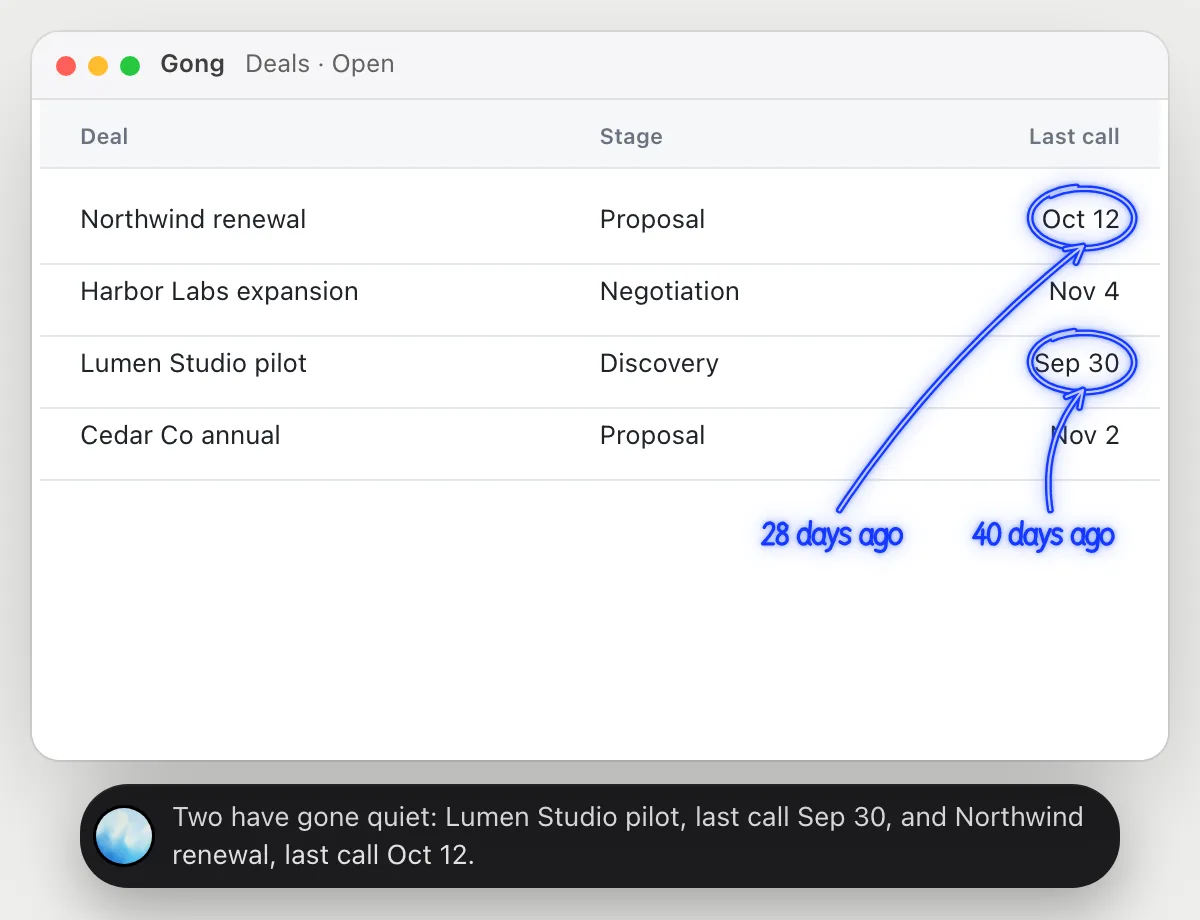
Write the follow-up from a call
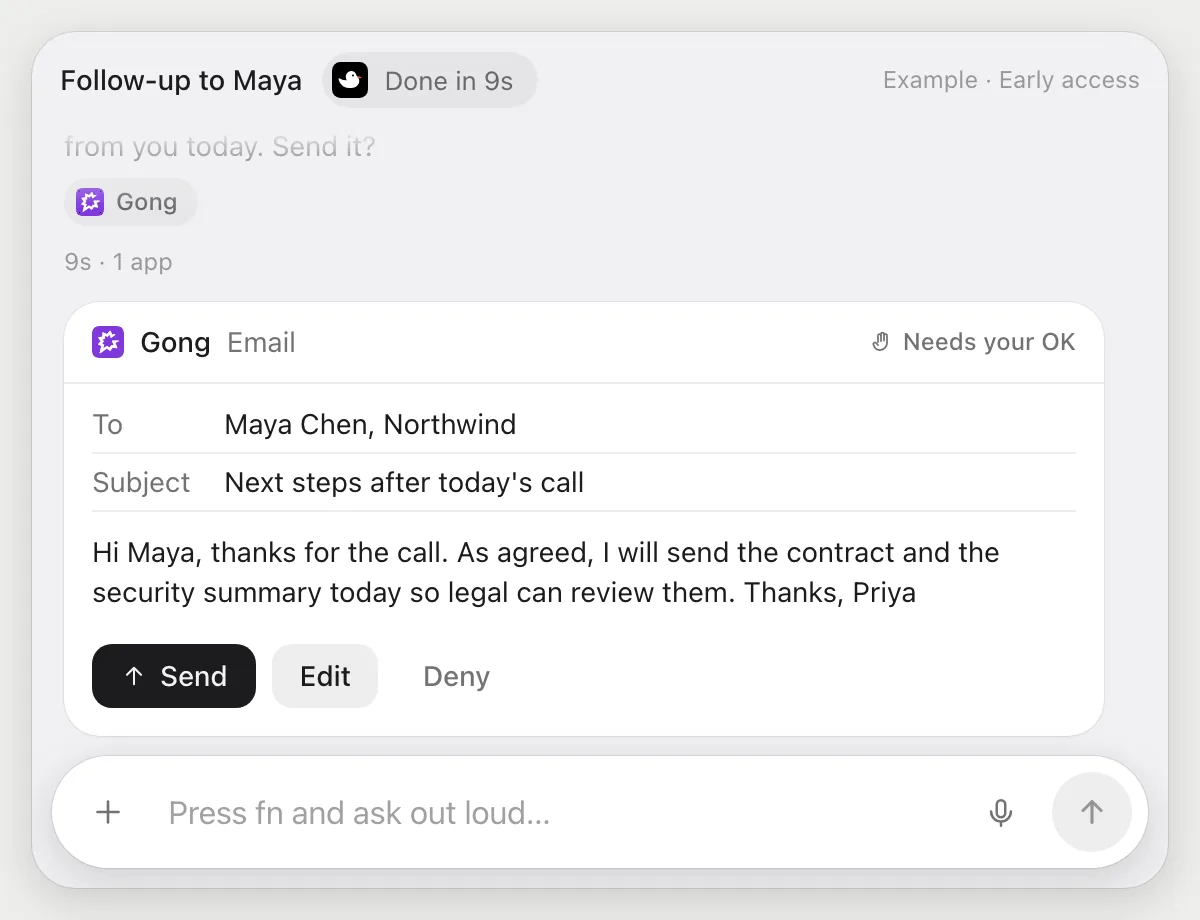
“Write the follow-up email from this call's next steps and wait for my OK”
- 01Open the call page so its next steps are on screen.
- 02DuckyHelper reads the next steps and who owns each.
- 03It writes a follow-up email that lists them, in your voice.
- 04The email goes to a person, so it shows it with Send, Edit and Deny and waits.
- 05Press Send, change a line with Edit, or Deny and nothing goes out.
Built to ask firstThe email is shown with Send, Edit and Deny first. Nothing goes out until you press Send.
You getA follow-up that lists exactly what was agreed, sent only after you read it.
Copy action items into the CRM
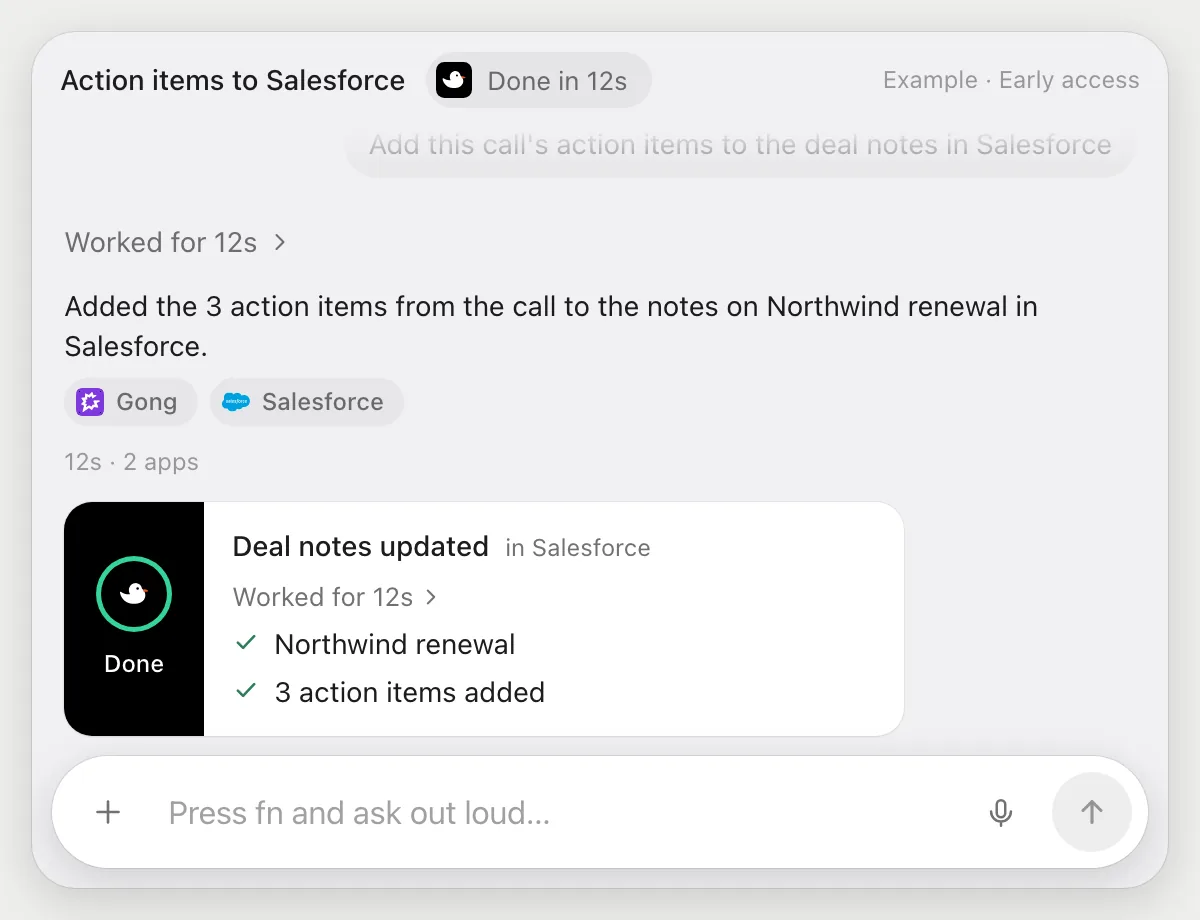
“Add this call's action items to the deal notes in Salesforce”
- 01Open the Gong call page so the action items are on screen.
- 02DuckyHelper reads the action items.
- 03It opens the deal in Salesforce in your browser, signed in as you, with its own cursor.
- 04It adds the action items to the deal's notes and checks they show.
- 05It tells you which deal it updated.
Built to ask firstAdding notes to a deal stays inside your CRM, so it needs no OK. Anything emailed to a customer or colleague is built to stop for your OK.
You getThe deal's notes list what the call decided, without retyping.
Getting more out of it in Gong.
- 01
Scroll the transcript to the part you mean before you ask. It reads what is on screen.
- 02
Say who is speaking: "what did Maya object to?" points it at the right lines.
- 03
DuckyHelper doesn't record calls. If you need a call joined and recorded, use Gong for that.
- 04
The deals live in your CRM too. See the Salesforce guide.
Questions about Gong.
Do I need to connect my Gong account?
No. There is nothing to connect. It sees what is on your screen while the pill is open, and for jobs (Early access) it uses Gong in your browser or window with its own cursor, signed in as you. It's built not to type your passwords or card numbers.
Will it send anything without asking me?
It's built to ask first before it sends a message or pays for anything, and to wait for your yes: it stops with Send, Edit and Deny (or a pay card for anything that costs money). That covers follow-up emails. It may not recognize every send or payment, so keep an eye on tasks that involve messages or money. Reading, drafting and filling things in don't need your OK.
Does it record or join my sales calls?
No. It reads what Gong shows on your screen. It does not record, join or listen to calls.
Is it the same as Gong's own AI features?
No. DuckyHelper is its own app and works from your screen. It doesn't use or replace anything built into Gong.



Do anything
Ask it a question or hand it a job, in any app.



Doing jobs for you is in early access on Mac. Asking works on Mac, Windows and Linux.