

How to use DuckyHelper in Microsoft Bookings
Bookings runs your appointments, but a free slot, a new service or a rescheduled customer can take several screens. Ask DuckyHelper about the calendar on your screen and it finds who is free. You can also hand it the setup or a daily check (Early access).
See who is free for an appointment
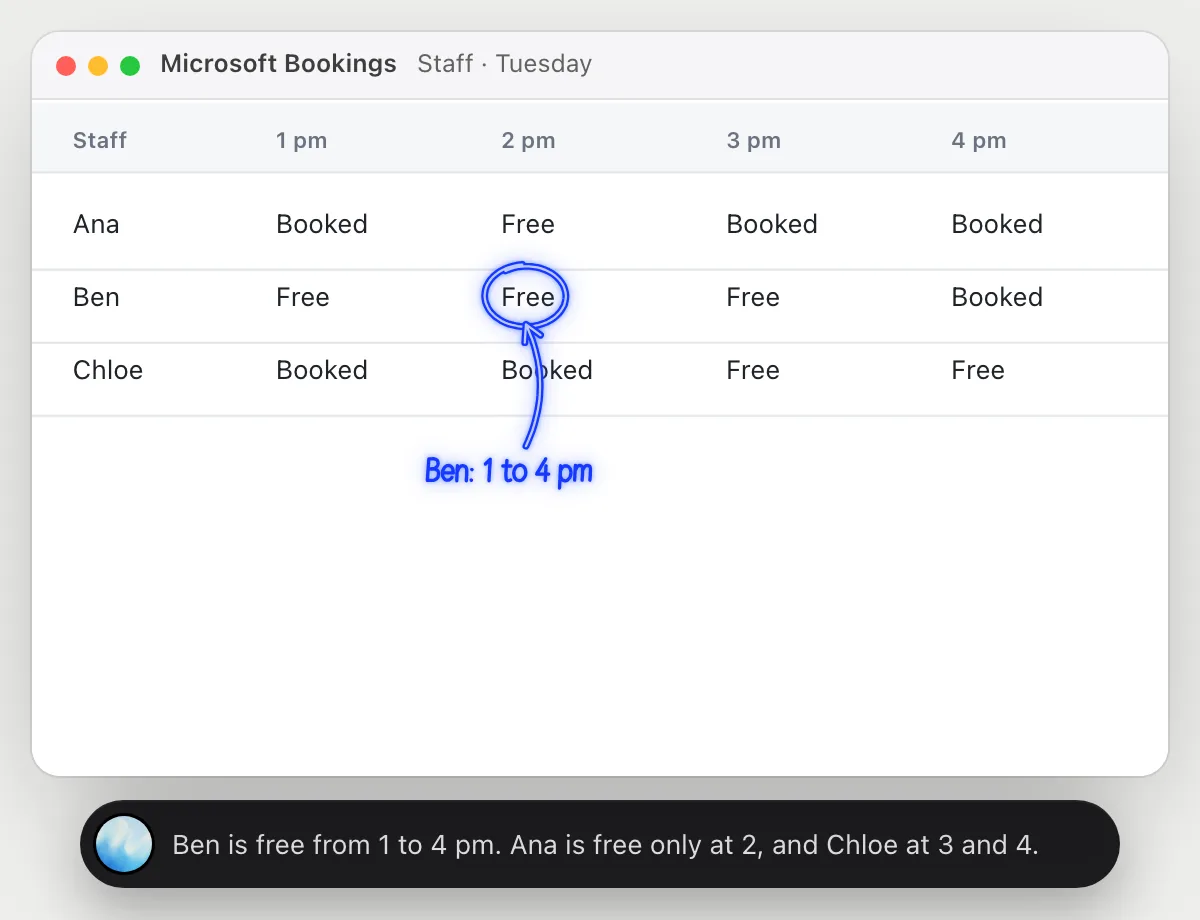
“Which staff member is free Tuesday afternoon?”
- 01Open Tuesday's staff view so each person's afternoon is on the screen.
- 02Ask out loud. DuckyHelper reads who is booked in each hour.
- 03It circles the staff member with the most open time.
- 04It lists the other free hours so you have a second choice.
You getThe person to book for Tuesday afternoon, found in a glance.
 Ben is free from 1 to 4 pm. Ana is free only at 2, and Chloe at 3 and 4.
Add a new service
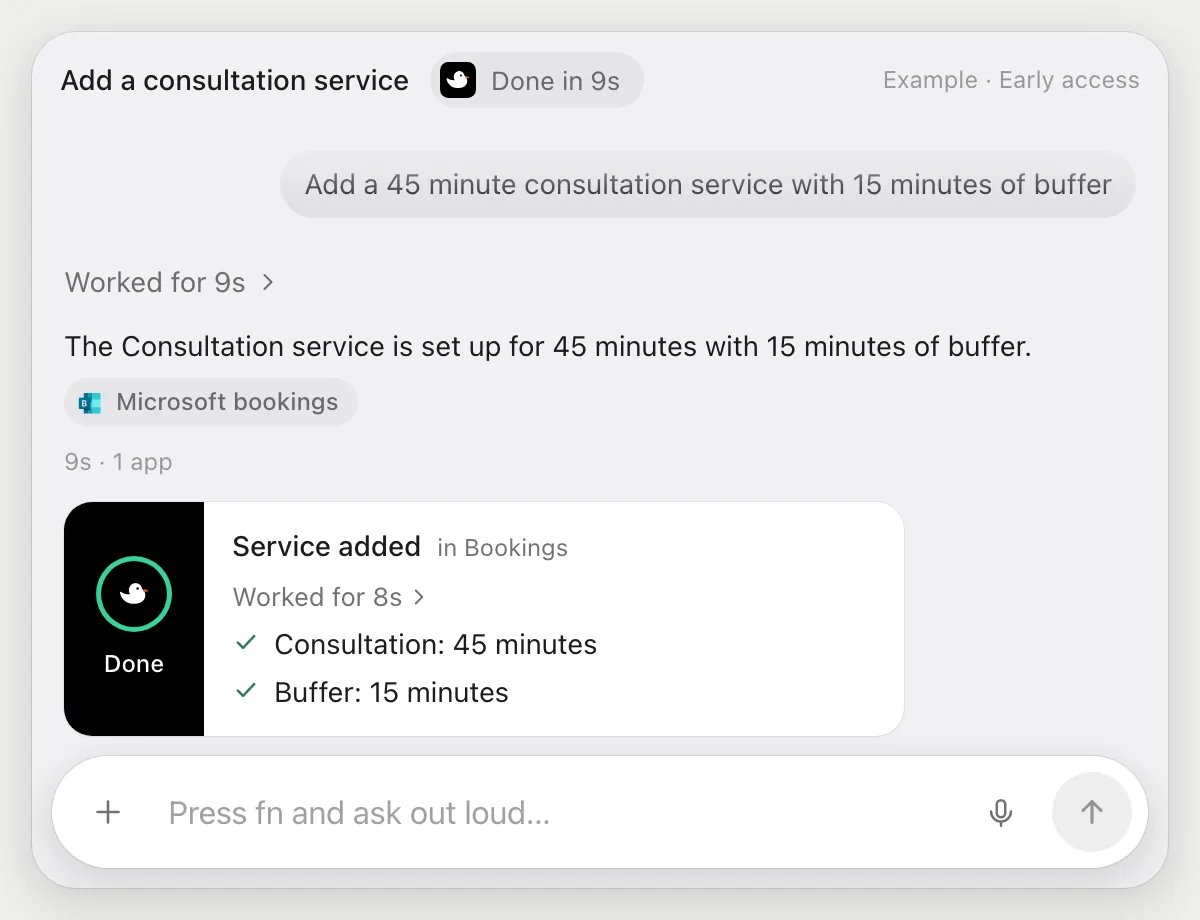
“Add a 45 minute consultation service with 15 minutes of buffer”
- 01Say the name, the length and the buffer.
- 02DuckyHelper opens the new service form with its own cursor.
- 03It fills in the name, a 45 minute duration and the 15 minutes of buffer.
- 04It finishes with a done card listing what it set.
Built to ask firstCreating a service needs no OK. Nothing is sent to customers.
You getA new consultation service, ready to show on your booking page.
Reschedule a customer and let them know
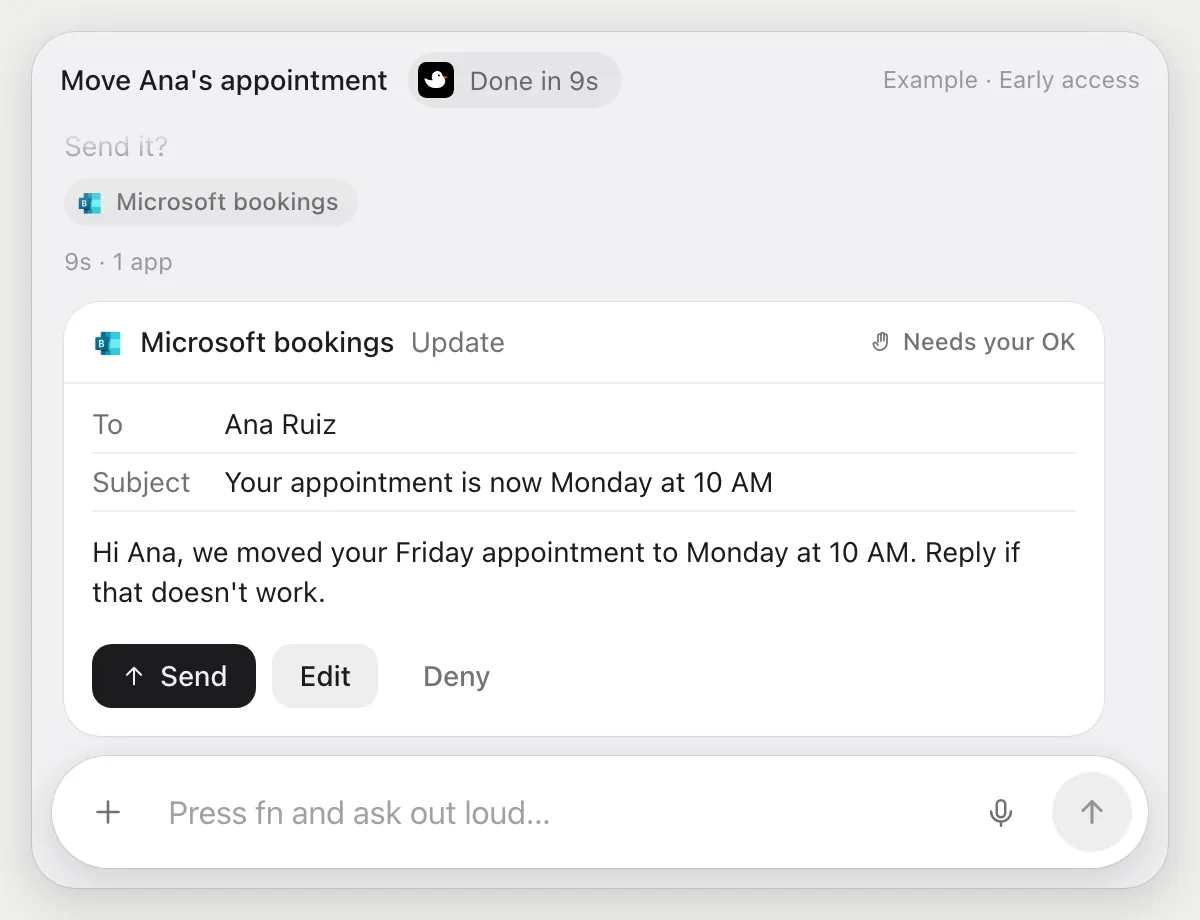
“Move Ana's Friday appointment to Monday at 10 and let her know”
- 01Say whose appointment and the new time.
- 02DuckyHelper opens Ana's booking with its own cursor.
- 03It changes the date and time and writes a short note for her.
- 04It stops before Ana is told and shows the update with Send, Edit and Deny.
Built to ask firstAna is told about the new time only after you press Send. Changing your booking needs no OK.
You getThe appointment is on Monday at 10, and Ana is told after you checked the note.
Check each day's bookings for gaps
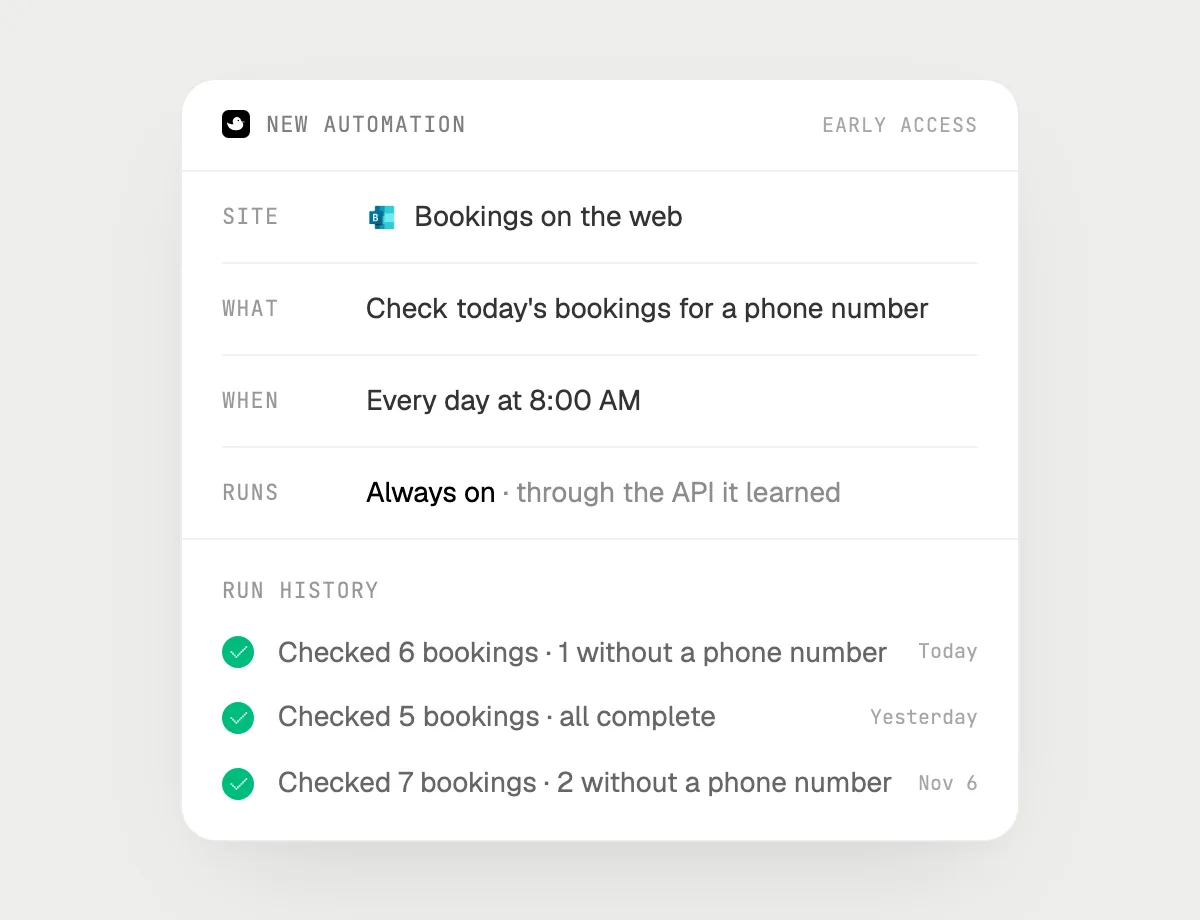
“Every morning at 8, check today's bookings and flag any without a phone number”
- 01Say it once with Bookings open. It checks today's bookings now so you can see the result.
- 02It learns the page's own actions the first time, so each morning's run is quick.
- 03Turn it on from the card it offers. It runs every morning at 8.
- 04Each run lands in the history with who had no phone number.
Built to ask firstChecking and flagging need no OK. Contacting customers is built to stop for your OK first.
You getYou start the day knowing which bookings have no phone number.

Getting more out of it in Microsoft Bookings.
- 01
Switch to the staff view for the day before you ask about who is free.
- 02
Give the length and the buffer when you ask for a new service, in minutes.
- 03
For a reschedule, read the note on the card, because it goes to a customer.
- 04
Planning your own calendar? See the Outlook guide.
Questions about Microsoft Bookings.
Do I need to connect my Microsoft Bookings account?
No. There is nothing to connect. It sees what is on your screen while the pill is open, and for jobs (Early access) it uses Microsoft Bookings in your browser with its own cursor, signed in as you. It's built not to type your passwords or card numbers.
Can it message customers without asking?
It's built to ask first: before any customer is told about a change it shows the note with Send, Edit and Deny and waits for your yes. It may not recognize every send or payment, so keep an eye on tasks that involve messages or money.
Does it change my Microsoft 365 settings?
No. It does nothing in admin settings. It works in the Bookings page on your screen like a person does.
Does it see everything in Bookings?
No. When you ask a question it looks only at what is on your screen, and only while the pill is open. A job or automation you start (Early access) opens only the pages that job needs.



Do anything
Ask it a question or hand it a job, in any app.



Doing jobs for you is in early access on Mac. Asking works on Mac, Windows and Linux.