

How to use DuckyHelper in Google Calendar
Google Calendar fills up before you notice the gaps and the clashes. Ask DuckyHelper about the week on your screen and it finds the free hour and circles the overlap. You can also hand it a move with a note, or weekly focus blocks (Early access).
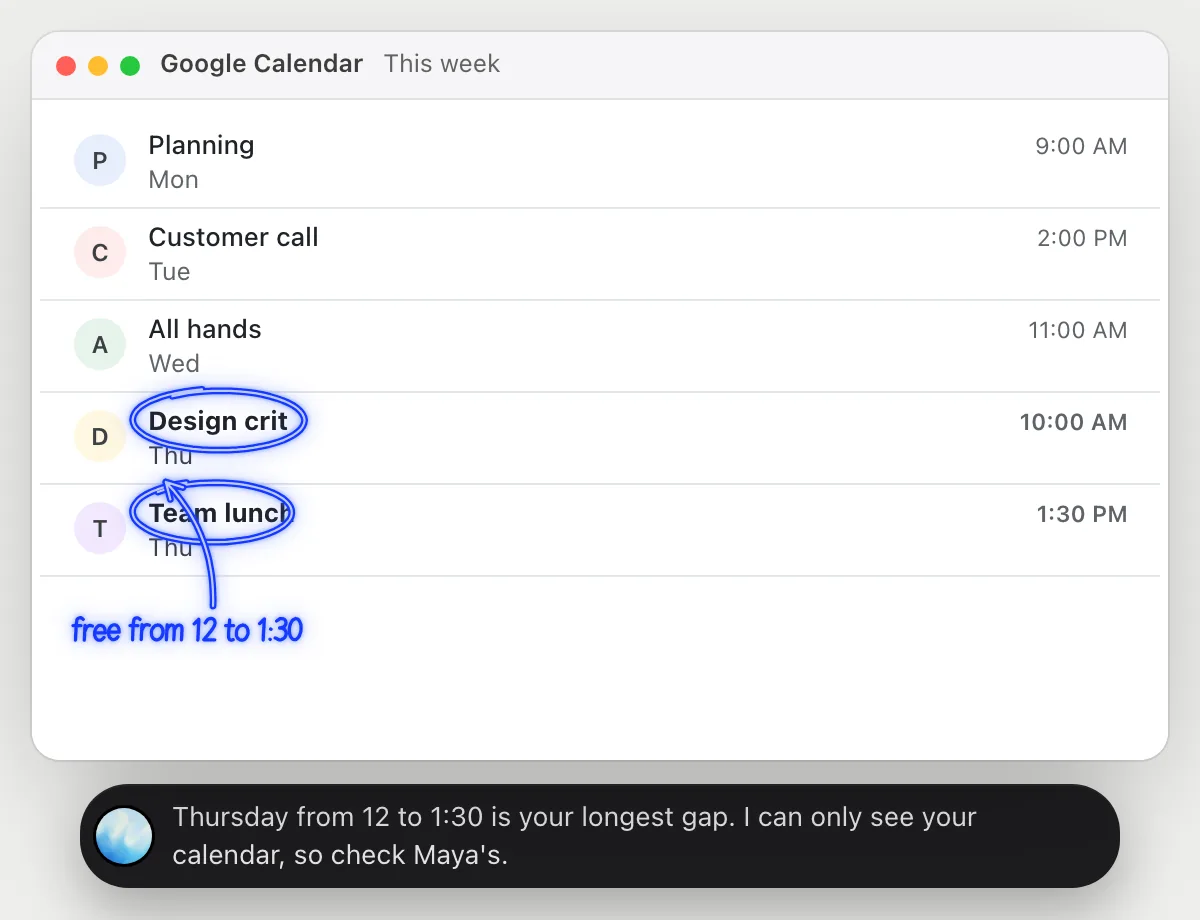
Find a free hour this week
“When am I free for an hour with Maya this week?”
- 01Show your week so every event is on the screen.
- 02Ask out loud. DuckyHelper reads the events and their times.
- 03It circles the longest gap and says the day and hours.
- 04It reminds you it sees only your calendar, so Maya's side is for you to check.
You getA free hour to offer, found without clicking through the days.
 Thursday from 12 to 1:30 is your longest gap. I can only see your calendar, so check Maya's.
Spot overlapping meetings
“Do any of my meetings tomorrow overlap?”
- 01Open tomorrow in day view so all the events are on the screen.
- 02Ask out loud. DuckyHelper compares the start and end of each event.
- 03It circles the two events that run into each other.
- 04It says which one starts first and who is on each.
You getYou see the clash before the day starts.
The hiring sync and the customer demo overlap from 1:30 to 2. Both have outside guests.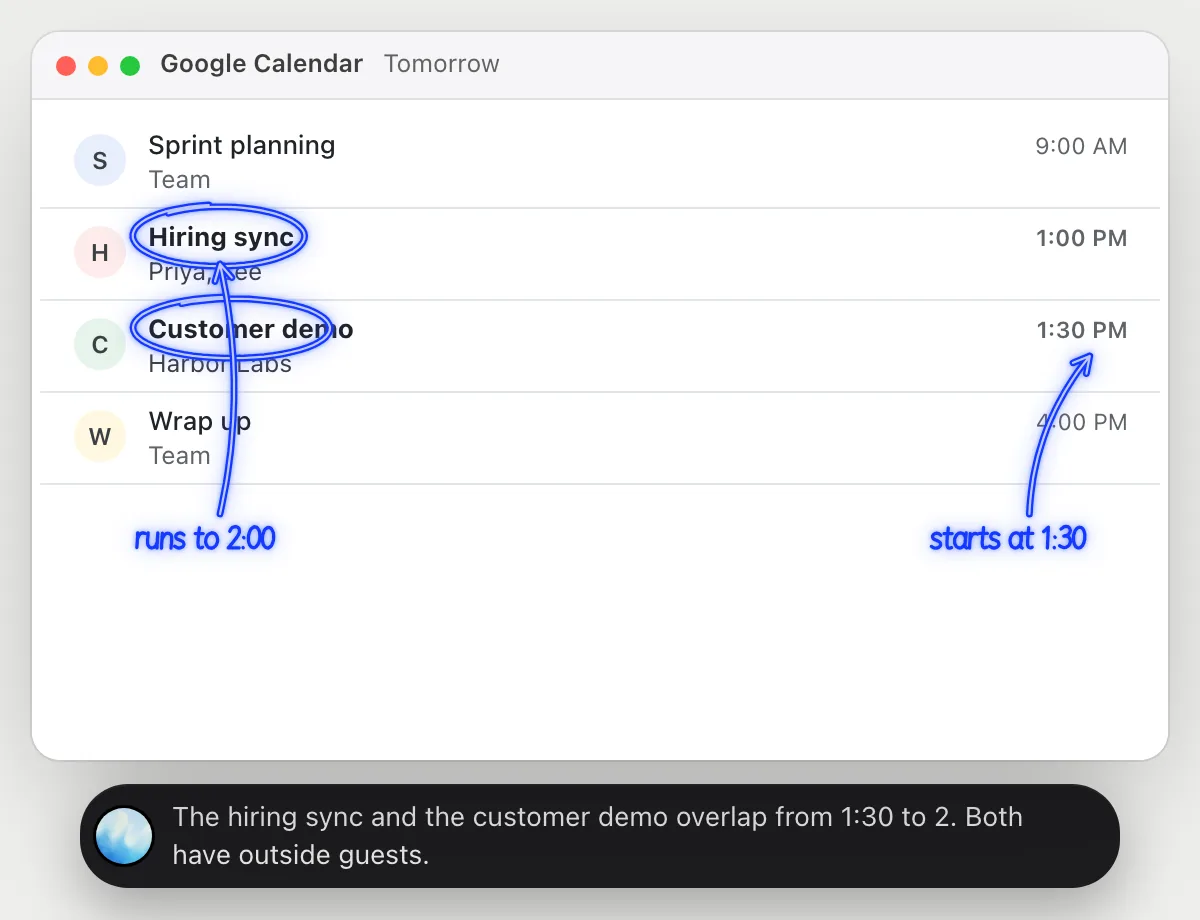
Move a meeting and tell the other person why
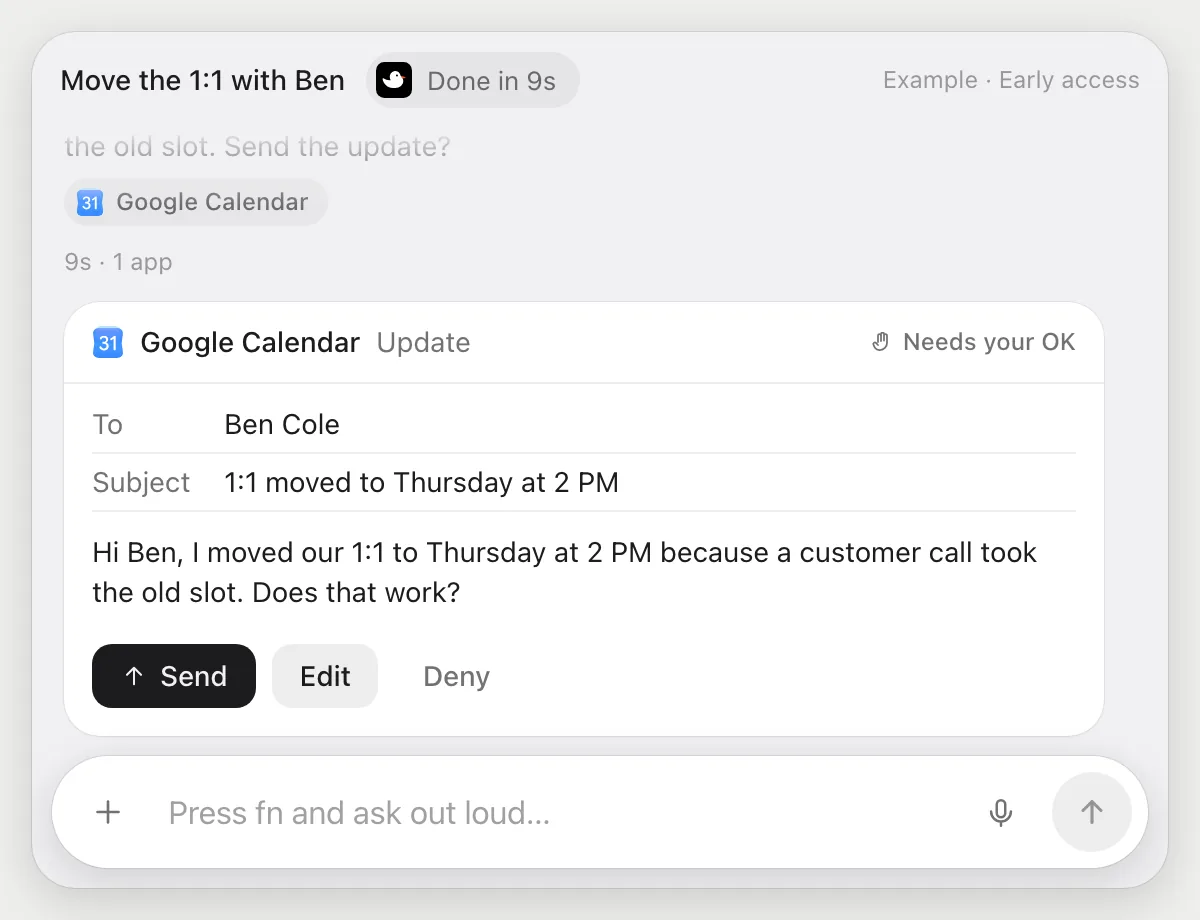
“Move my 1:1 with Ben to Thursday at 2 and tell him why”
- 01Say which meeting, the new time and the reason.
- 02DuckyHelper opens the event with its own cursor and changes the time.
- 03It writes a short note for Ben with the reason.
- 04It stops before Ben is told and shows the update with Send, Edit and Deny.
Built to ask firstBen is notified only after you press Send. Changing the time on your own calendar needs no OK.
You getThe 1:1 is on Thursday at 2, and Ben has a note that says why.
Protect focus time every week
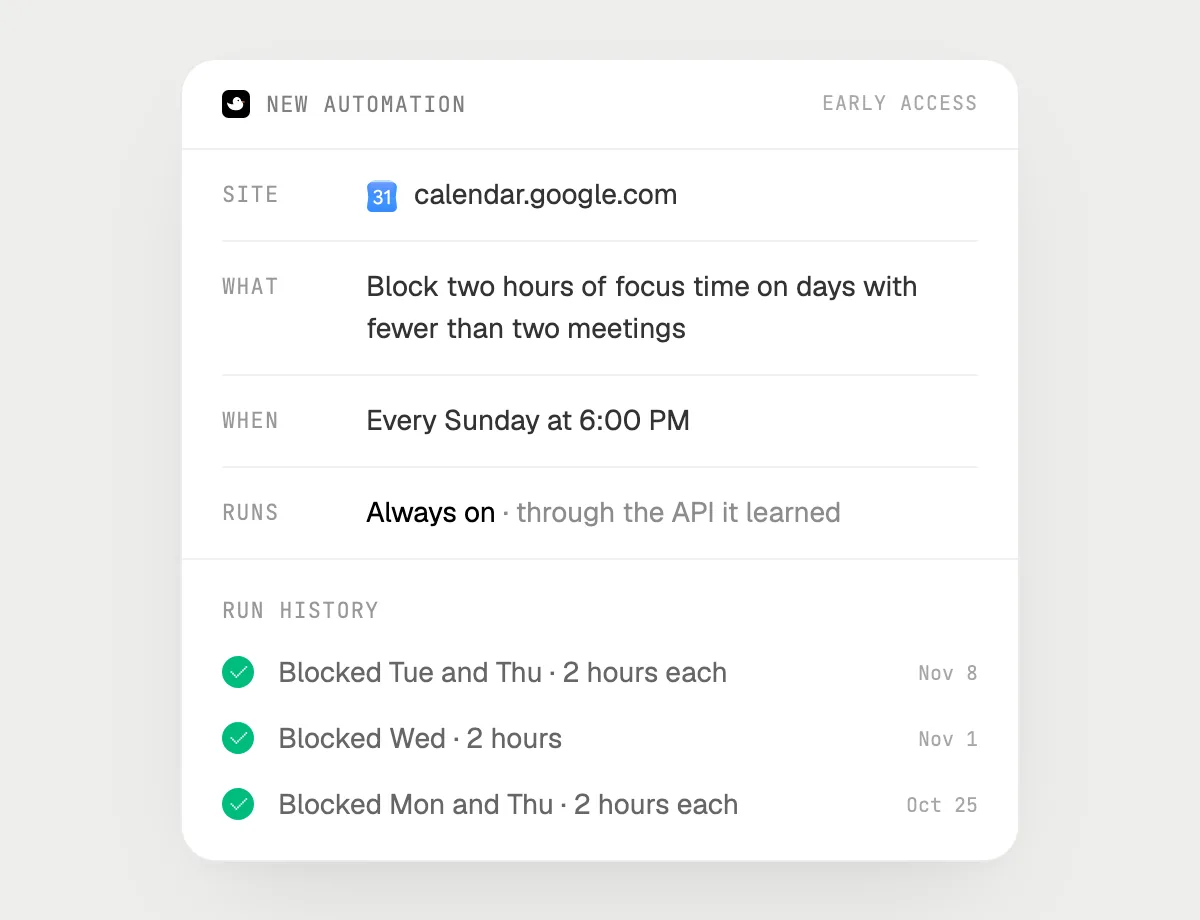
“Every Sunday evening, block two hours of focus time on any day with fewer than two meetings”
- 01Say it once with your calendar open. It plans next week's blocks right away so you can check them.
- 02It learns the page's own actions the first time, so each run is quick.
- 03Turn it on from the card it offers. It runs every Sunday evening.
- 04Each run lands in the history with the days it blocked.
Built to ask firstAdding a block to your own calendar needs no OK. Inviting anyone or answering an invite is built to wait for your OK.
You getQuiet blocks appear on your lighter days, without you dragging them in.

Getting more out of it in Google Calendar.
- 01
Switch to week view for free time and day view for overlaps. It reads the view you have open.
- 02
Say who the meeting is with. It cannot see another person's calendar, only yours.
- 03
When you move a meeting, give the reason in a few words. It will put it in the note.
- 04
Booking from a link? See the Calendly guide.
Questions about Google Calendar.
Do I need to connect my Google Calendar account?
No. There is nothing to connect. It sees what is on your screen while the pill is open, and for jobs (Early access) it uses Google Calendar in your browser with its own cursor, signed in as you. It's built not to type your passwords or card numbers.
Will it accept or decline invites for me?
It's built to ask you first before it accepts or declines an invite. Before anyone is told about a change it shows the update with Send, Edit and Deny. It may not recognize every send or payment, so keep an eye on tasks that involve messages or money.
Can it see Maya's calendar?
Only if it is on your screen. It cannot see calendars you do not already have open.
Does it see everything in your calendar?
No. When you ask a question it looks only at what is on your screen, and only while the pill is open. A job or automation you start (Early access) opens only the pages that job needs.



Do anything
Ask it a question or hand it a job, in any app.

Doing jobs for you is in early access on Mac. Asking works on Mac, Windows and Linux.