

How to use DuckyHelper in Microsoft Teams
Teams chats pile up between meetings. Ask DuckyHelper about the chats on your screen and it tells you which are waiting on you and what was decided. You can also hand it a message or a meeting invite to write for your OK (Early access).
See which chats are waiting on you
“Which of these chats are waiting on an answer from me?”
- 01Open the Chat list so the latest chats are on the screen.
- 02Ask out loud. DuckyHelper reads each name and the last message.
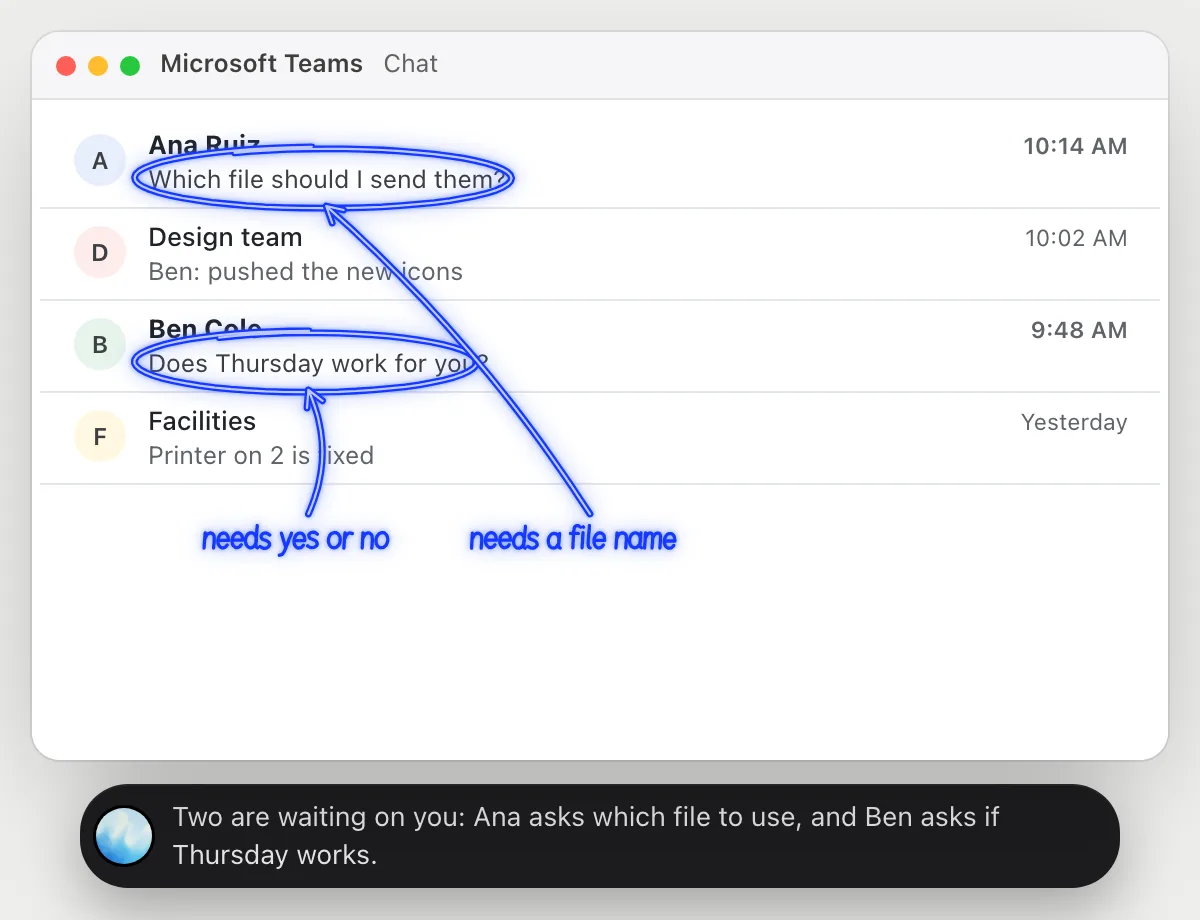
- 03It circles the chats whose last message ends with a question to you.
- 04Ask about one of them and it tells you what is being asked.
You getYou know which two chats need an answer before you open any of them.
 Two are waiting on you: Ana asks which file to use, and Ben asks if Thursday works.
Get the decision out of a meeting chat
“What did we decide in this meeting chat, and who does what?”
- 01Open the meeting's chat so the whole conversation is on the screen.
- 02Ask out loud. DuckyHelper reads the messages in order.
- 03It underlines the line where the decision was made and circles the names with tasks.
- 04Ask what is still open and it answers from the same messages.
You getThe decision and who owns what, from the chat, in one answer.
Decision: launch on Dec 3. Ben updates the checklist by Friday and Priya sends the press list tomorrow.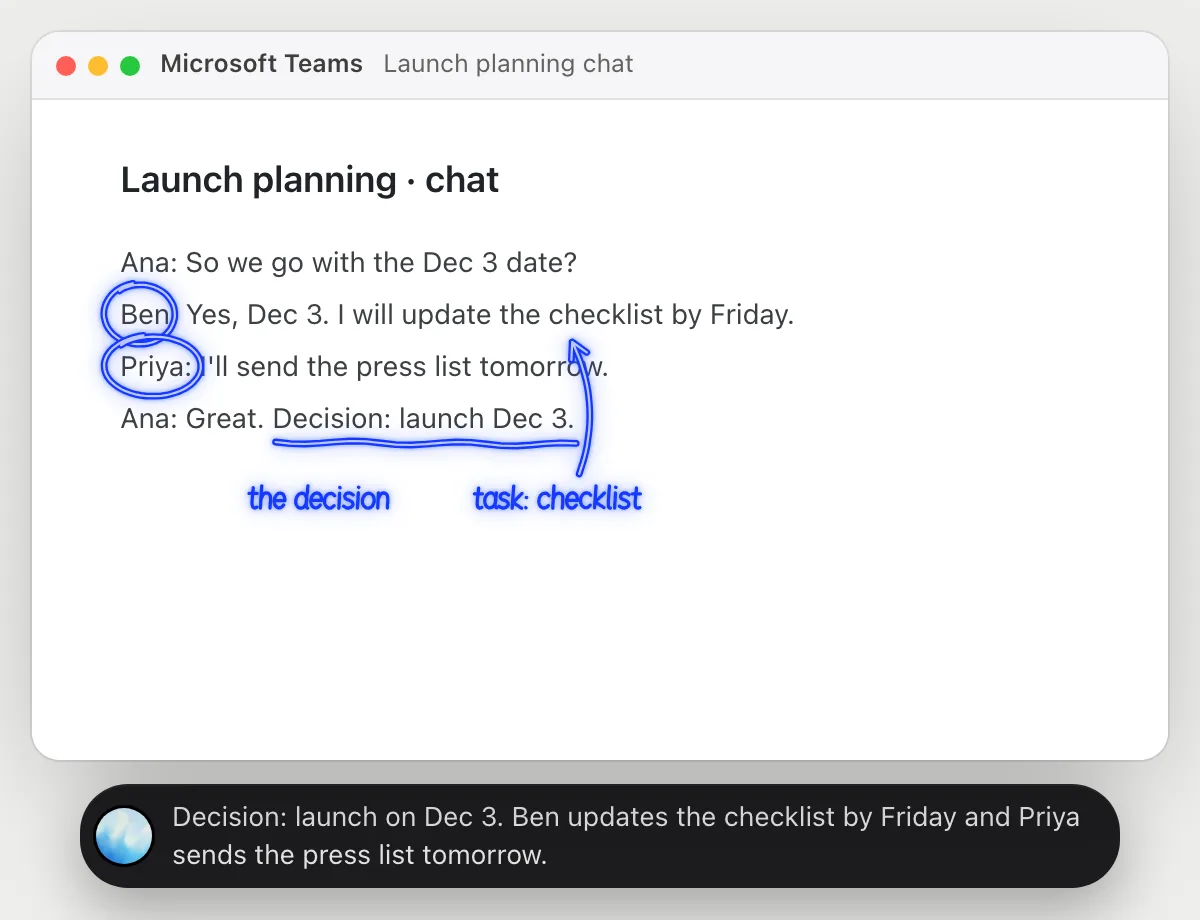
Reply in a project chat with a link
“Tell the project chat the draft is ready and share the link to it”
- 01Say which chat and which file. DuckyHelper opens the project chat.
- 02It finds the file and copies its link with its own cursor while you keep working.
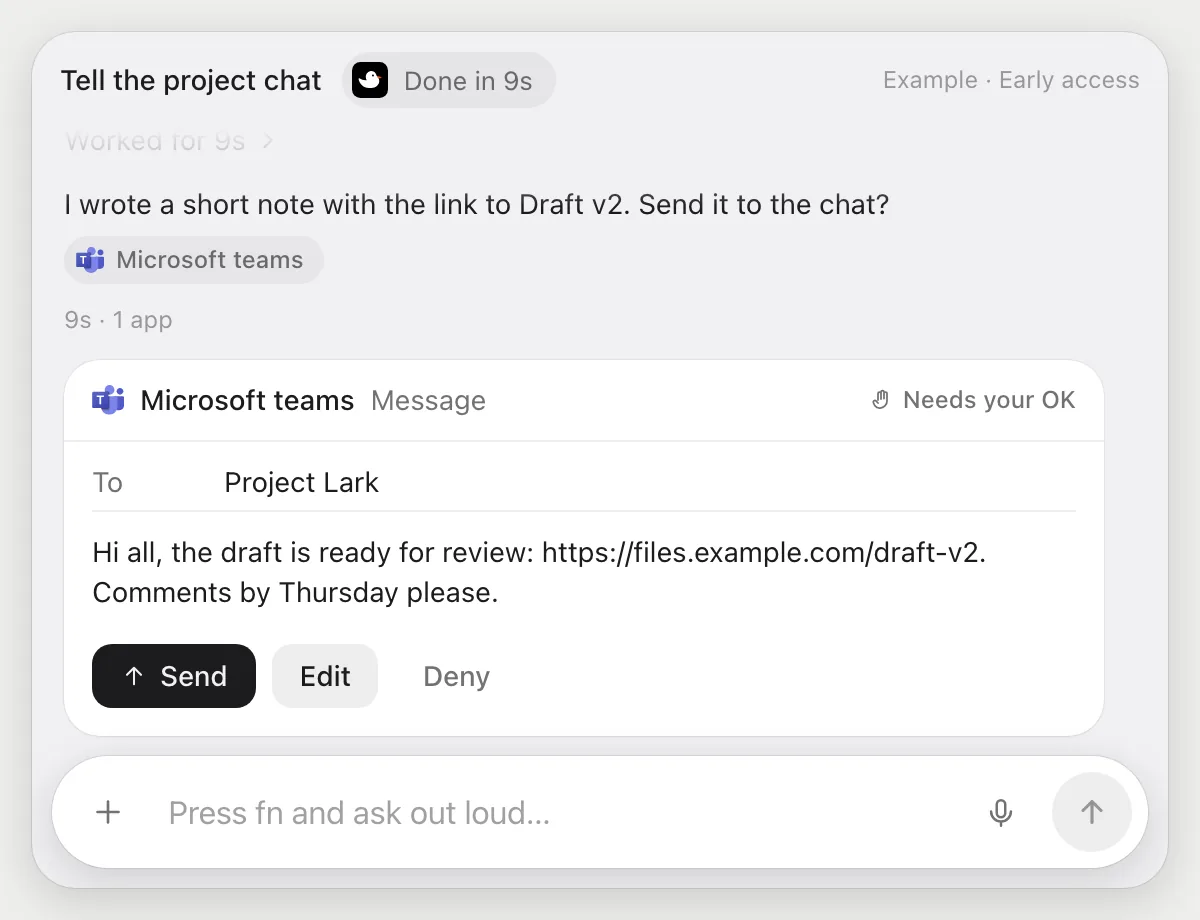
- 03It writes a short message with the link.
- 04It stops before sending and shows the message with Send, Edit and Deny.
Built to ask firstThe message appears in the chat only after you press Send.
You getThe team knows the draft is ready and has the link, sent after you read it.
Set up a meeting with two people
“Set up a 30 minute Teams meeting with Ana and Ben on Thursday afternoon”
- 01Say who, how long and roughly when.
- 02DuckyHelper opens the calendar in Teams and looks for a Thursday afternoon time that is free.
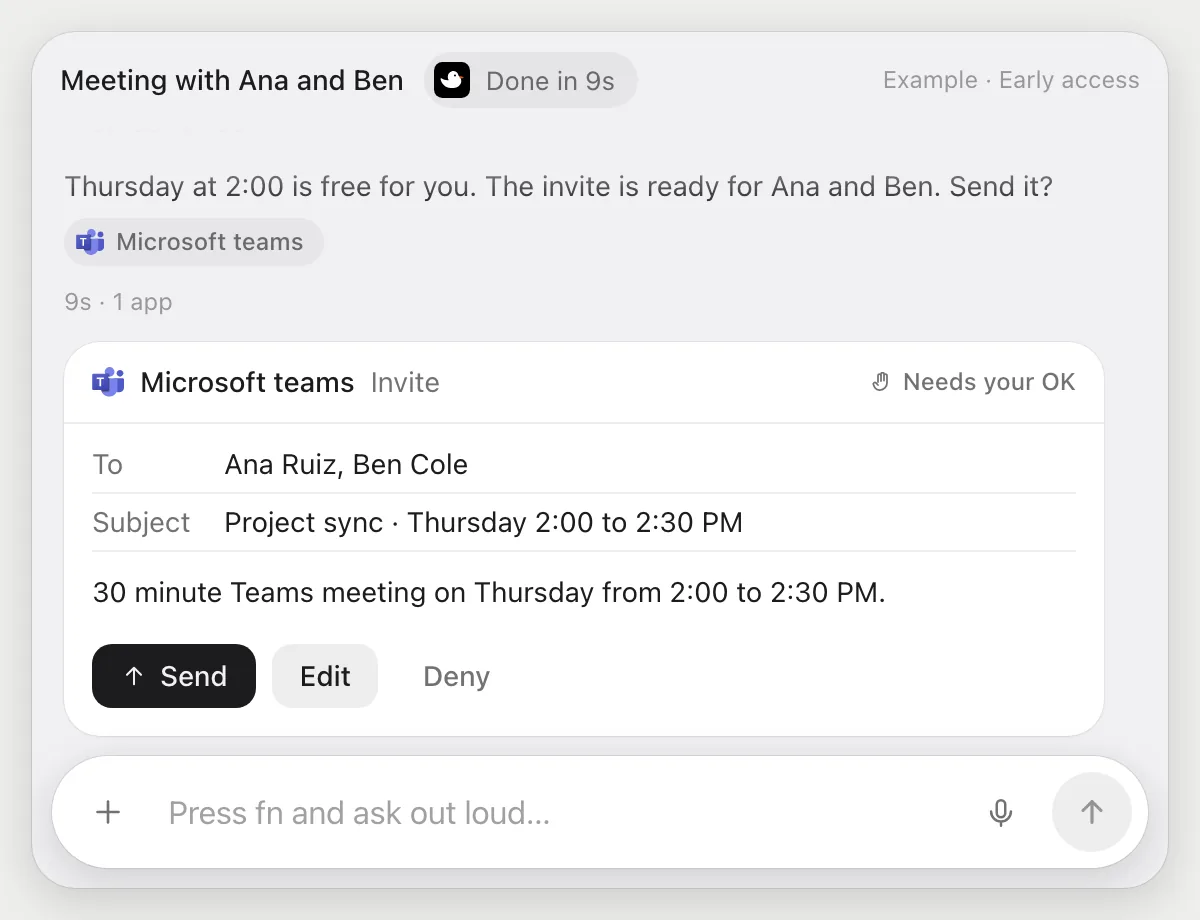
- 03It fills in the new meeting form with Ana and Ben and a 30 minute slot.
- 04It stops before the invite goes out and shows you the details with Send, Edit and Deny.
Built to ask firstAna and Ben are invited only after you press Send.
You getA meeting on Thursday with both people, invited after you checked the time.
Getting more out of it in Microsoft Teams.
- 01
Keep the chat list or chat you mean in view. It reads what is showing.
- 02
In a long chat, ask for the last decision first, then for who owns each task.
- 03
Give the meeting a clear name when you ask for an invite, and say how long it should be.
- 04
Chatting in Slack too? See the Slack guide.
Questions about Microsoft Teams.
Do I need to connect my Teams account?
No. There is nothing to connect. It sees what is on your screen while the pill is open, and for jobs (Early access) it uses Teams on your computer with its own cursor, signed in as you. It's built not to type your passwords or card numbers.
Does it join or record my meetings?
No. It never joins, records, transcribes or listens to calls or meetings. It hears only you, and only while the pill is open.
Can it send a message or an invite without asking?
It's built to ask first: before a message or invite goes out it shows it with Send, Edit and Deny and waits for your yes. It may not recognize every send or payment, so keep an eye on tasks that involve messages or money.
Is it a Teams app?
No. Nothing is installed in your Teams or your organization. It works on your screen like a person does.



Do anything
Ask it a question or hand it a job, in any app.



Doing jobs for you is in early access on Mac. Asking works on Mac, Windows and Linux.