

How to use DuckyHelper in Zoom
Zoom days run on slides and links. Ask DuckyHelper about the slide or the meeting list on your screen and it explains and circles what matters. You can also hand it a meeting to schedule or a recording link to send (Early access).
Understand a slide someone is sharing
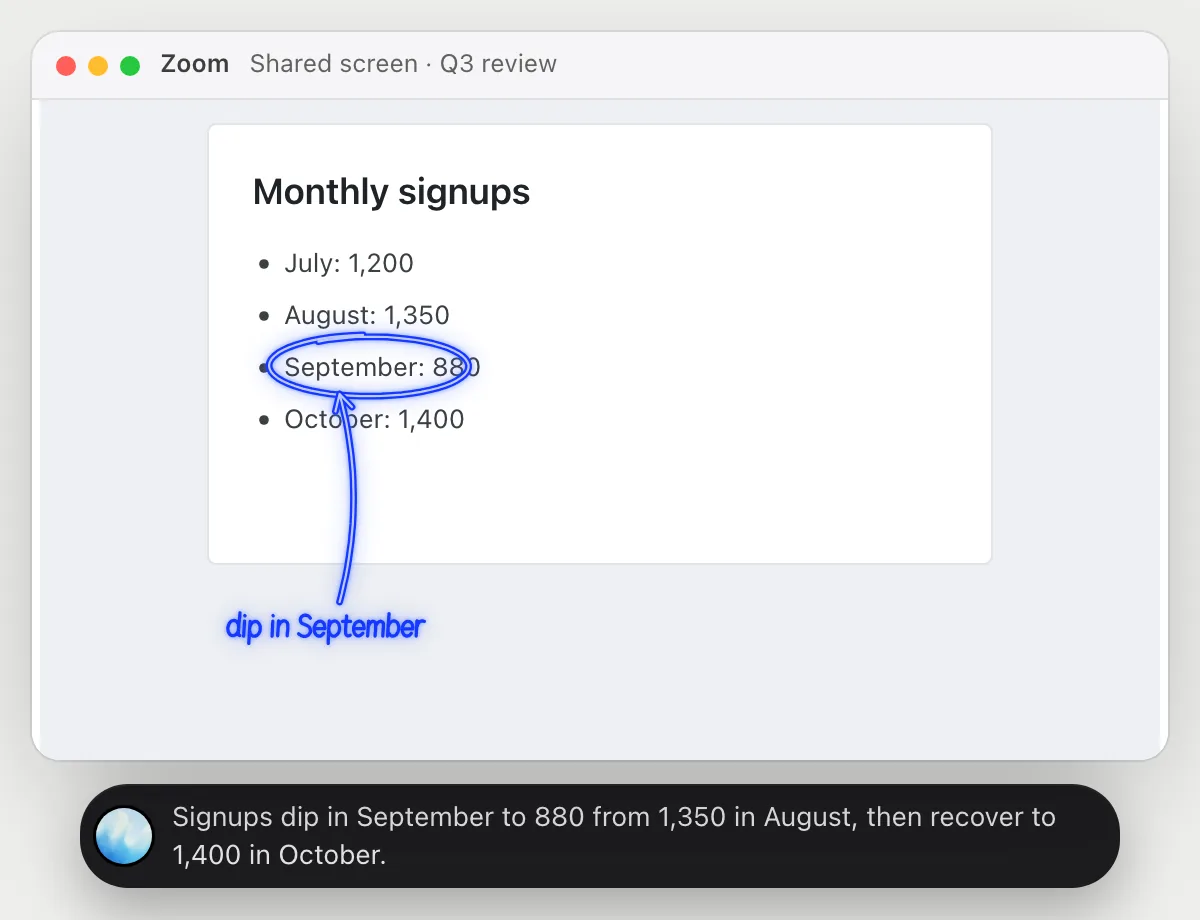
“What is this chart they are sharing actually saying?”
- 01When a slide is on your screen, open the pill and ask your question.
- 02DuckyHelper reads the slide in front of you.
- 03It circles the point that dips and says which month it is.
- 04It says in one sentence what the chart shows.
You getYou follow the point of the chart without interrupting the speaker.
 Signups dip in September to 880 from 1,350 in August, then recover to 1,400 in October.
Check what is next on your Zoom day
“Which of today's Zoom meetings need me to prepare something?”
- 01Open your meetings list for today so each meeting is on the screen.
- 02Ask out loud. DuckyHelper reads titles, times and what is attached.
- 03It circles the one with an agenda or a doc to read.
- 04It says when that meeting starts so you know how long you have.
You getYou know which meeting needs prep and how long you have.
One needs prep: the vendor review at 11 has a pricing doc to read first. The others have no agenda.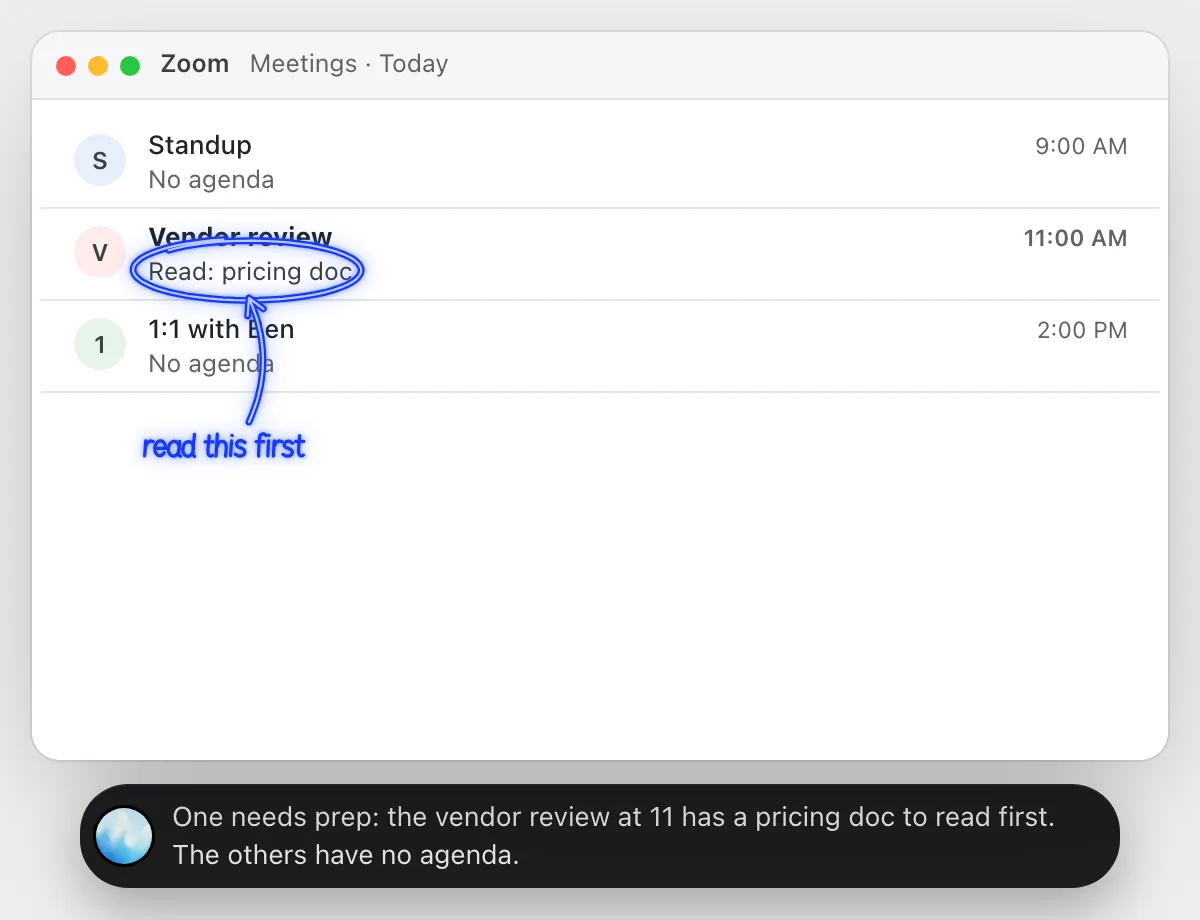
Schedule a meeting and send the invite
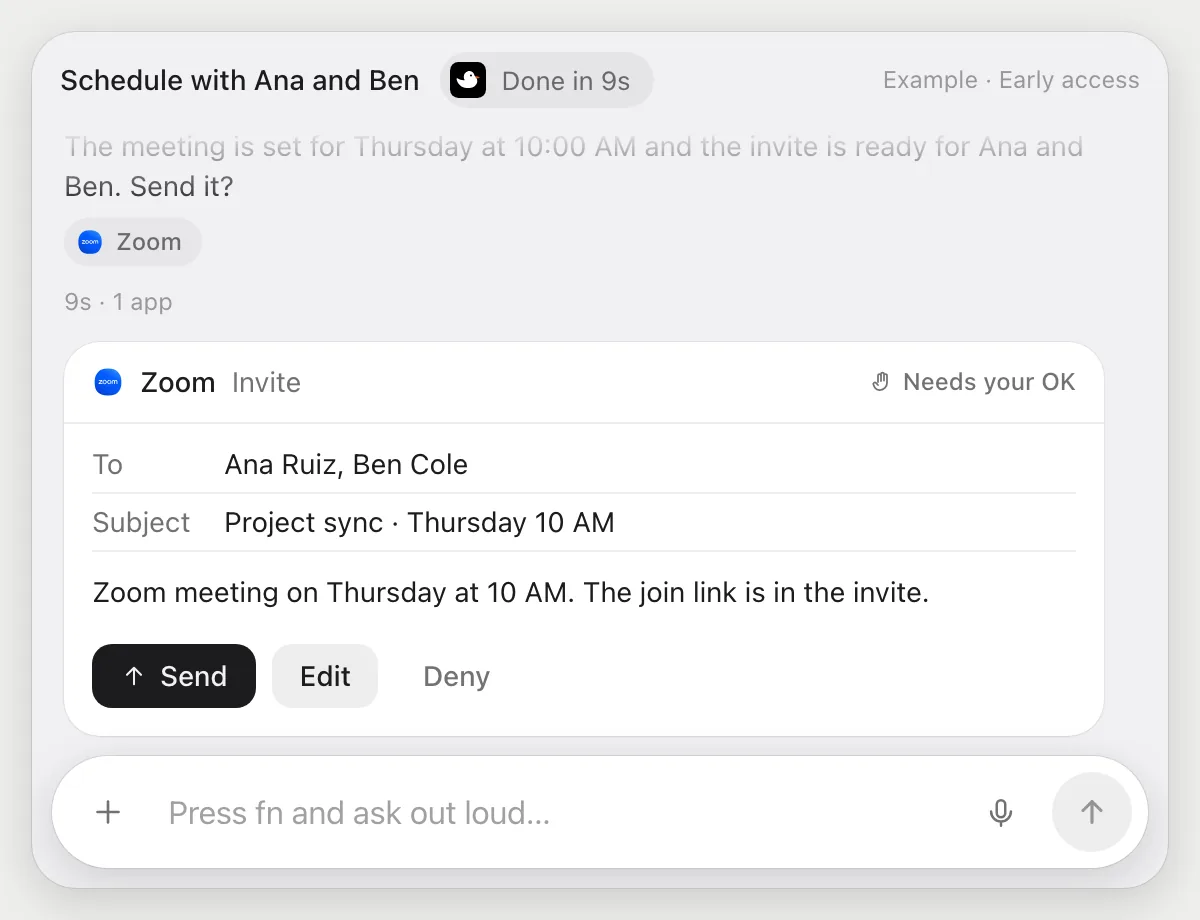
“Schedule a Zoom meeting Thursday at 10 with Ana and Ben and send them the invite”
- 01Say the day, time and who comes.
- 02DuckyHelper opens the schedule form on Zoom's site with its own cursor and fills it in.
- 03It copies the invite details.
- 04It stops before sending and shows the invite with Send, Edit and Deny.
Built to ask firstAna and Ben get the invite only after you press Send. Filling in the form needs no OK.
You getA Zoom meeting on Thursday at 10, and the invite sent after you checked it.
Send someone yesterday's recording link
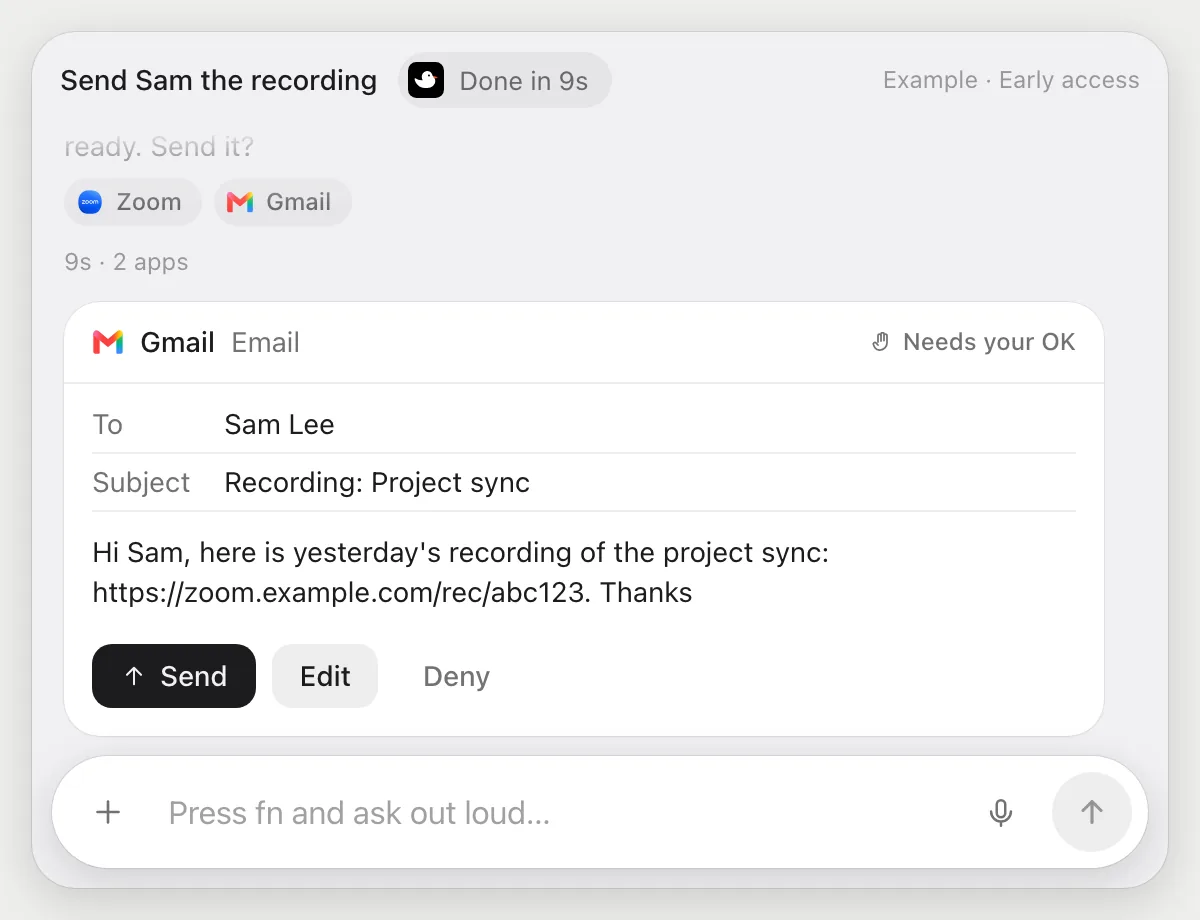
“Find yesterday's recording link and send it to Sam”
- 01Say which recording and who gets it.
- 02DuckyHelper opens your recordings on the web and finds yesterday's.
- 03It copies the share link and writes a message to Sam.
- 04It stops before sending and shows the message with Send, Edit and Deny.
Built to ask firstSam gets the link only after you press Send. Check who the recording is shared with.
You getSam has yesterday's recording, after you read the message.
Getting more out of it in Zoom.
- 01
Press fn (Ctrl+Shift+Space on Windows and Linux), ask, and close the pill. It sees the slide only while the pill is open.
- 02
Make the shared slide large on your screen so the labels are readable.
- 03
Before you press Send on a recording link, check who the recording can be seen by.
- 04
Sorting your calendar too? See the Google Calendar guide.
Questions about Zoom.
Do I need to connect my Zoom account?
No. There is nothing to connect. It sees what is on your screen while the pill is open, and for jobs (Early access) it uses Zoom on your computer or the web with its own cursor, signed in as you. It's built not to type your passwords or card numbers.
Does it join or record my meetings?
No. It never joins, records, transcribes or listens to meetings. It hears only you, and only while the pill is open.
Can it send invites without asking?
It's built to ask first: before an invite or a link goes out it shows it with Send, Edit and Deny and waits for your yes. It may not recognize every send or payment, so keep an eye on tasks that involve messages or money.
Can it hear the other participants?
No. It sees only your screen, so a shared slide is visible because it is on your screen, not because it has access to the meeting.



Do anything
Ask it a question or hand it a job, in any app.



Doing jobs for you is in early access on Mac. Asking works on Mac, Windows and Linux.