

How to use DuckyHelper in Slack
Slack moves faster than you can read. Ask DuckyHelper about the channel on your screen and it tells you what you missed and circles what needs you. You can also hand it a post or a DM to write for your OK, or draft answers when you are tagged (Early access).
Catch up on a busy channel
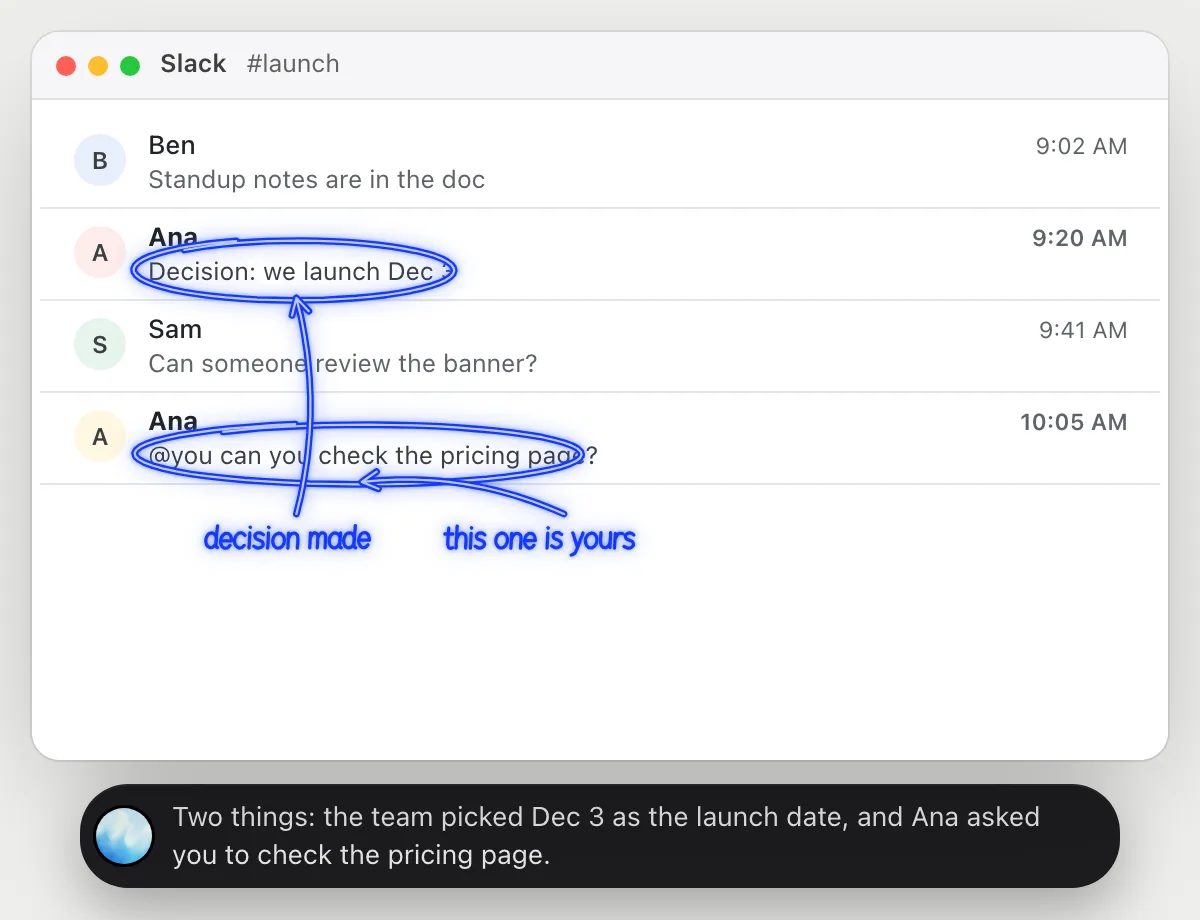
“What did I miss in #launch while I was out, and does anything need me?”
- 01Open the channel and scroll up to where you left off.
- 02Ask out loud. DuckyHelper reads the messages that are on the screen.
- 03It circles the one decision that was made and the message that tags you.
- 04Ask a follow-up, like who owns the pricing page, and it answers from the messages.
You getA short list of what happened and the one thing that is yours, without scrolling through every message.
 Two things: the team picked Dec 3 as the launch date, and Ana asked you to check the pricing page.
Post a thread's summary with the owners tagged
“Summarize this thread in #launch and tag who owns each next step”
- 01Open the thread and say where the summary should go.
- 02DuckyHelper reads every reply in the thread with its own cursor while you keep working.
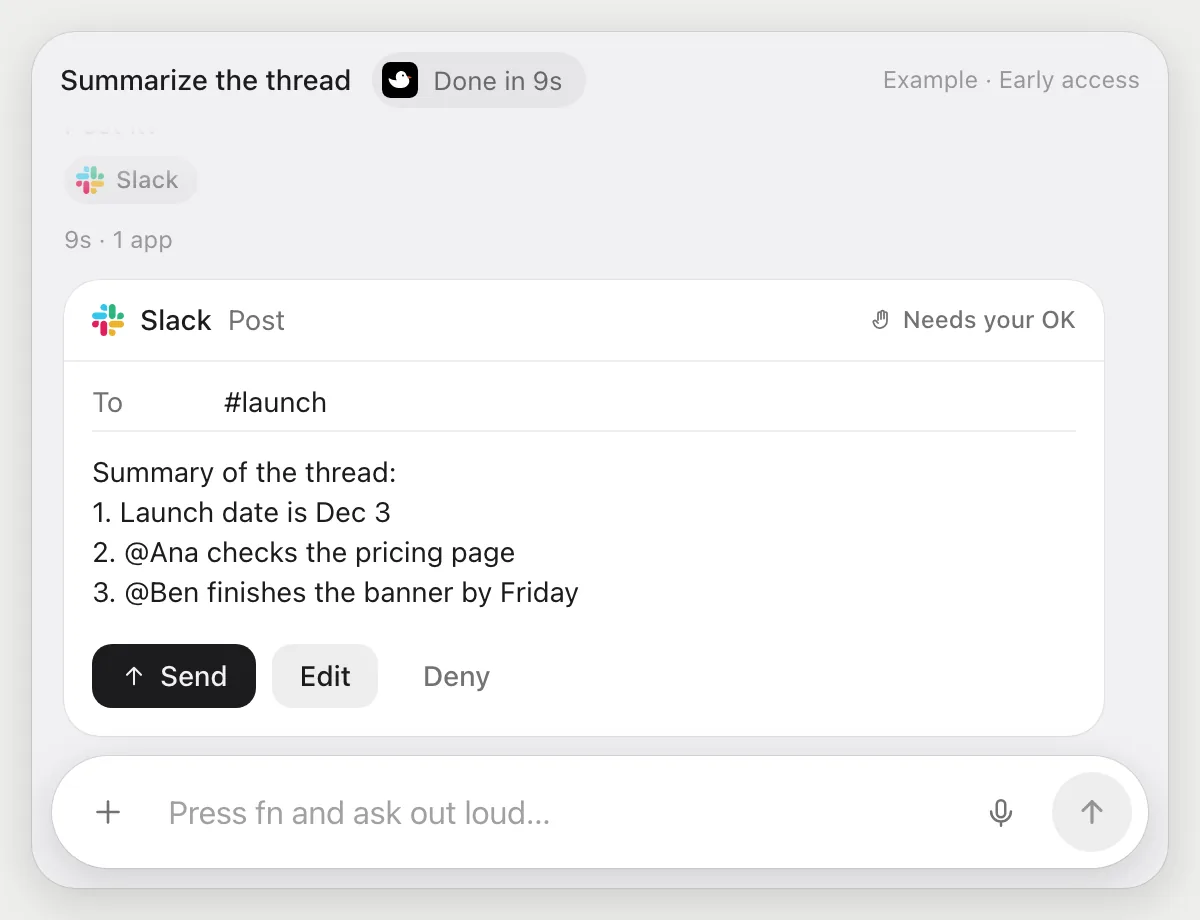
- 03It writes three short bullets and tags the person who owns each next step.
- 04It stops before posting and shows you the message with Send, Edit and Deny.
Built to ask firstNothing is posted in the channel until you press Send. Edit lets you change a line first.
You getA clear summary with owners, in the channel only after you have read it.
Find a file someone shared and pass it on
“Find the pricing doc Dana shared last week and send the link to Ben”
- 01Say who shared it and who should get it.
- 02DuckyHelper searches Slack for Dana's message and opens it.
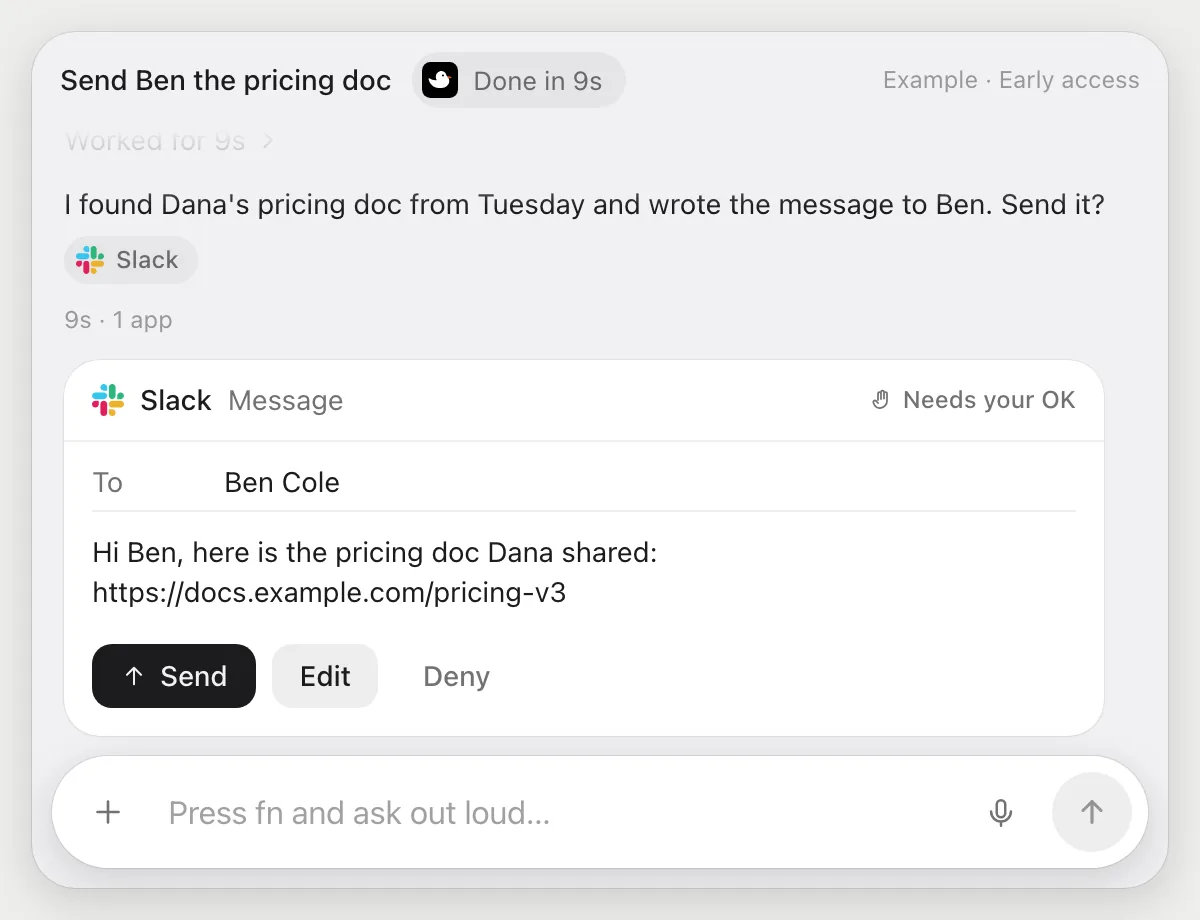
- 03It copies the link to the doc and writes a direct message to Ben.
- 04It stops on the message with Send, Edit and Deny.
Built to ask firstThe DM goes to Ben only after you press Send.
You getBen has the right link, and you did not dig through last week's messages.
Draft answers to questions you're tagged in
“When someone tags me with a question in #help, draft an answer and ask me before posting”
- 01Say it once with Slack open in your browser. It checks #help for open mentions right away.
- 02It learns Slack's own actions for finding mentions the first time, so later runs are quick.
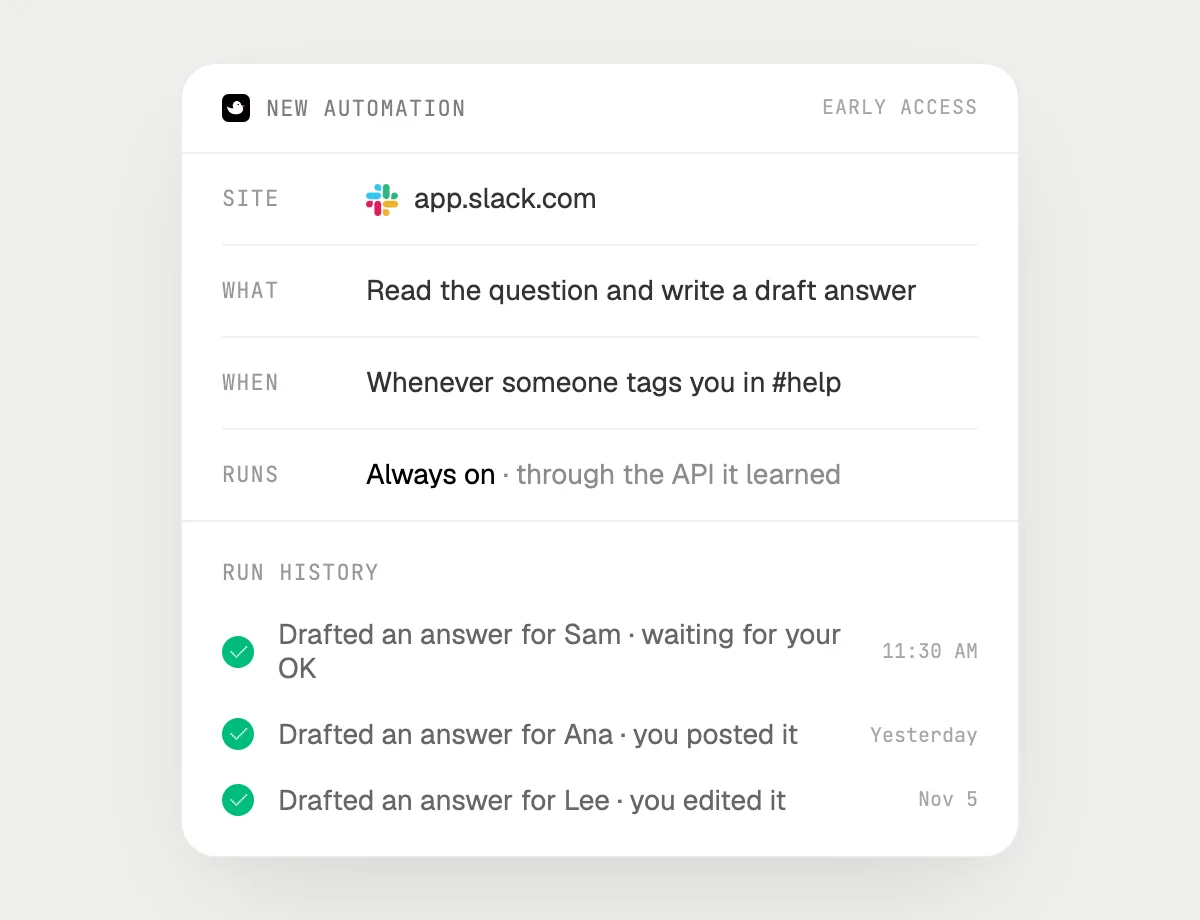
- 03Turn it on from the card it offers. It runs when someone tags you.
- 04Each run lands in the history with the draft waiting for you.
Built to ask firstIt only drafts. Posting an answer stops for your OK with Send, Edit and Deny.
You getEvery question that tags you has a draft ready, and each one waits for you before it is posted.

Getting more out of it in Slack.
- 01
Scroll to where you left off before you ask. It sees the messages on the screen, not the whole history.
- 02
Name people the way the channel does. "Dana's doc from last week" is enough to search.
- 03
For a long thread, ask who is waiting on whom before you decide what to answer.
- 04
Waiting on an email too? The Gmail guide works the same way.
Questions about Slack.
Do I need to add DuckyHelper to my Slack workspace?
No. It is not a Slack app or bot, and nothing is installed in the workspace. It sees what is on your screen while the pill is open, and for jobs (Early access) it uses Slack with its own cursor, signed in as you.
Can it post without asking me?
It's built to ask first: before any post or direct message it shows you the message with Send, Edit and Deny. It may not recognize every send or payment, so keep an eye on tasks that involve messages or money. Reading and drafting don't need your OK.
Does it see every channel?
No. It sees only channels you can already see, and only what is on your screen while the pill is open.
Does it type my password?
No. It's built not to type your passwords or card numbers. You sign in yourself.



Do anything
Ask it a question or hand it a job, in any app.


Doing jobs for you is in early access on Mac. Asking works on Mac, Windows and Linux.