

How to use DuckyHelper in Microsoft To Do
A To Do list grows by the day, and the overdue ones just sit there. Ask DuckyHelper about the list on your screen and it circles what you can finish quickly. Hand it the email-to-task step, the overdue reset or a nightly roll to tomorrow and it does it in To Do (Early access).
Find the quick wins
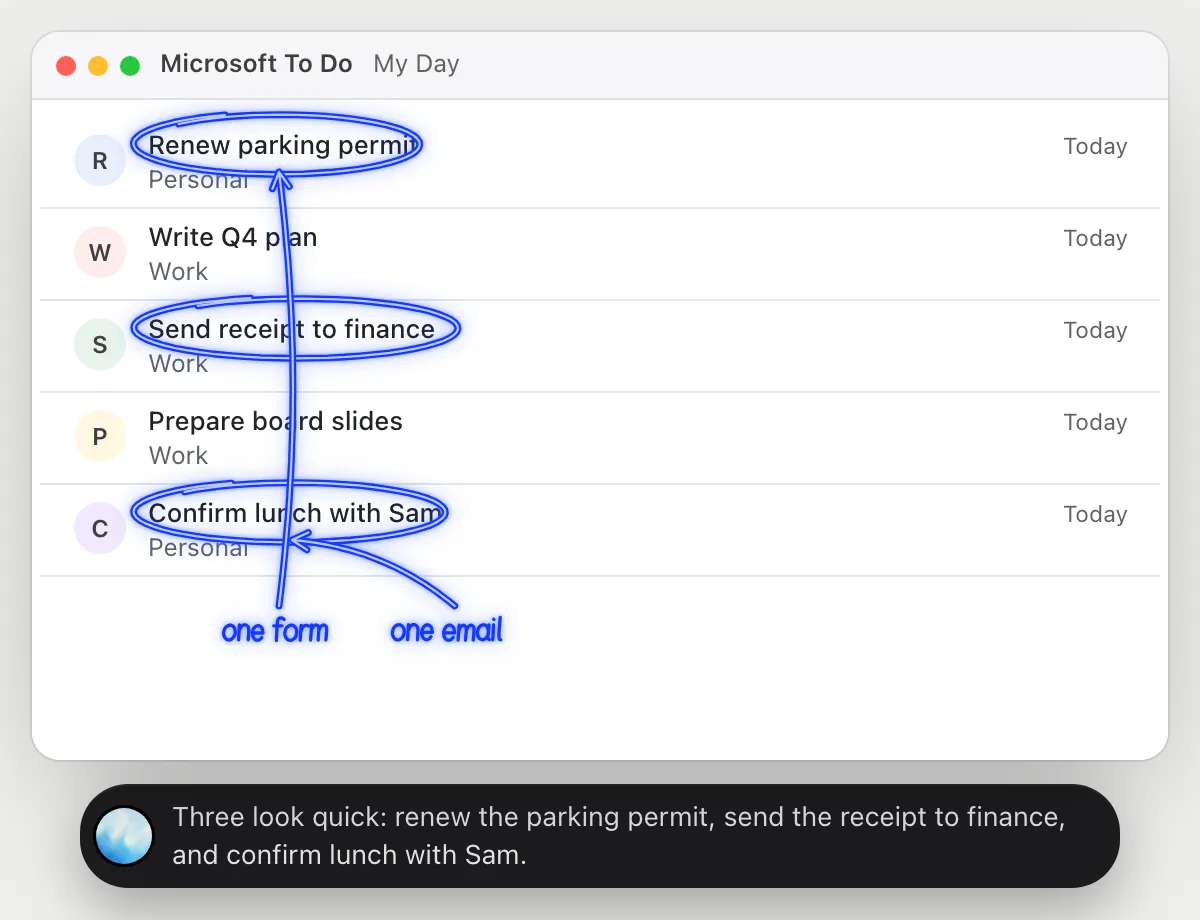
“Which of these can I finish in 15 minutes?”
- 01Open My Day so today's tasks are on screen, then ask out loud.
- 02DuckyHelper reads the task names and which list each one is from.
- 03It circles the ones that sound like a few minutes of work and says why.
- 04It leaves the bigger ones alone, and you can ask what to tackle after the quick ones.
You getThree tasks to clear before your next meeting, picked from the names on the list.
 Three look quick: renew the parking permit, send the receipt to finance, and confirm lunch with Sam.
Turn an email into a task
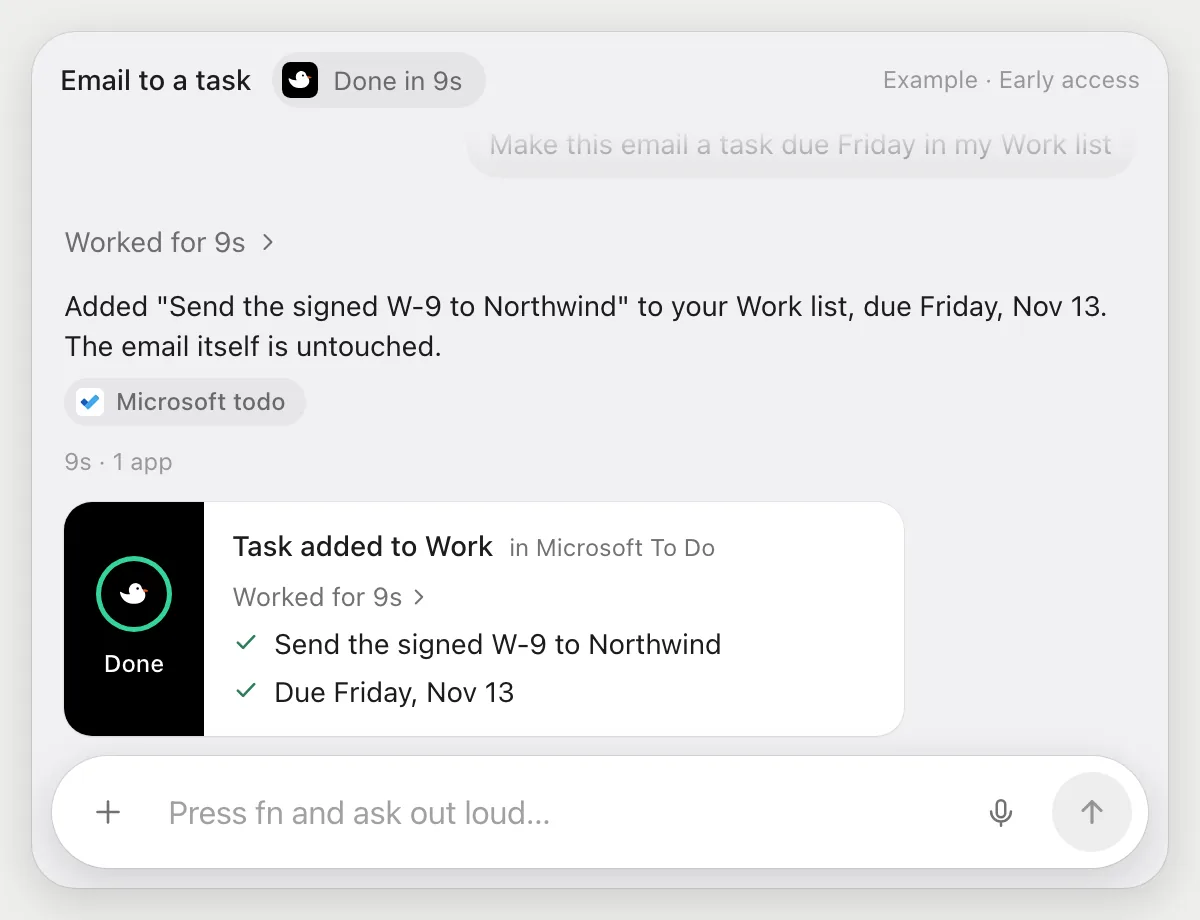
“Make this email a task due Friday in my Work list”
- 01Open the email you mean, in your mail app or in the browser.
- 02DuckyHelper reads it and finds the thing it asks of you.
- 03It switches to To Do and adds a task to the Work list with its own cursor, and sets the due date to Friday.
- 04It shows the new task with its title and date.
Built to ask firstAdding a task stays inside your list, so it needs no OK. It doesn't reply to the email or send anything.
You getThe email's request is a task with a Friday date, in the right list.
Push overdue tasks to tomorrow
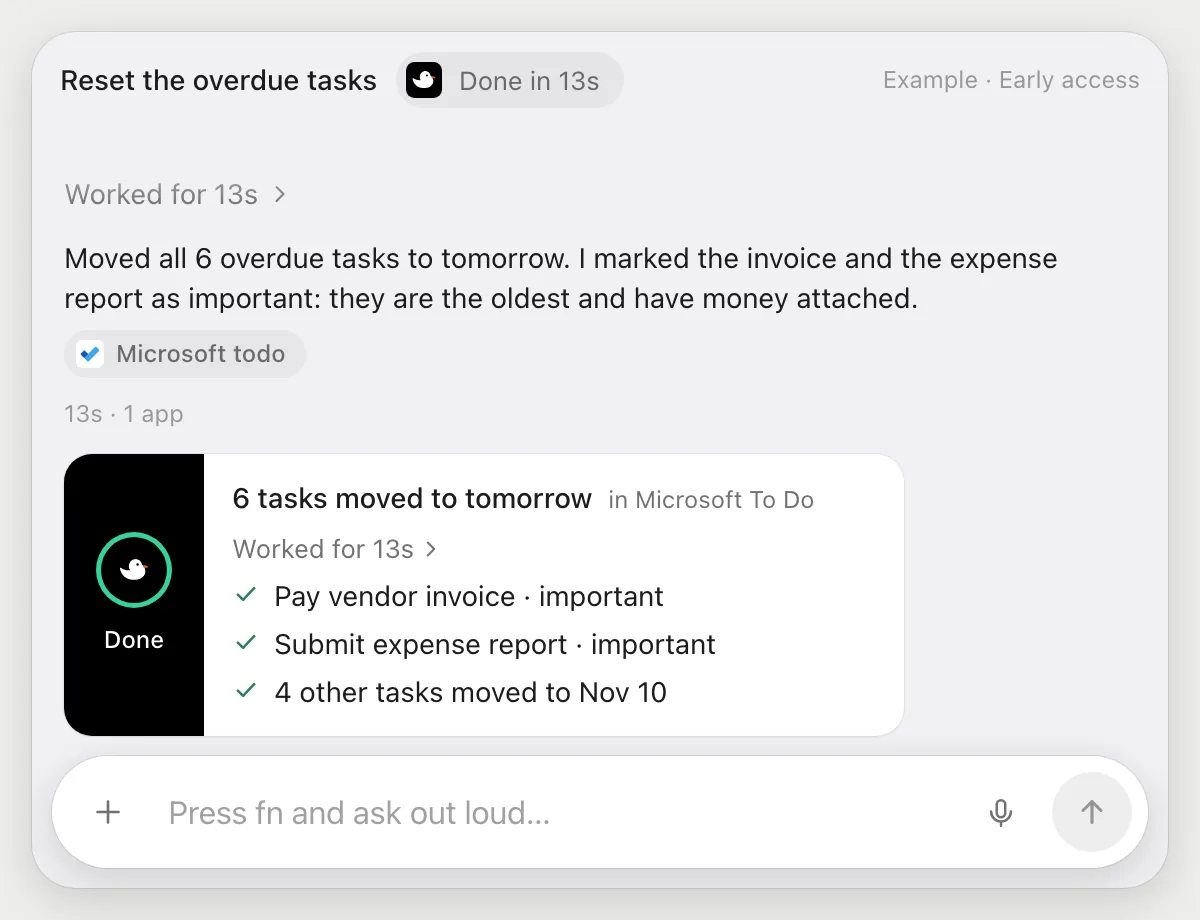
“Move everything overdue to tomorrow and mark the two most urgent as important”
- 01Open the list or view that shows your overdue tasks.
- 02DuckyHelper reads each overdue task and its original date.
- 03It moves each one to tomorrow with its own cursor, task by task.
- 04It picks the two that look most urgent from their names and dates, and marks them important.
- 05It shows you the six tasks with their new dates.
Built to ask firstMoving dates and marking important stay inside your list, so it needs no OK. If you want it to mark them differently, say so and it changes them.
You getNothing is overdue, and the two that matter most are marked for tomorrow.
Roll unfinished tasks forward
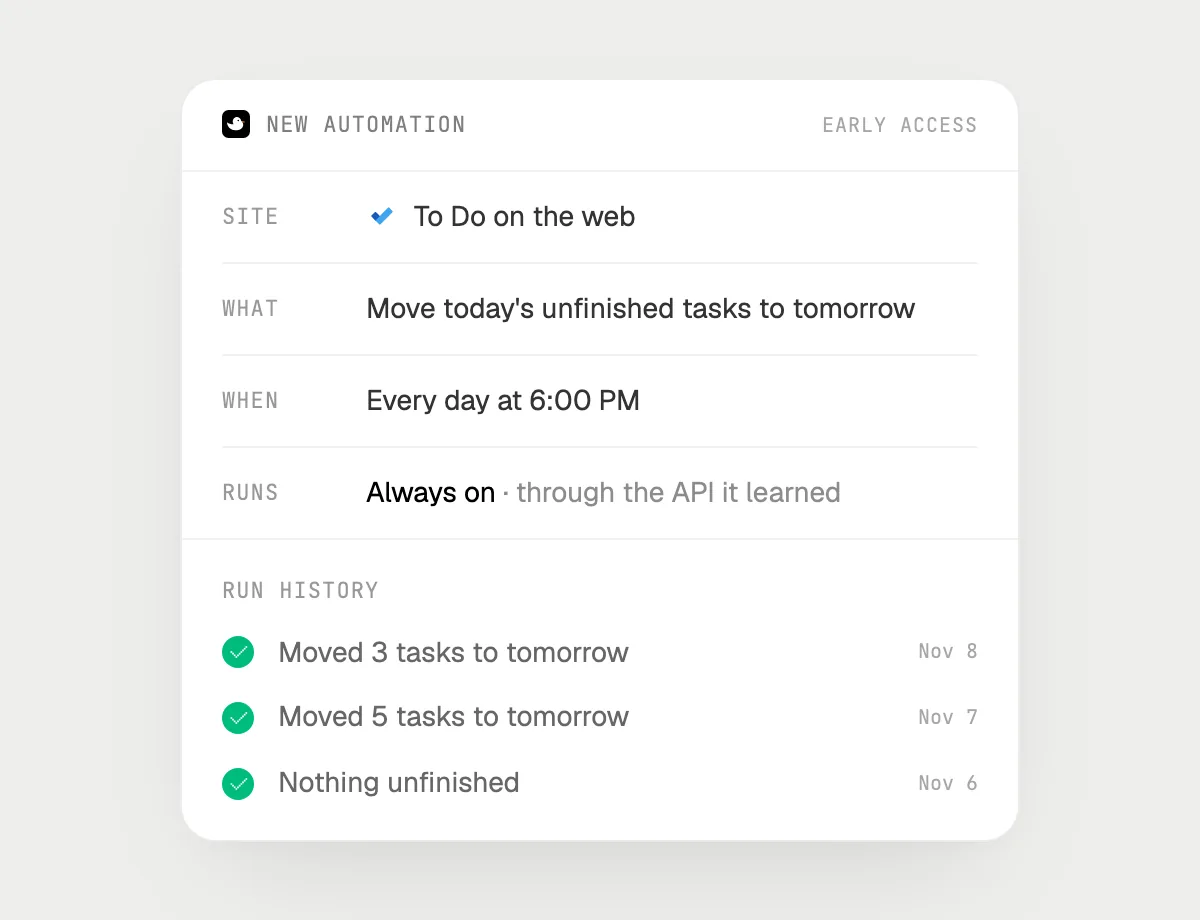
“Every evening at 6, move what I didn't finish today to tomorrow”
- 01Say it once with To Do open. It does tonight's roll right away so you can check it.
- 02It learns To Do's own actions the first time, so later runs are quick.
- 03Turn it on from the card it offers. It runs every evening at 6 from then on.
- 04Every run lands in the history with what moved.
Built to ask firstMoving your own tasks needs no OK, so it runs on its own. If you later add a step that emails or messages someone, it's built to ask before each send.
You getYou open To Do each morning with yesterday's leftovers already on today.

Getting more out of it in Microsoft To Do.
- 01
Ask from My Day or a single list. It answers about the tasks it can read on screen.
- 02
Say which list a task belongs to: "in my Work list" is enough for it to find the right one.
- 03
To mark just a few as important, name them or give the rule, like "the two oldest".
- 04
Many tasks come from mail. The Outlook guide shows how to ask about the email first.
Questions about Microsoft To Do.
Do I need to connect my Microsoft To Do account?
No. There is nothing to connect. It sees what is on your screen while the pill is open, and for jobs (Early access) it uses Microsoft To Do in your browser or window with its own cursor, signed in as you. It's built not to type your passwords or card numbers.
Will it send anything without asking me?
It's built to ask first before it sends a message or pays for anything, and to wait for your yes: it stops with Send, Edit and Deny (or a pay card for anything that costs money). That covers replying to an email or messaging someone. It may not recognize every send or payment, so keep an eye on tasks that involve messages or money. Reading, drafting and filling things in don't need your OK.
Does it work in the To Do desktop app?
Yes. It works with whatever is on your screen: the Windows or Mac app, or To Do in the browser. Phone apps aren't supported.
Is this the same as flagging an email for To Do?
No. That is a To Do feature of its own. DuckyHelper reads the email and adds the task for you, as a person would, only when you ask (Early access).


Do anything
Ask it a question or hand it a job, in any app.


Doing jobs for you is in early access on Mac. Asking works on Mac, Windows and Linux.