
How to use DuckyHelper in OneNote
OneNote is full of pages you meant to study. Ask DuckyHelper about the page on your screen and it pulls out the ideas, works problems on the blackboard and quizzes you with hints before answers. You can also hand it the tidying (Early access).
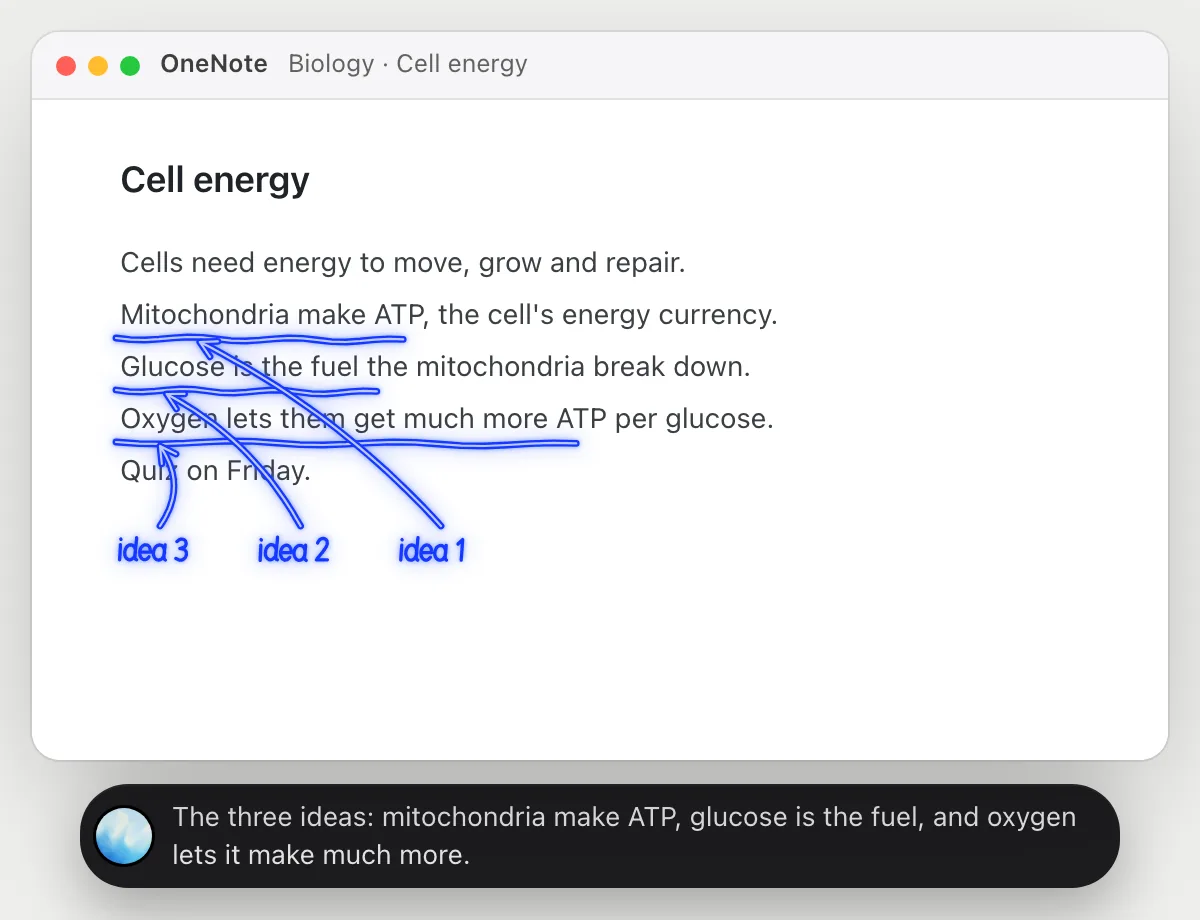
Pull the main ideas out of your notes
“What are the three main ideas on this page?”
- 01Open the page so the notes are on the screen.
- 02Ask out loud. DuckyHelper reads the page.
- 03It underlines the three lines that carry the lesson and numbers them.
- 04Ask it to say each one in your words and check yours.
You getThree ideas to remember from a full page of notes.
 The three ideas: mitochondria make ATP, glucose is the fuel, and oxygen lets it make much more.
Work a problem from your notes on the blackboard
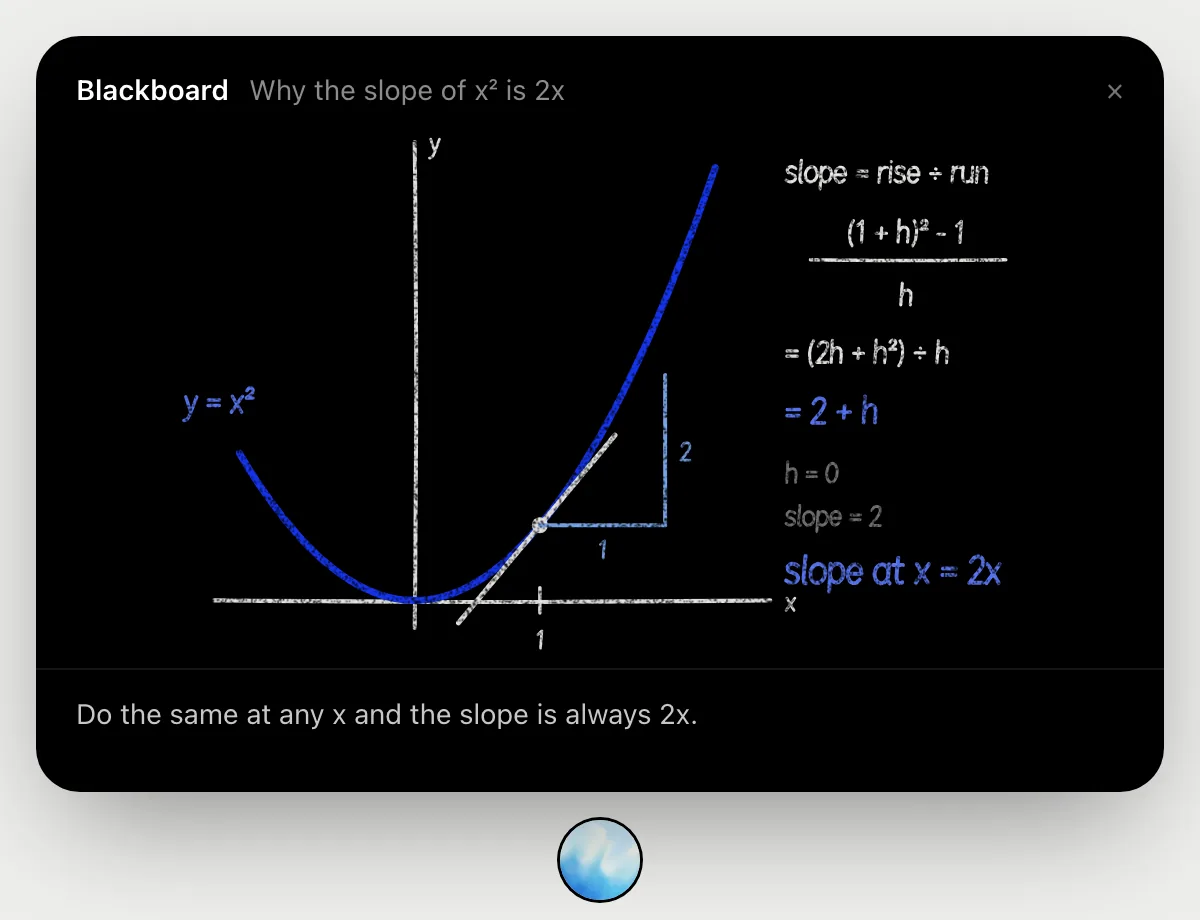
“Work this problem from my notes out on the blackboard, step by step”
- 01Show the problem you copied into your notes.
- 02Ask out loud. DuckyHelper opens the blackboard.
- 03It draws the curve and the point, and works one step at a time as it talks.
- 04Say stop or ask why at any step. It gives hints first, and the final answer when you ask.
You getYou follow each step and can check your own answer against the board.
Get quizzed on a page
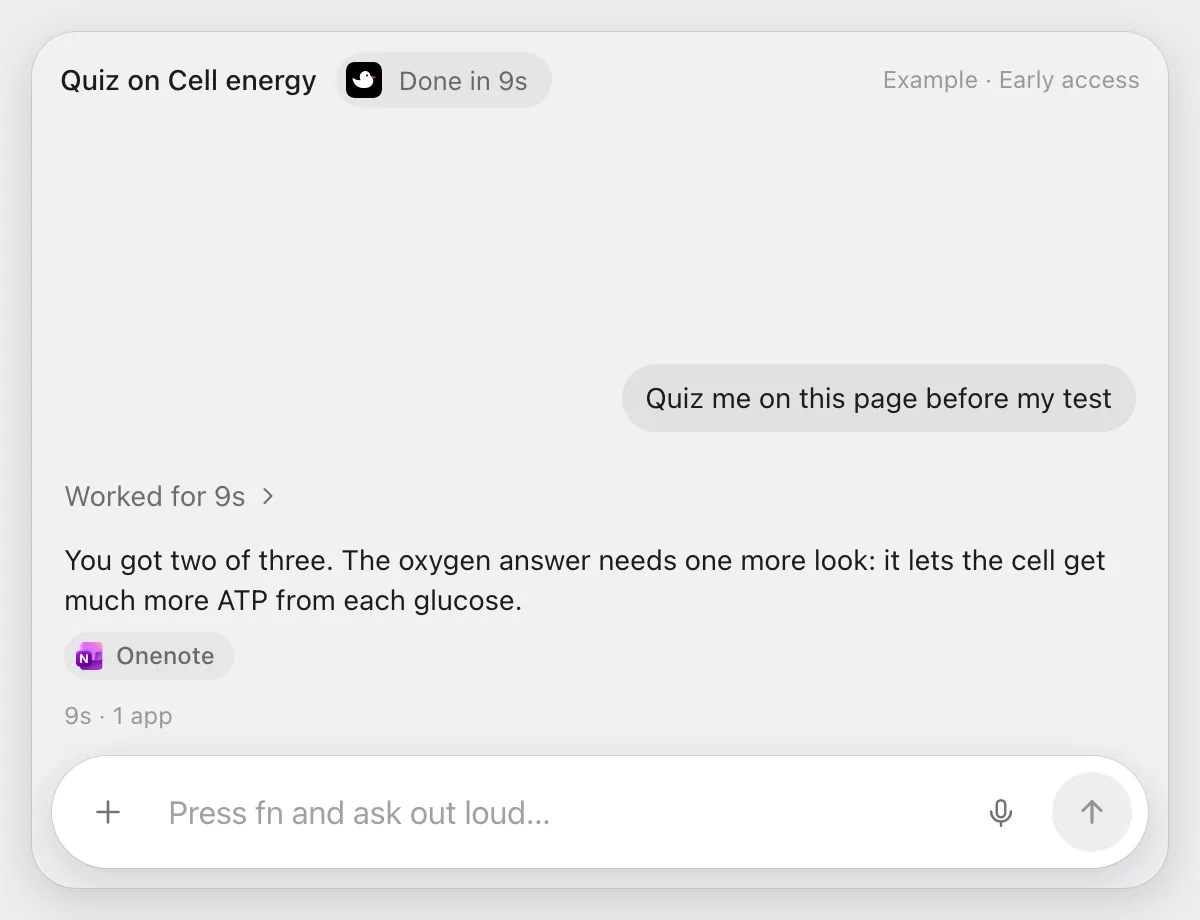
“Quiz me on this page before my test”
- 01Open the page you are studying.
- 02Ask out loud. DuckyHelper reads the page and asks one question at a time.
- 03If you are stuck it gives a hint first, and the answer only if you ask.
- 04It says how you did at the end and which line to reread.
You getThree questions from your own page, and one line to reread before the test.
Turn a page into a checklist
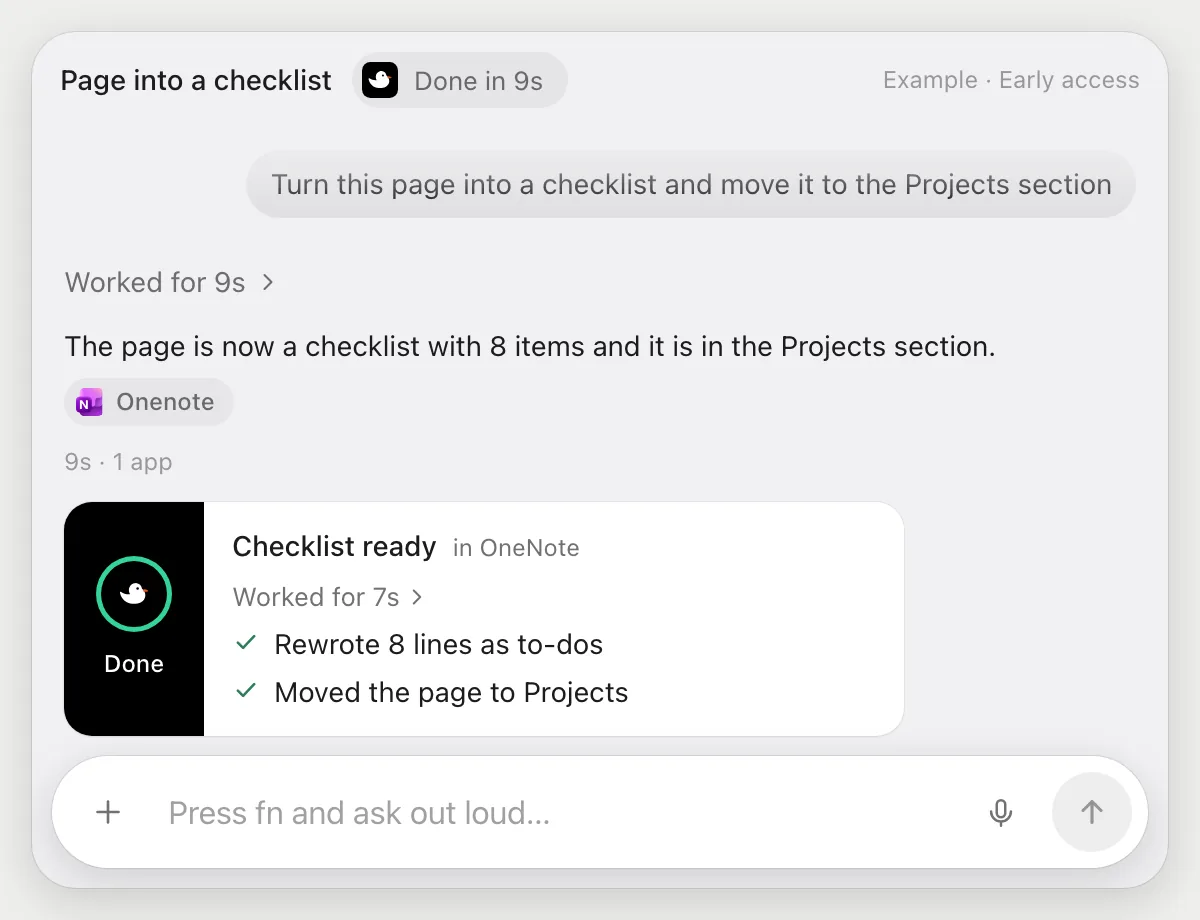
“Turn this page into a checklist and move it to the Projects section”
- 01Open the page and say where it should go.
- 02DuckyHelper rewrites the lines as to-dos with its own cursor while you keep working.
- 03It moves the page to the Projects section.
- 04It finishes with a done card showing what it changed.
Built to ask firstRewriting and moving a page needs no OK. Nothing is sent, so it does not stop to ask.
You getThe page is a checklist and sits in the right section.
Getting more out of it in OneNote.
- 01
When you study, say "hint first". It gives a hint before the answer.
- 02
Type or paste the problem into the page. It reads text on the screen, not handwriting.
- 03
Ask for a quiz on one section at a time. Shorter quizzes are easier to remember.
- 04
Writing in Word? See the Word guide.
Questions about OneNote.
Do I need to connect my OneNote account?
No. There is nothing to connect. It sees what is on your screen while the pill is open, and for jobs (Early access) it uses OneNote on your computer or the web with its own cursor, signed in as you. It's built not to type your passwords or card numbers.
Does it just give me the answers?
When you study it gives hints first and the answer when you ask. You can ask it to explain any step.
Does it read my handwriting?
It reads what is on the screen. Typed text works best, and it makes no promise about handwritten ink.
Does it see everything in your notebooks?
No. When you ask a question it looks only at what is on your screen, and only while the pill is open. A job or automation you start (Early access) opens only the pages that job needs.


Do anything
Ask it a question or hand it a job, in any app.




Doing jobs for you is in early access on Mac. Asking works on Mac, Windows and Linux.