

How to use DuckyHelper in Google Workspace
Your Google account is Gmail, Calendar, Drive, Docs and Sheets, and a job often crosses them. Ask DuckyHelper about the Drive list on your screen, or hand it a job that moves between the tabs. It's built to ask before it sends (Early access).
Find the latest version of a file
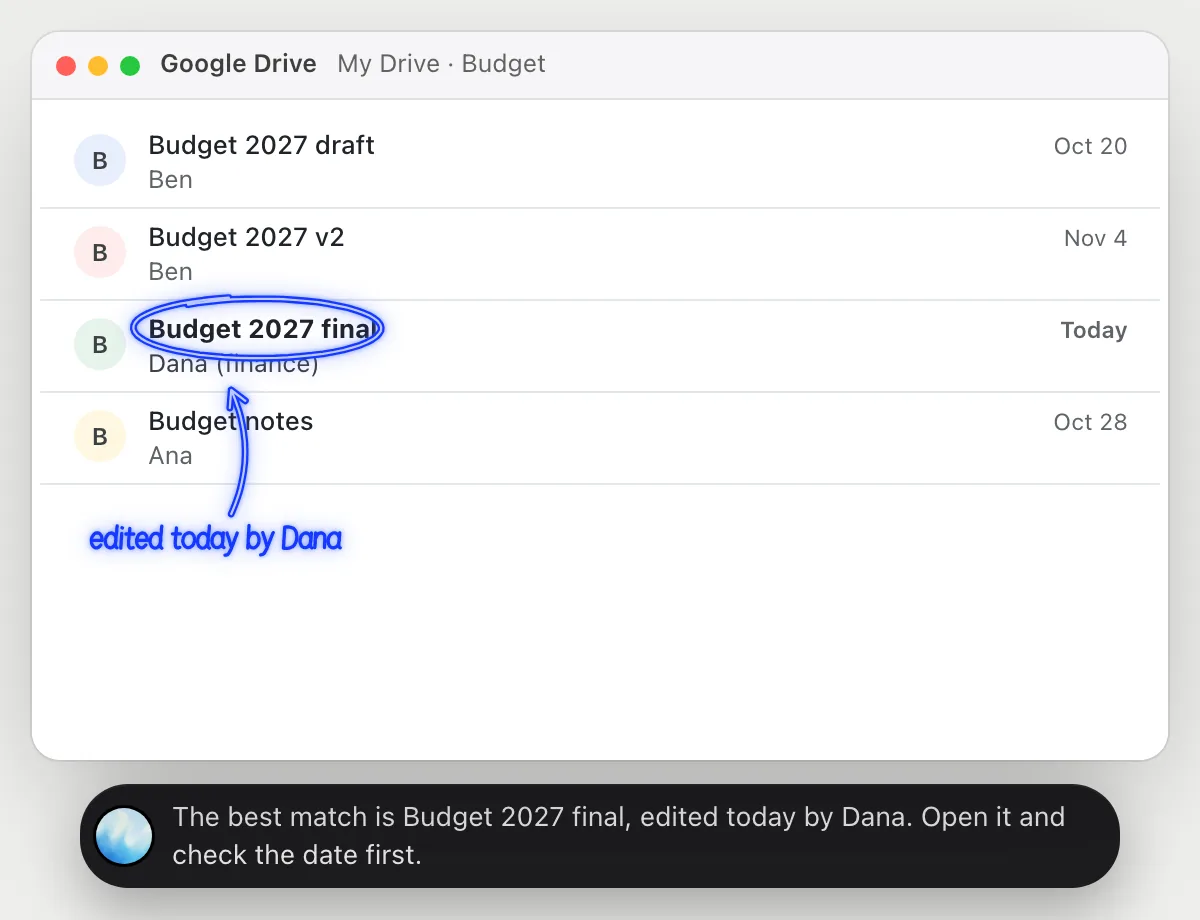
“Which of these files is the final version of the budget?”
- 01Open Drive with the list of files on the screen.
- 02Ask out loud. DuckyHelper reads the names, owners and when each was modified.
- 03It circles the one edited most recently by the person who owns the budget.
- 04It says why it picked that one and what to check before you rely on it.
You getThe file to open, instead of guessing between three similar names.
 The best match is Budget 2027 final, edited today by Dana. Open it and check the date first.
Pull a number from a sheet into an email
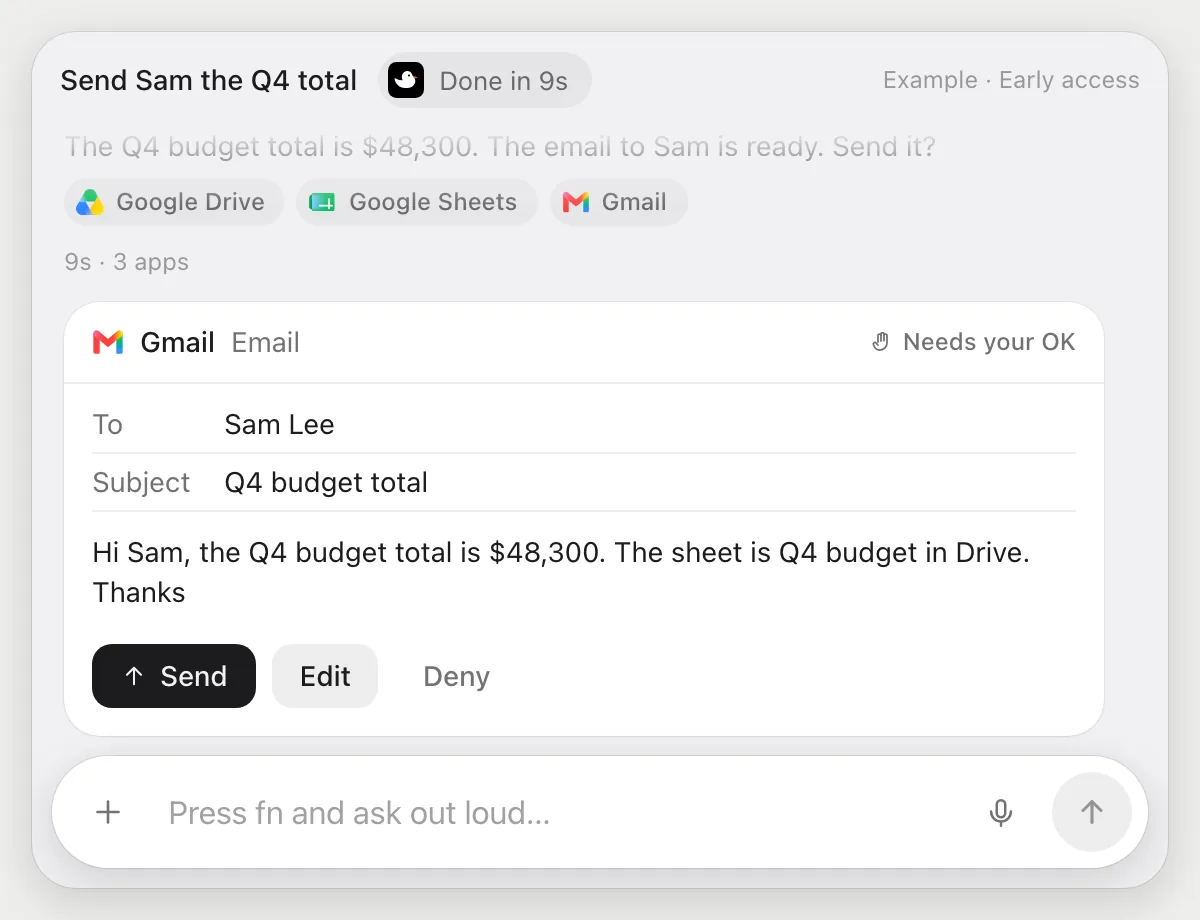
“Find the Q4 budget sheet, take the total and email it to Sam”
- 01Say which sheet and which number to send.
- 02DuckyHelper searches Drive for the sheet and opens it with its own cursor.
- 03It reads the total and writes an email to Sam in Gmail.
- 04It stops before sending and shows the email with Send, Edit and Deny.
Built to ask firstSam gets the email only after you press Send.
You getSam has the Q4 total, from the real sheet, after you read the email.
Book a meeting and attach the brief
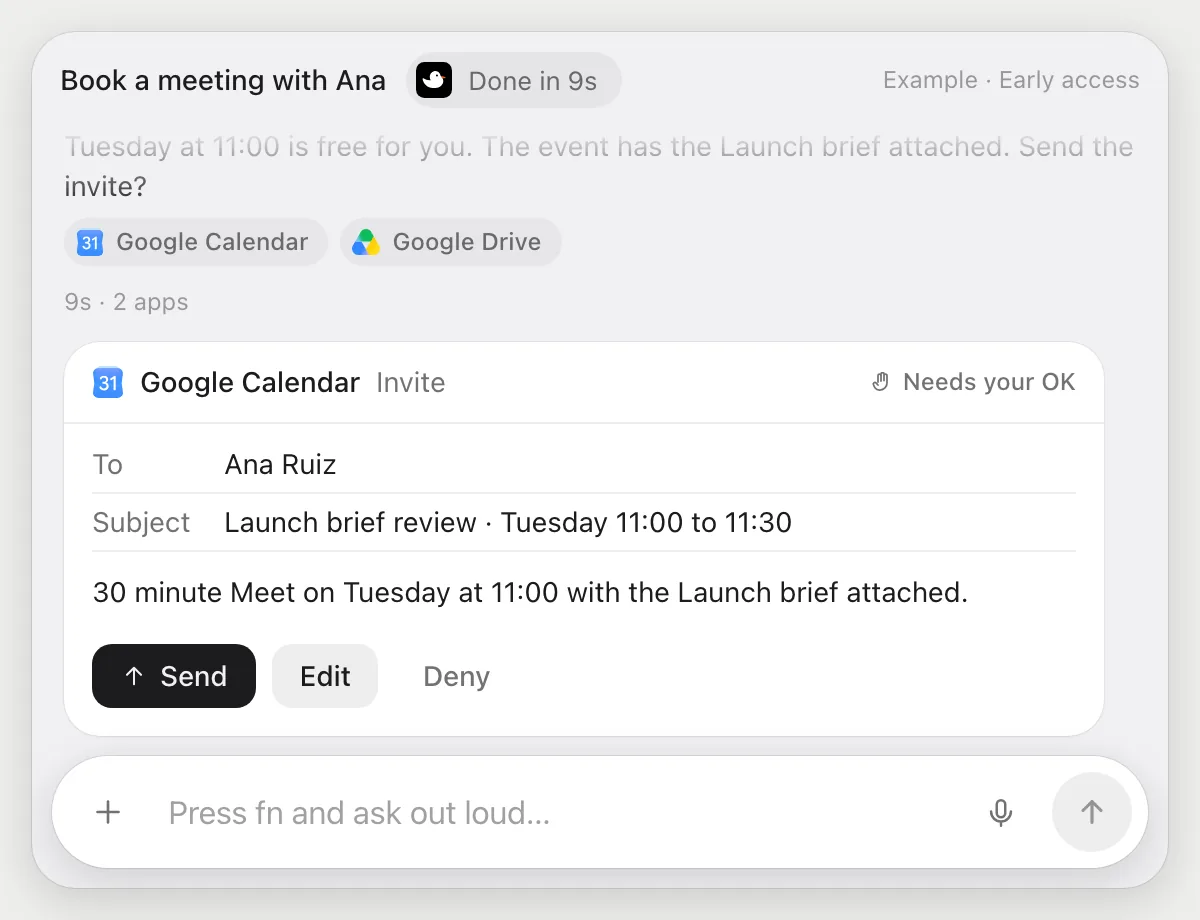
“Book a 30 minute Meet with Ana next week and attach the brief from Drive”
- 01Say who, how long, and which file to attach.
- 02DuckyHelper looks at your Calendar for a free time next week.
- 03It creates the event with a Meet link and attaches the brief from Drive.
- 04It stops before the invite goes out and shows the details with Send, Edit and Deny.
Built to ask firstAna is invited only after you press Send.
You getA meeting with the brief attached, invited after you checked the time.
Collect the week's meeting notes
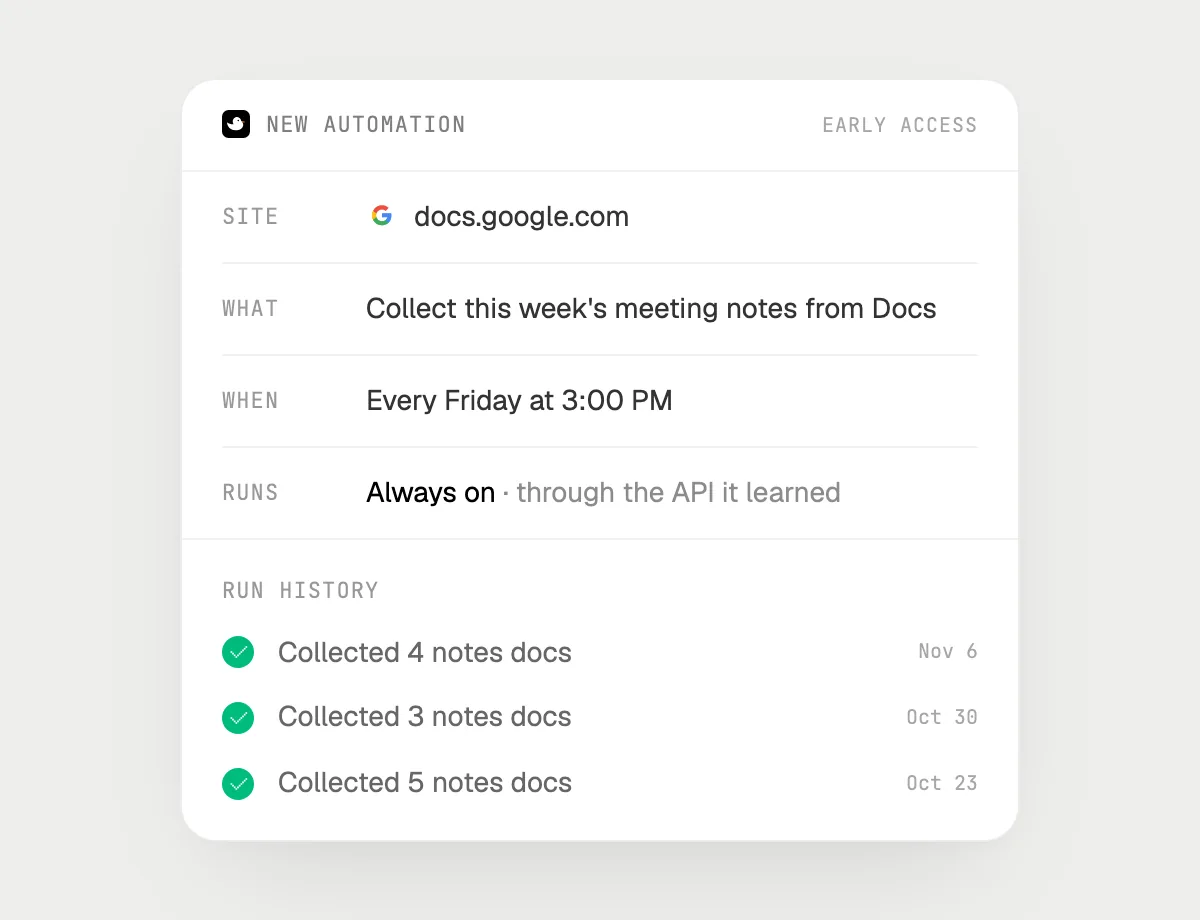
“Every Friday at 3, collect this week's meeting notes from Docs into one summary doc”
- 01Say it once with Docs open. It builds this week's summary right away so you can check it.
- 02It learns the site's own actions the first time, so each Friday's run is quick.
- 03Turn it on from the card it offers. It runs every Friday at 3.
- 04Each run lands in the history with the notes it collected.
Built to ask firstCollecting notes needs no OK. Sharing the summary or sending anything is built to wait for your OK.
You getA summary doc of the week's notes, ready before the weekend.

Getting more out of it in Google Workspace.
- 01
Start in the tab where the job begins. Drive for a file, Calendar for a time.
- 02
Name the file the way it appears in Drive. "The Q4 budget sheet" is enough to search.
- 03
For any job that sends, check the email or invite on the card before you press Send.
- 04
Just email? The Gmail guide goes deeper.
Questions about Google Workspace.
Is DuckyHelper connected to my Google account?
No. There is nothing to connect. It uses Google in your browser with its own cursor, signed in as you, and for jobs that is Early access. It's built not to type your passwords or card numbers.
Can it send email or invites without asking?
It's built to ask first: before any email or invite goes out it shows it with Send, Edit and Deny and waits for your yes. It may not recognize every send or payment, so keep an eye on tasks that involve messages or money.
Does it use the Workspace admin console?
No. It does nothing in admin settings. It works in the apps on your screen like a person does.
Does it see everything in your Google account?
No. When you ask a question it looks only at what is on your screen, and only while the pill is open. A job or automation you start (Early access) opens only the pages that job needs.



Do anything
Ask it a question or hand it a job, in any app.

Doing jobs for you is in early access on Mac. Asking works on Mac, Windows and Linux.