

How to use DuckyHelper in HighLevel
In HighLevel, a lead goes cold when a message sits unanswered. Ask DuckyHelper about the conversations on your screen and it circles the ones still waiting for you. Hand it the replies, the pipeline moves or a reminder rule and it works in HighLevel for you (Early access).
See which conversations wait for a reply
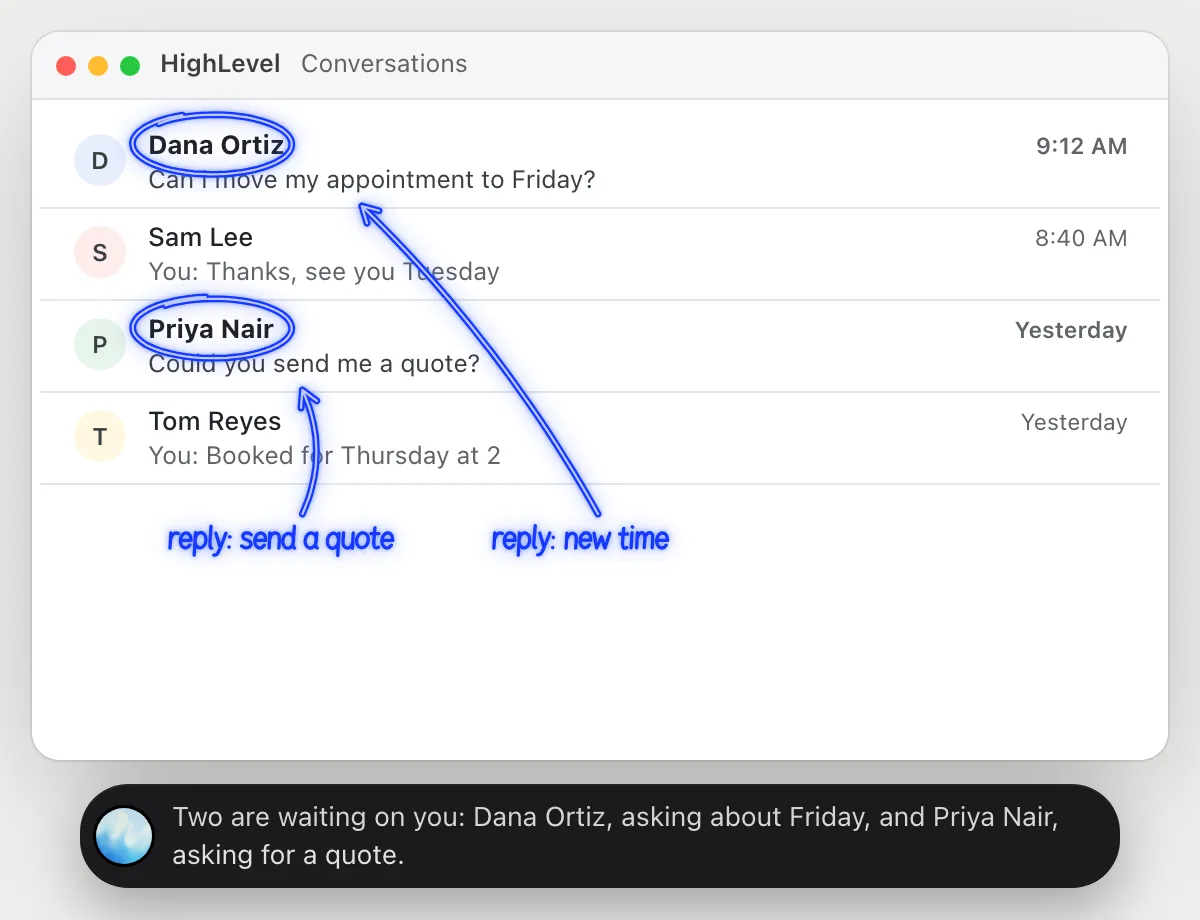
“Which of these conversations are still waiting for a reply?”
- 01Open Conversations so the list is on screen, then ask out loud.
- 02DuckyHelper reads each conversation's last message and who wrote it.
- 03It circles the ones where the last message is from the contact.
- 04Ask which came in first and it compares the times.
You getThe leads you still owe an answer, found without opening each conversation.
 Two are waiting on you: Dana Ortiz, asking about Friday, and Priya Nair, asking for a quote.
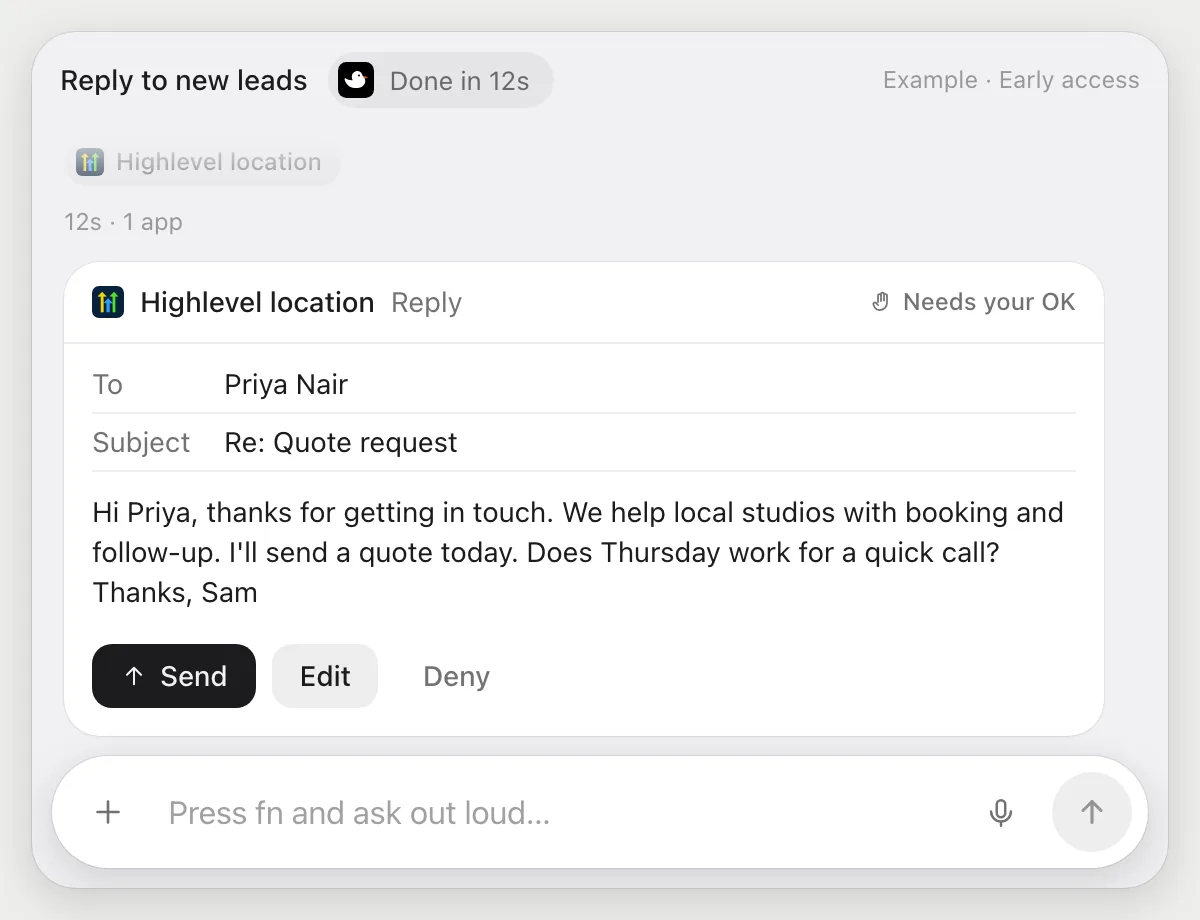
Reply to new leads
“Reply to the three new leads with our intro and wait for my OK”
- 01Open Conversations with the three new leads showing.
- 02DuckyHelper reads what each lead asked.
- 03It writes a short reply for each that adds your intro and answers their question.
- 04Replies go to people, so it shows each with Send, Edit and Deny and waits.
- 05Press Send on the good ones, edit the rest, or Deny and nothing goes out.
Built to ask firstEvery reply is shown with Send, Edit and Deny first. Nothing goes out until you press Send on that reply.
You getThree replies written for you, each one sent only after you read it.
Move opportunities to the right stage
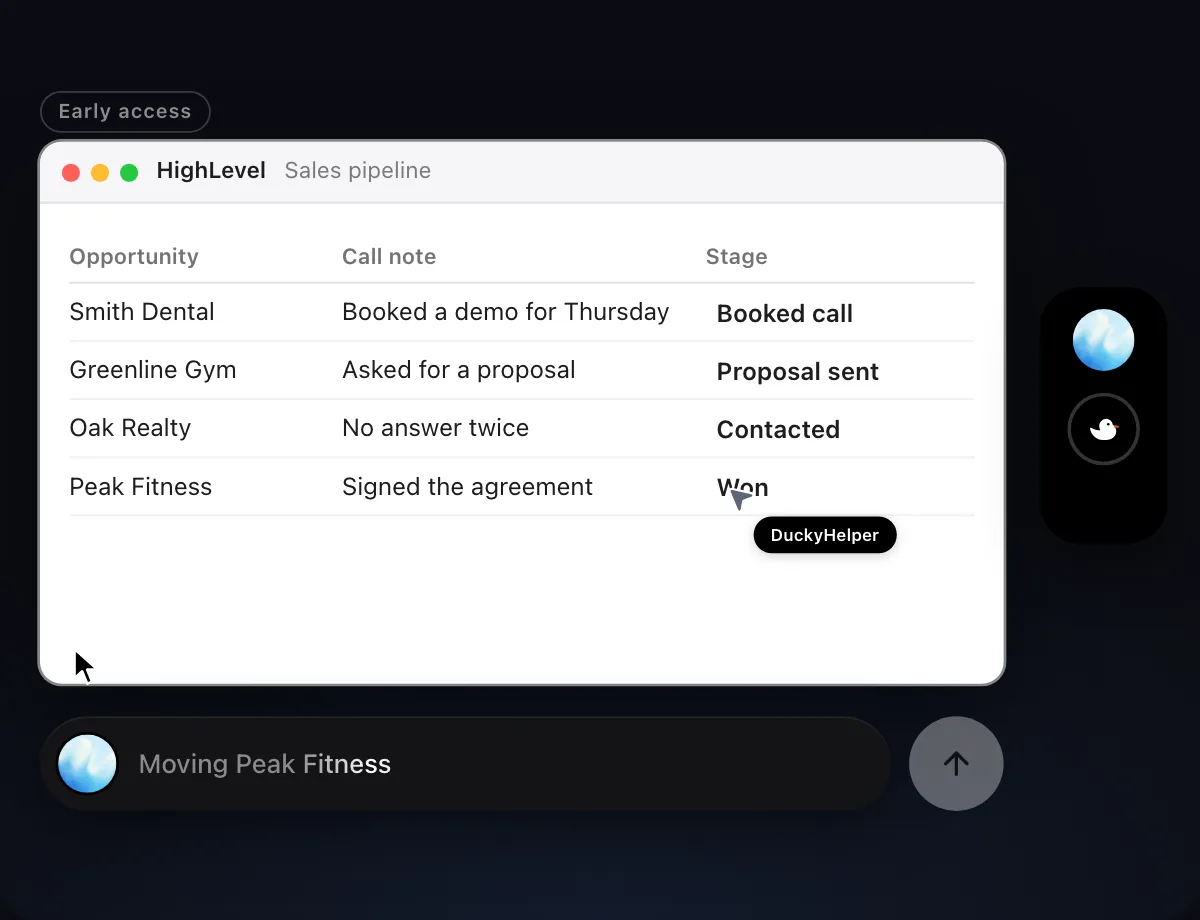
“Move each opportunity to its stage from today's call notes”
- 01Open the pipeline and have today's call notes on screen.
- 02DuckyHelper reads the notes and matches each one to an opportunity.
- 03It picks the stage that fits from your pipeline's own stages.
- 04It moves each opportunity with its own cursor, one at a time.
- 05It shows the pipeline so you can check each one.
Built to ask firstMoving opportunities stays inside your account, so it needs no OK. If a move would send a message to the contact, it's built to stop and ask first.
You getThe pipeline matches what happened on today's calls.

Remind booked leads the day before
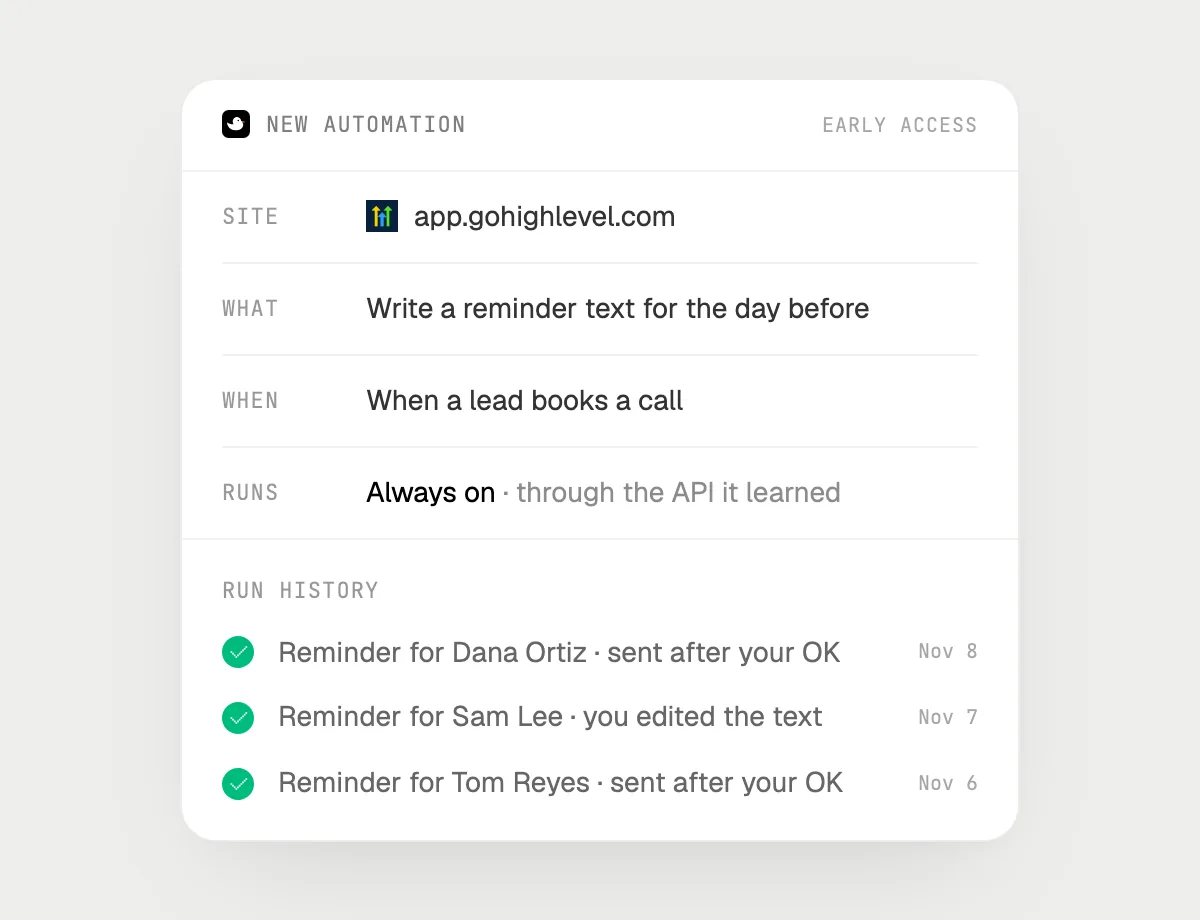
“When a lead books a call, text them a reminder the day before, asking me first”
- 01Say it once with HighLevel open. It checks today's bookings as a first run.
- 02It learns HighLevel's own actions the first time, so later runs are quick.
- 03Turn it on from the card it offers. It starts whenever a lead books a call.
- 04The day before the call, it writes the reminder text and stops with Send, Edit and Deny.
- 05Each run lands in the history. This is separate from HighLevel's own workflows.
Built to ask firstA text goes to a person, so each reminder is shown with Send, Edit and Deny first. It's built to wait for your OK before anything is sent.
You getBooked leads get a reminder the day before, and you read each one first.
Getting more out of it in HighLevel.
- 01
Open the right sub-account before you ask. It works in the account on your screen.
- 02
Show Conversations sorted by latest. The last message is the clue it reads.
- 03
Give your intro in a sentence or two. The same words open every reply.
- 04
Booking details live in your calendar. The Calendly guide covers that side.
Questions about HighLevel.
Do I need to connect my HighLevel account?
No. There is nothing to connect. It sees what is on your screen while the pill is open, and for jobs (Early access) it uses HighLevel in your browser or window with its own cursor, signed in as you. It's built not to type your passwords or card numbers.
Will it send anything without asking me?
It's built to ask first before it sends a message or pays for anything, and to wait for your yes: it stops with Send, Edit and Deny (or a pay card for anything that costs money). That covers replies and texts to leads. It may not recognize every send or payment, so keep an eye on tasks that involve messages or money. Reading, drafting and filling things in don't need your OK.
Does it use HighLevel's workflows?
No. HighLevel has its own workflows. DuckyHelper works in HighLevel the way a person at the screen does, separately from them.
Does it work across all my sub-accounts?
No. It works in the sub-account on your screen. To use another, switch to it yourself first.



Do anything
Ask it a question or hand it a job, in any app.



Doing jobs for you is in early access on Mac. Asking works on Mac, Windows and Linux.